GitHub integration
Authenticate your sessions to GitHub as you with the Bitrise GitHub App integration. In every new session, git clone, git push, and the GitHub CLI (gh) work over HTTPS out of the box without needing to paste personal access tokens or manage SSH keys.
OverviewClick to copy link
When you enable the integration, Bitrise plants a short-lived GitHub access token on each new session machine, issued through your GitHub account connection on Bitrise (the Bitrise GitHub App):
- Tokens are valid for at most eight hours and refresh automatically for the whole lifetime of the session, including restores.
- No long-lived credential is ever stored on the machine.
- Commits you author in a session are attributed to your GitHub account, using your GitHub noreply email address so your real email address is never exposed.
Enabling the integrationClick to copy link
-
Open Bitrise.
-
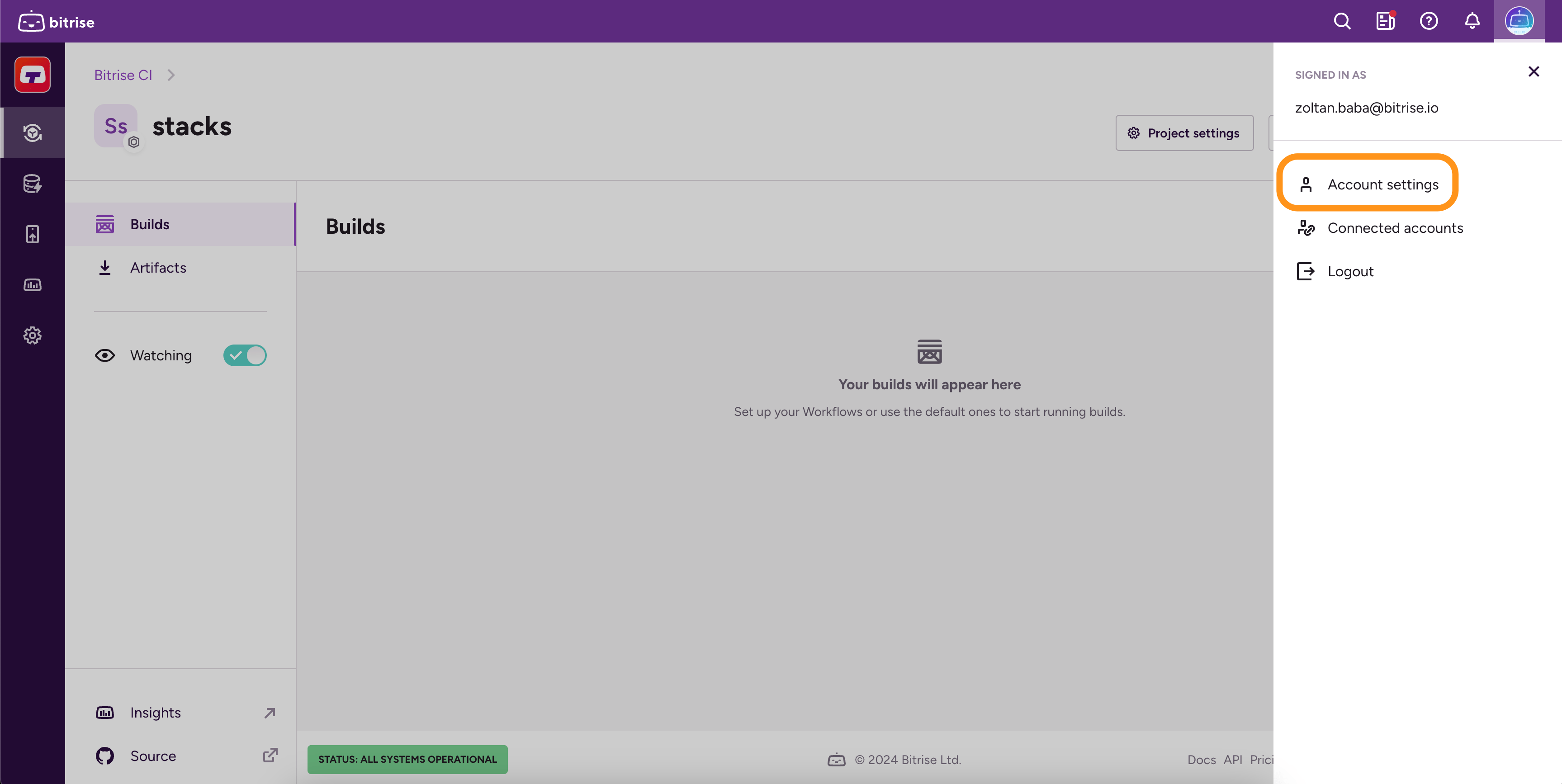
Log in to Bitrise and click the profile image in the upper right corner to open the dropdown menu.
-
Select the Account settings option.
-
Select Connected accounts, then connect GitHub through the Bitrise GitHub App.
Workspace-level GitHub App connections don't countThis integration checks your personal GitHub account connection, not a GitHub App installed at the Workspace level. Even if your organization's admin already connected the Bitrise GitHub App for CI, you still need to connect your own account on the Connected accounts page.
-
In the Bitrise RDE UI, select Saved Inputs on the left, under User settings.
-
On the GitHub card, check that your account shows as connected, then enable the toggle.
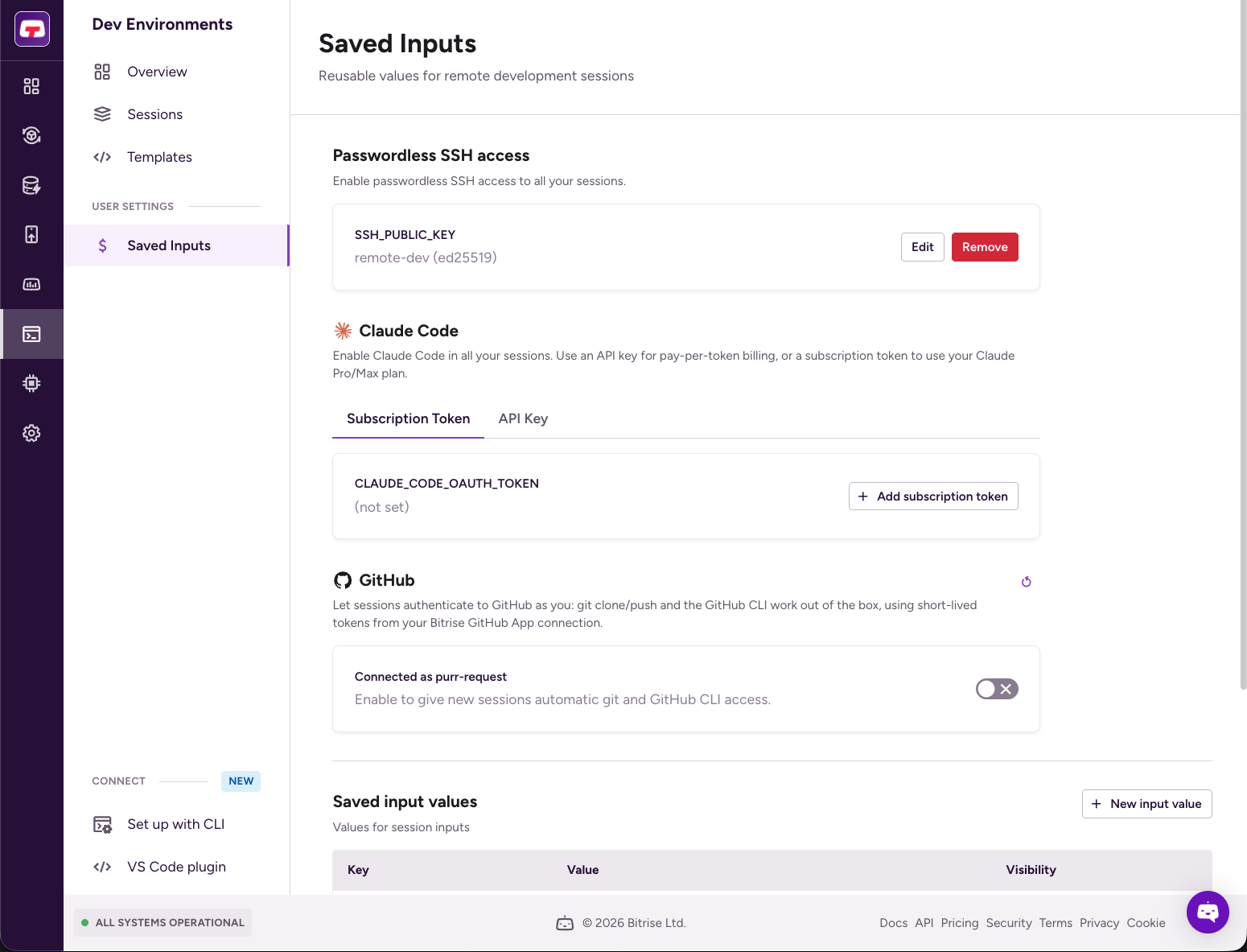
New sessions you create from this point get automatic GitHub access. Sessions created before you enabled the integration are not changed.
Repositories you can accessClick to copy link
Sessions act as you through the Bitrise GitHub App, so a session can access the repositories that meet both conditions:
- You have access to the repository on GitHub.
- The Bitrise GitHub App is installed on the repository.
If a clone fails with "repository not found" for a repository you can open in the browser, the Bitrise GitHub App isn't installed on that repository or organization. Ask an organization admin to install the app there.
To check which repositories the app is installed on:
- On GitHub, open the installed GitHub Apps page for your account, or your organization's, if the app is installed at the organization level.
- Find Bitrise in the list and select Configure.
- Under Repository access, review the repositories the installation is scoped to.
Disabling the integrationClick to copy link
Disabling the integration stops credential issuance immediately: new sessions no longer receive credentials, running sessions immediately stop being able to refresh theirs, and the most recently issued token expires within eight hours.
- In the Bitrise RDE UI, select Saved Inputs on the left, under User settings.
- On the GitHub card, turn off the toggle.