Saved inputs
A saved input is a reusable value or credential that you store once and map into sessions as needed. Saved inputs are scoped to your user account rather than a single workspace, and secret values are encrypted at rest.
The GitHub card on the same screen isn't a saved input: it toggles the GitHub integration, which gives your sessions automatic git and GitHub CLI authentication — no token to store.
Common saved inputsClick to copy link
Some saved inputs have a dedicated purpose:
- SSH public key: registered as
SSH_PUBLIC_KEY, this lets you connect to your sessions over SSH without a password. See Connecting to a session. - Claude Code credential: a
CLAUDE_CODE_OAUTH_TOKENorANTHROPIC_API_KEYvalue so sessions start with Claude Code already authenticated. - Custom values: any key-value pair your environment needs, such as an API token or a registry login. Mark it as secret to encrypt it.
Configuring passwordless SSH accessClick to copy link
To connect to your sessions over SSH without a password, add your SSH public key:
-
Select Saved Inputs on the left, under User settings.
-
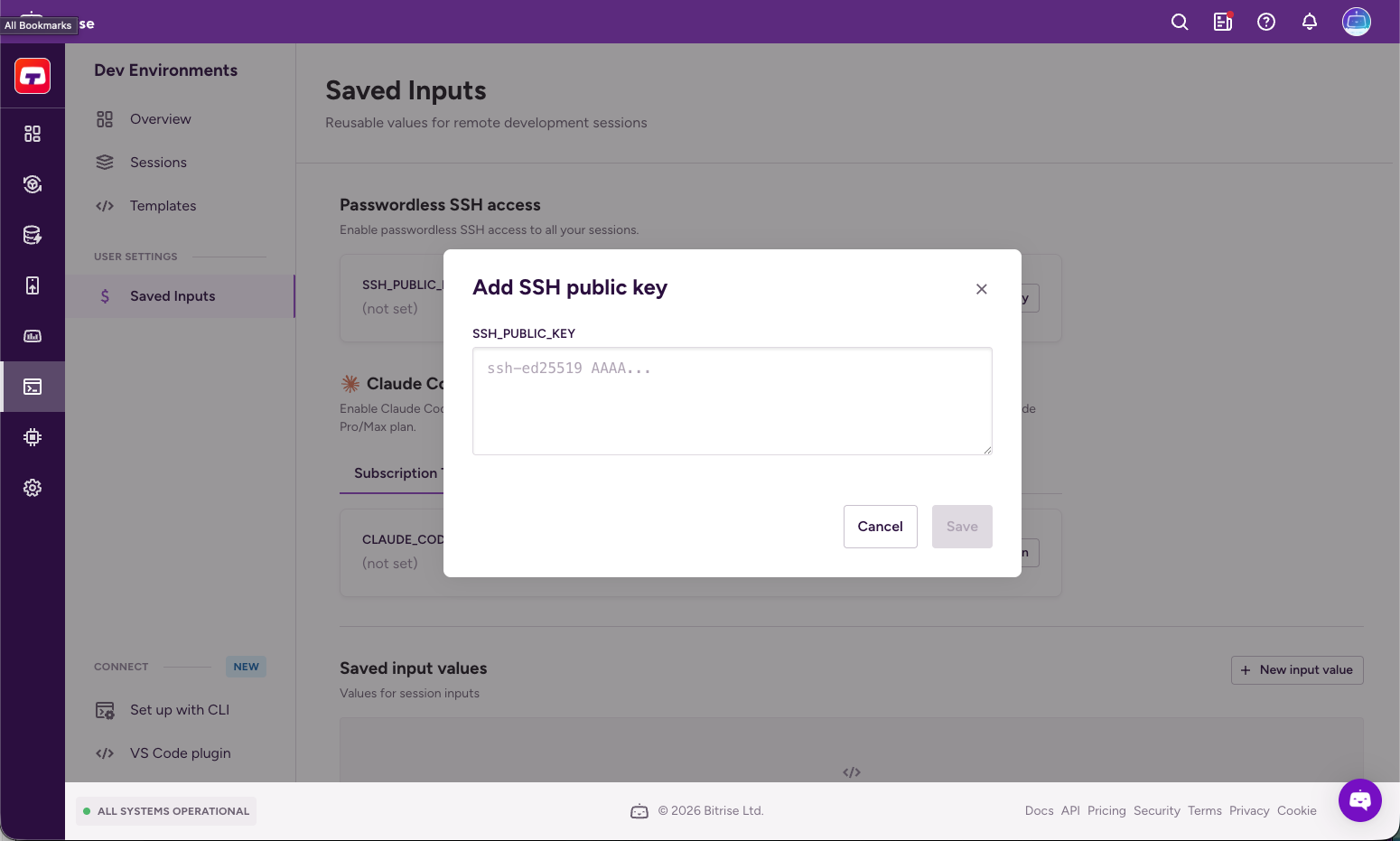
Under Passwordless SSH access, click + Add public key.
-
Paste your public key (for example, the contents of
~/.ssh/id_ed25519.pub) into theSSH_PUBLIC_KEYfield. -
Click Save.
Bitrise adds the key to the authorized_keys of every new session, so you can connect with ssh directly.
Configuring Claude Code credentialsClick to copy link
To start Claude Code automatically in new sessions, add a Claude Code credential:
- Subscription token
- API key
Use this option to bill usage against your Claude Pro or Max plan.
-
Under Claude Code, open the Subscription token tab.
-
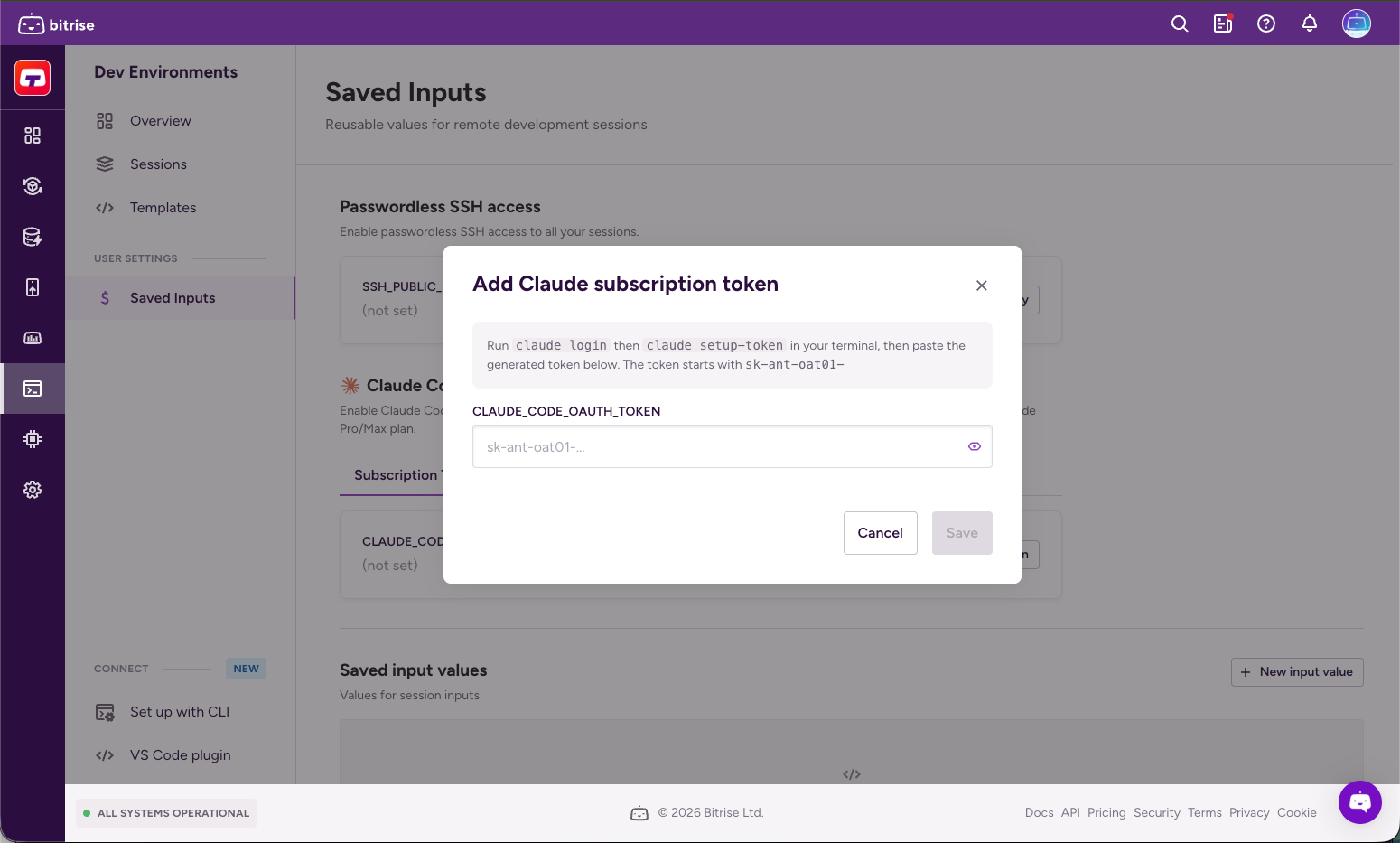
Click + Add subscription token.
-
In your terminal, run
claude loginthenclaude setup-token. Copy the generated token (it starts withsk-ant-oat01-). -
Paste the token into the
CLAUDE_CODE_OAUTH_TOKENfield. -
Click Save.
Use this option for pay-per-token billing with an Anthropic API key.
-
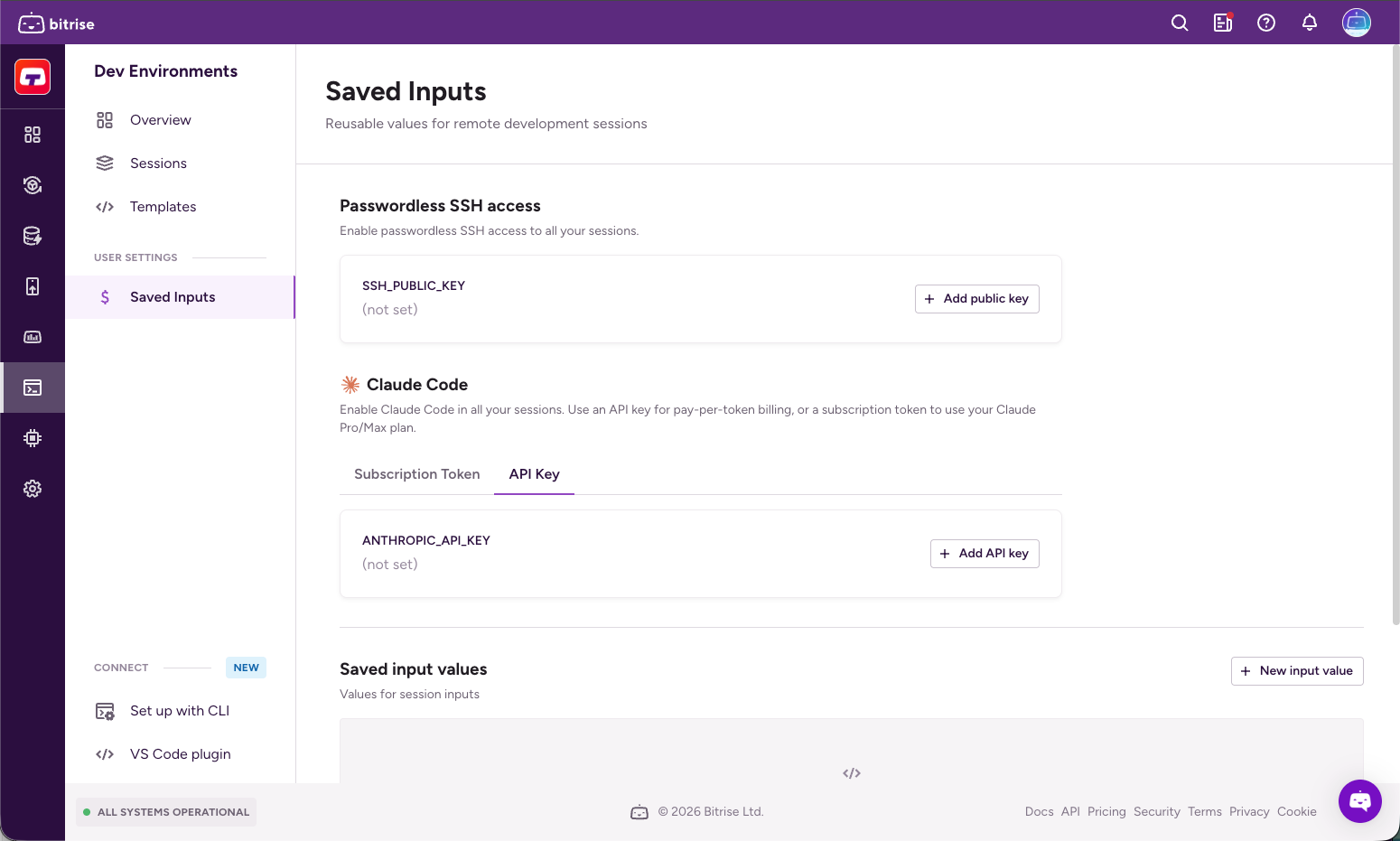
Under Claude Code, open the API key tab.
-
Click + Add API key.
-
Paste your Anthropic API key (starts with
sk-ant-) into theANTHROPIC_API_KEYfield. -
Click Save.
Once saved, new sessions that include a Claude Code credential in their template will start with Claude Code already authenticated.
Using saved inputs in a sessionClick to copy link
When you create a session, a template input can pull its value from a saved input. You can select the saved input explicitly, or let Bitrise map saved inputs to session inputs that share the same key.
Because the session references the saved input by ID, the actual value — including secrets — is resolved on the server and never exposed in the UI or in your session configuration.
Managing saved inputsClick to copy link
Create, edit, and delete saved inputs from the Bitrise RDE UI, or from the CLI with bitrise-cli rde saved-input.