Distributing builds to testers
Release Management offers a convenient, secure solution to distribute the builds of your mobile apps to testers without having to engage with either TestFlight or Google Play. Once you have installable artifacts, Bitrise can generate both private and public install links that testers or other stakeholders can use to install the app on real devices via over-the-air installation.
You can access all your distributable builds on the Build distribution page: these are the builds you can distribute to internal testers. Distributable builds are the following:
- For iOS apps, they are IPAs with Development, Ad-hoc, or Enterprise provisioning.
- For Android apps, only APKs are distributable to testers. AABs are not.
Each distributable build has its own page that includes installation instructions and metadata. The metadata includes, among other things, the source of the artifact, its creation time, size, and supported device types.
You can set up tester groups so that testers can get access to the build details page and install the app from there. Workspace owners, Workspace managers and project admins can also send notification emails to tester groups from the build page. For details, see Tester groups.
You can upload installable artifacts to the page from Bitrise CI builds or via our dedicated API. For details, see Installable artifacts.
Accessing the build details pageClick to copy link
To access the build details page on Bitrise:
You need a Bitrise user account to access the build details page. The account must be a member of the project's team.
-
Open your connected app in Release Management.
-
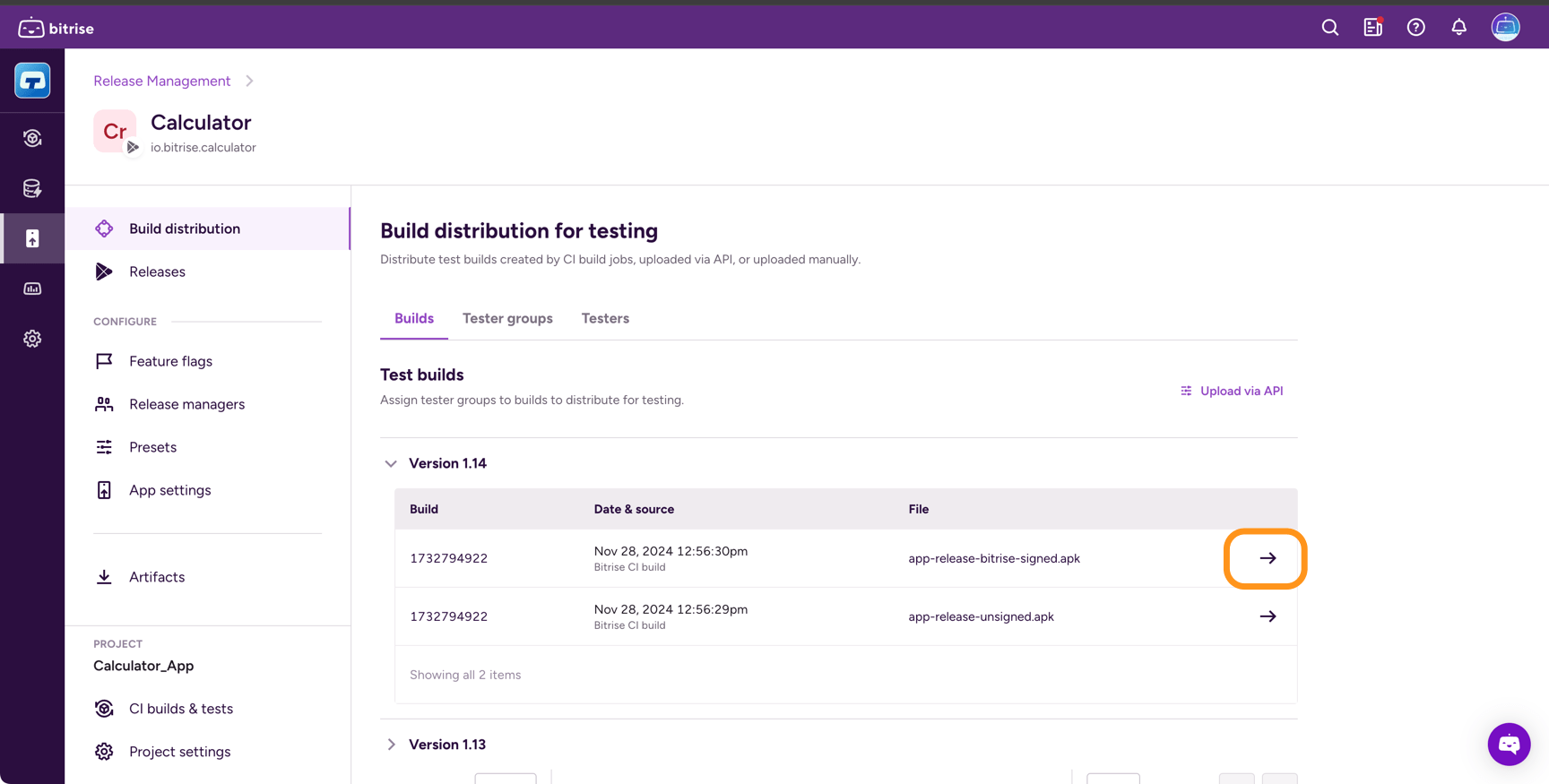
Select Build distribution on the left.
-
Select the Builds tab.
-
Find the build you need and click the arrow on the right.
Installing artifactsClick to copy link
You can install build artifacts from its build details page. To do so:
-
Access the build details page of the build.
You can also access the build details page from a notification email.
-
In the Install this version securely card, install or download the build:
- To open the page on a mobile device, scan the QR code with that device.
- If your app is an Android app, click Download artifact to download the APK or AAB file.
- If your app is an iOS app, open the page in Safari (not in a private window) on a device that is registered for your user and for this build, and click Install. If you can't install directly, use the Download artifact icon button at the top of the page to download the IPA file.
- To share the page with another Bitrise user, click Copy page URL. Authentication is required to access this page.
Enabling the public install pageClick to copy link
The public install page allows you to distribute your installable artifacts to testers who don't have Bitrise accounts.
-
Access the build details page of the build.
-
Find the Public install link card and click Manage access.
Required accessOnly Workspace owners, project admins, and Release managers have the right to enable or disable the public install page for a build.
-
In the Manage public install link dialog, select Enabled and click Save changes.
To turn the public install page off again, select Disabled and click Save changes.
-
Click Get link to open a dialog that contains both a URL and a QR code.
Custom access linkClick to copy link
You can quickly generate a shareable install link for an APK or non-store IPA artifact, with an optional expiration time and an optional access code. Those who receive the link can install the build without a Bitrise account.
This link is different from the public install page link: the public install page is permanent and has no access controls.
Users with the following access roles can create custom access links:
- Workspace owners
- Project admins
You can create multiple access links for the same artifact, with different expiration times, or no expiration time at all. All share links are publicly accessible to anyone who has the URL.
Creating a custom access linkClick to copy link
- Access the build details page of the build.
- Go to the Public access tab.
- Click New access link.
- Add a link name.
- Optionally, check Expiry and set an expiry date for the link. After the provided date, the link will be no longer accessible.
- Optionally, check Access code and set a code in the input field. Testers will need this code to access the link.
- When ready, click Create & copy URL.
Adding instructions for testersClick to copy link
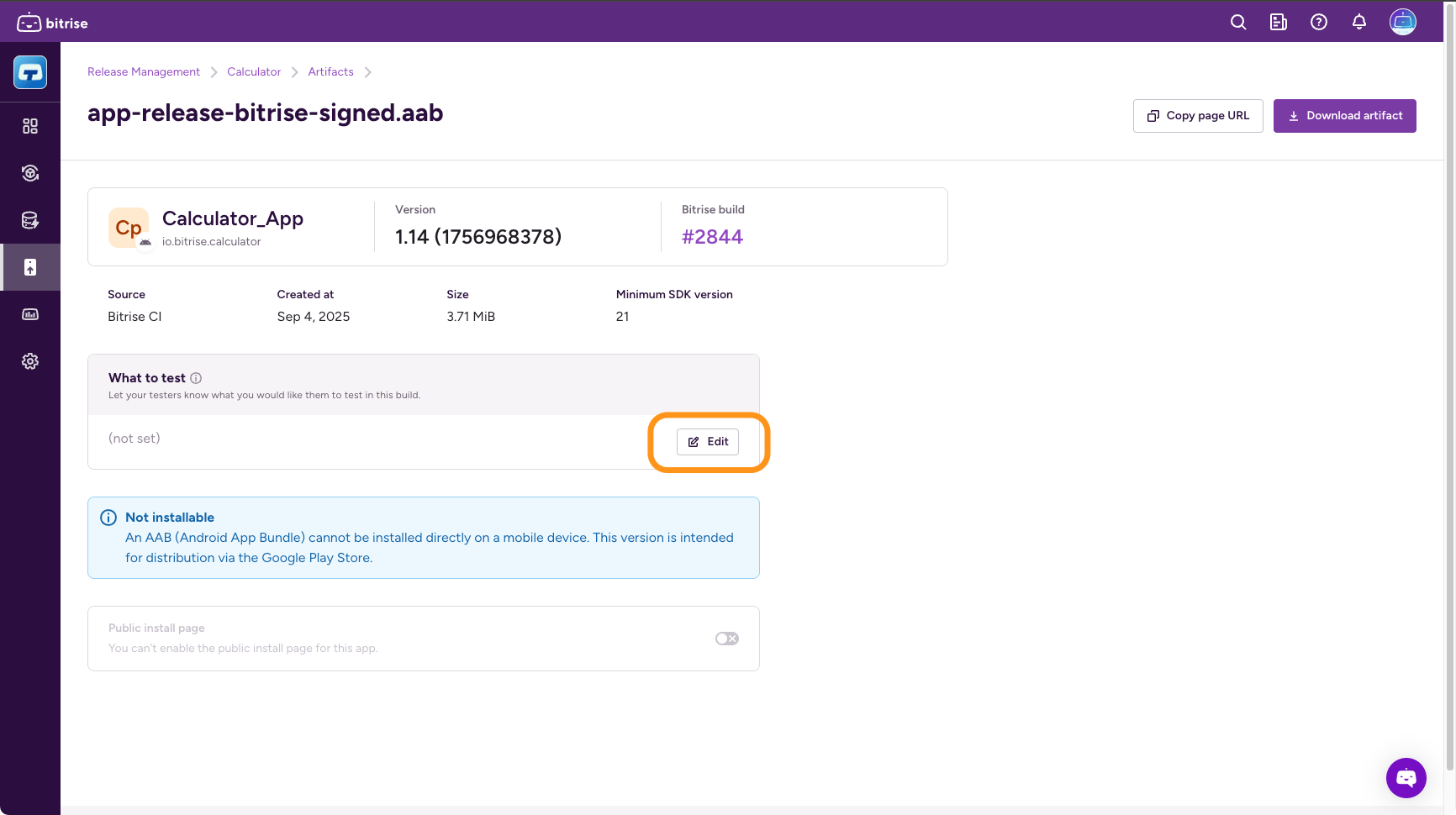
You can set testing instructions for your testers for each installable artifact, let them know what's been added to a build and what you would like them to test.
You can check the instructions on the build details page of an installable artifact and on the public install page.
Users with the following roles can edit the testing instructions:
- Workspace owner
- Project admin
- Release Manager
Users with the App tester role have read-only access. For more information about roles, see: Release Management roles and permissions.
To add testing instructions to an installable artifact:
-
Access the build details page.
You can also access the build details page from a notification email.
-
Find the What to test section, and click Edit.
-
Write a message to your testers, let them know what to test.
The message has a limit of 4000 characters.
-
Click Save changes.