AI configuration assistant
This is a beta feature, currently available only to customers on Starter and Pro plans. If you are on an Enterprise plan, please contact your customer success manager to enable it.
Bitrise offers hundreds of integrations for all CI/CD purposes, allowing complex workflows. It takes time to become familiar with our Steps, our stacks, or the intricacies of configuration YAML - time that you could spend developing your app. To speed up the process, we introduced the AI configuration assistant.
The AI config assistant is a chat-based assistant built into the Bitrise Workflow Editor that turns natural-language descriptions into validated YAML. You describe what you want in plain language: for example, "build an iOS app with Fastlane and send artifacts to Slack". The assistant produces a working Workflow or Pipeline that you can refine and iterate on either with the help of the assistant or manually.
The assistant can also explain, in plain language, a given Workflow or Pipeline, including what each Step does. It can also suggest improvements. You can request modifications and improvements for an already existing Workflow or Pipeline even if it was created manually.
Enabling the AI configuration assistantClick to copy link
The AI configuration assistant requires two separate toggles to be enabled: one at the workspace level and one at the project level.
-
Log in to Bitrise and hover over the left navigation bar.
-
Make sure you have the right workspace selected in the Workspace menu.
-
Select Settings.
-
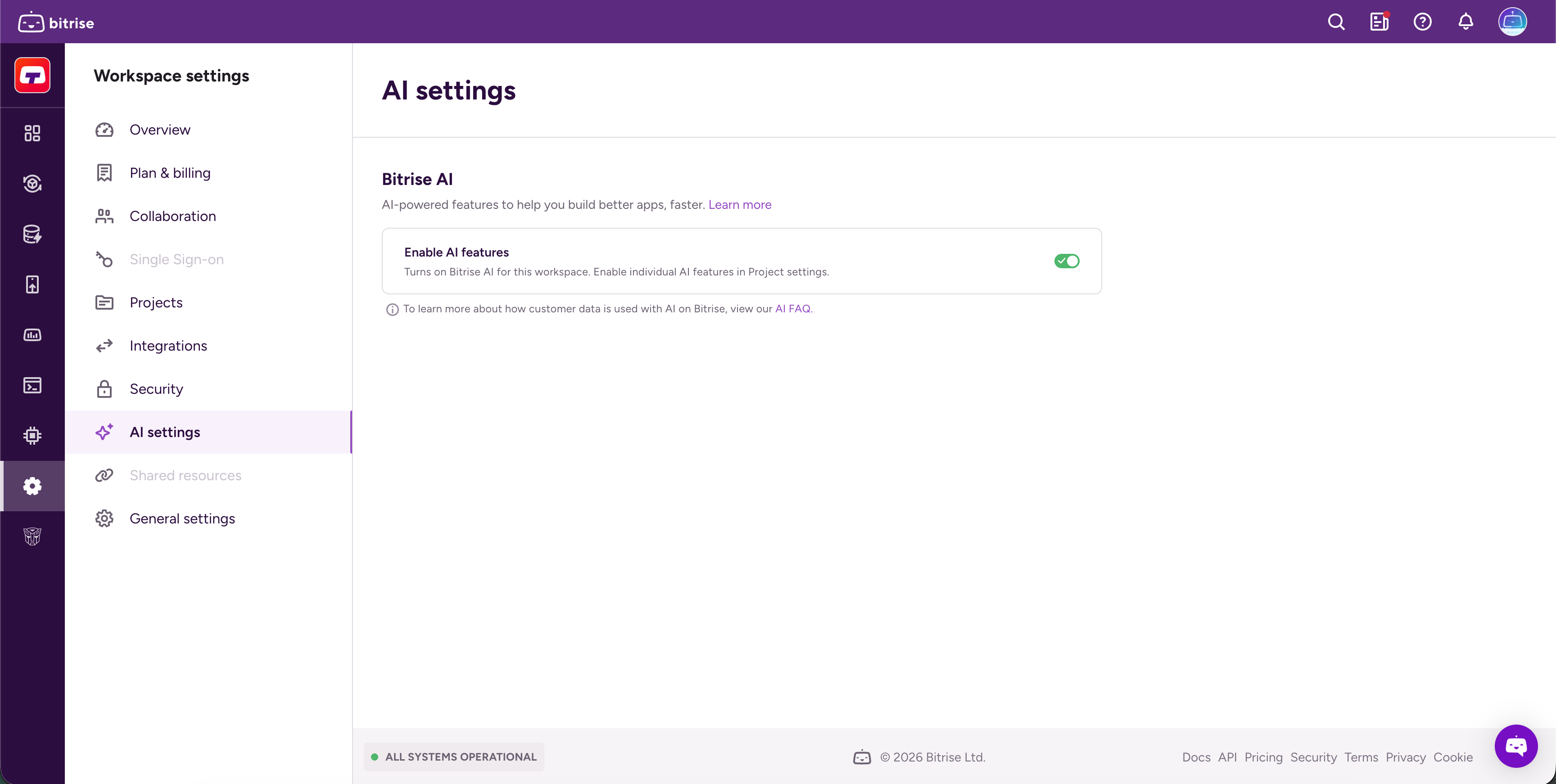
Select AI settings.
-
Enable the Enable AI features toggle. This turns on Bitrise AI for the workspace. Individual AI features still need to be enabled separately in each project's settings.
-
Open your project on the Bitrise CI page and click Project settings.
-
Select Bitrise AI in the left navigation.
-
Under Workflows and pipelines, enable the Configuration generator toggle.
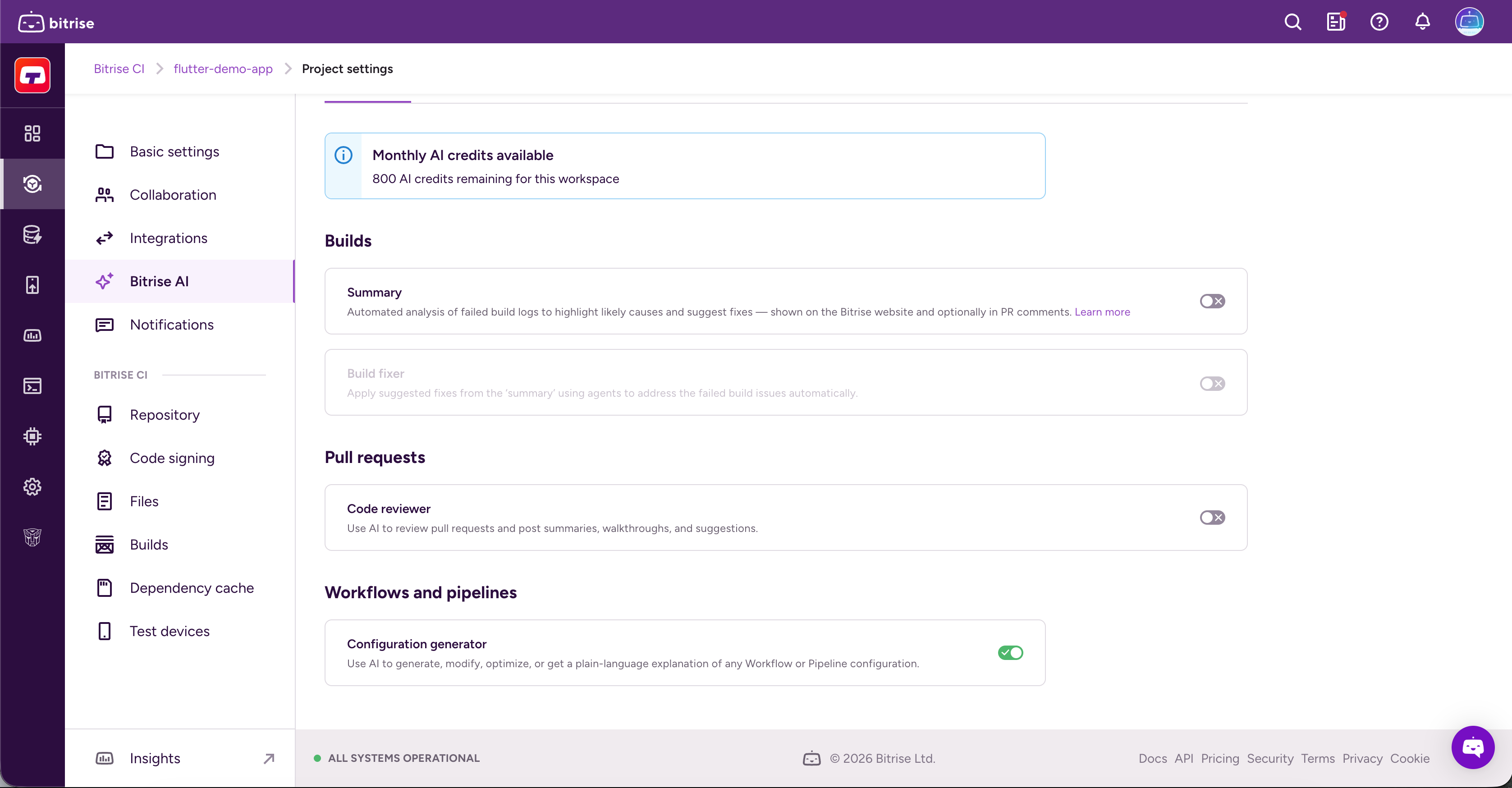
AI features consume monthly AI credits. The number of credits available depends on your plan. You can check your remaining credits on the Bitrise AI page in Project settings.
Once both toggles are enabled, the AI configuration assistant is available in the Workflow Editor.
Explaining a Workflow or a PipelineClick to copy link
You can get the AI assistant to explain how any part of your Bitrise configuration works and it can suggest improvements to existing Workflows and Pipelines.
To get an explanation, open a Workflow Editor and select a Workflow or Pipeline. Next to its name, click Explain. The AI assistant will open with a prompt already submitted. For example, if you click the button for a Workflow called test, the prompt will be Explain 'test' workflow.
The explanation aims to cover all parts of the configuration: the triggers and the Environment Variables belonging to the Workflow, the infrastructure, including the stack and the machine type, and the Steps, each with its own explanation. The assistant also provides information about the usage of the Workflow in other contests: for example, whether it's part of a Pipeline and what function it serves there.
Creating a Workflow or Pipeline with the AI assistantClick to copy link
Use the Bitrise AI configuration assistant to create a fully validated, working Workflow or Pipeline. Use plain language to list your requirements and the AI will create a configuration that you can modify at any point. It will be available in the Workflow Editor and in your configuration YAML file just as any other Workflow or Pipeline.
-
Open the Workflow Editor.
-
On the top bar, click Ask AI.
-
In the Assistant window, select Create a new Workflow.
noteYou can also open the Workflow selector dropdown and click Create Workflow with AI at the bottom of the list.
-
Add your prompt in the input field.
Use plain language to explain what you need the Workflow or Pipeline to do. You don't have to use Step names or Bitrise-specific terms. The more detailed your prompt is, the better the AI output.
noteWhile the AI assistant is working, you can modify your configuration manually. However, your changes will be overwritten when the assistant is ready and you apply its changes.
-
Ask for changes if you need them. You can keep iterating.
-
When finished, click Apply changes. This overwrites your configuration YAML file.