Signing up for Bitrise
If you're setting up Bitrise through an AI agent, such as Claude Code or Cursor, you don't need to sign up here first. Your agent points you at a Bitrise sign-in page where you can create your account, and it's connected automatically once you approve it.
Follow the Bitrise for AI agents onboarding runbook instead of this guide.
You can sign up for Bitrise either via an email address or by authenticating yourself with your GitHub, Bitbucket, GitLab, or Google account. Signing up using a Git provider account brings some practical benefits, like logging in with one click and of course you won’t have to authorize your Git account when adding repositories hosted by these providers again.
Signing up with a Git providerClick to copy link
-
You can sign up for Bitrise through the Start for free button in the upper right corner of Bitrise. It will take you to the Sign up page.
-
On the Sign up page, scroll down to the Or sign up with your git provider section where you can pick a git provider.
-
Authorize your selected Git provider.
-
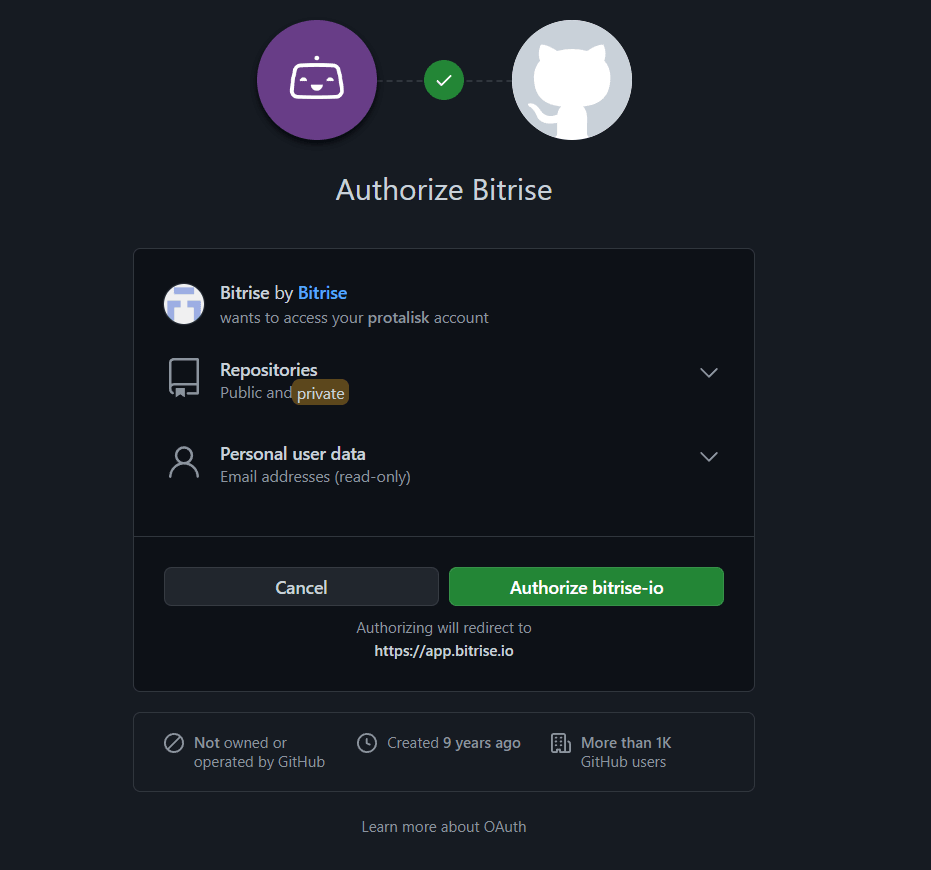
If you chose GitHub, press the Authorize bitrise-io button, and then you will be redirected to Bitrise.
-
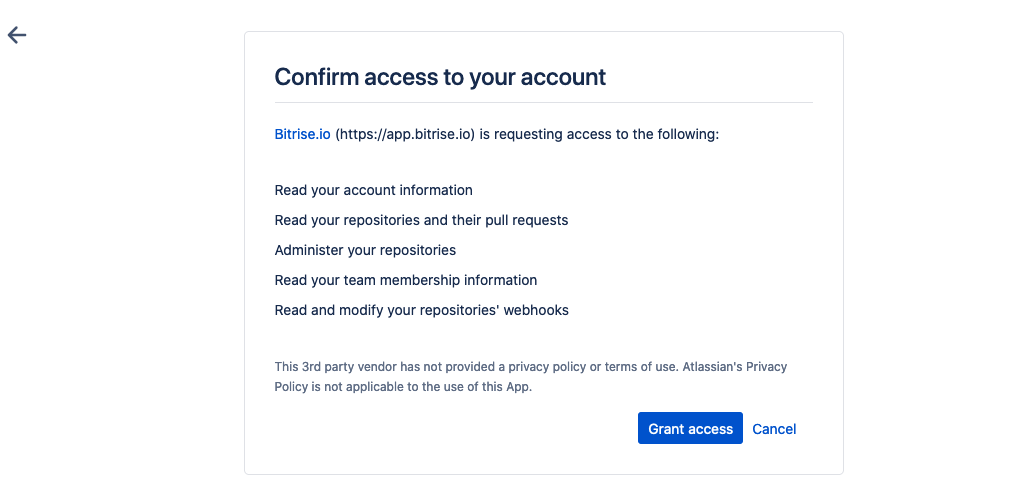
If you chose Bitbucket, press the Grant access button on Bitbucket, and then you will be redirected to Bitrise.
-
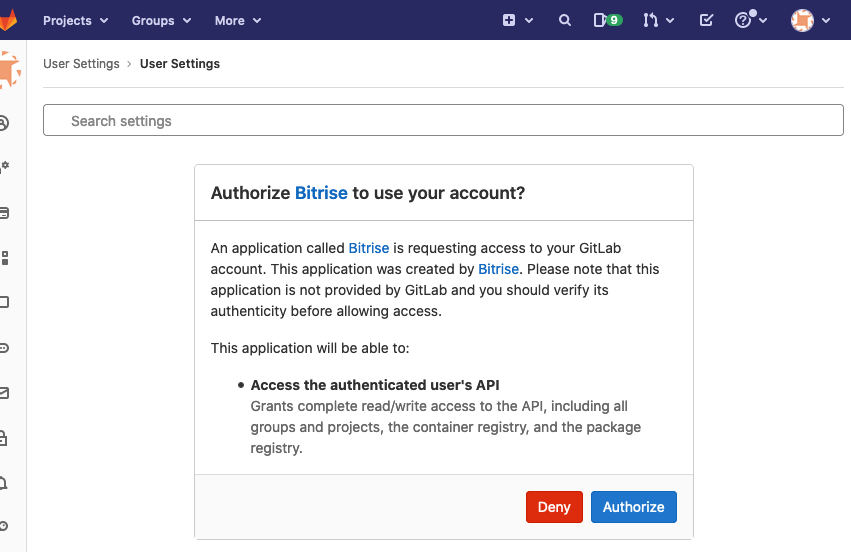
If you chose GitLab, press the Authorize button, and then you will be redirected to Bitrise.
-
-
Pick a username and a password. When done, click Sign up.
Strong passwordPlease note that you must provide a strong password which fulfills these requirements:
- It should have at least 8 characters.
- One upper case character.
- One lower case character.
- One number.
- Cannot contain the same character more than 3 times in a row (aaa).
- Cannot contain your email or username.
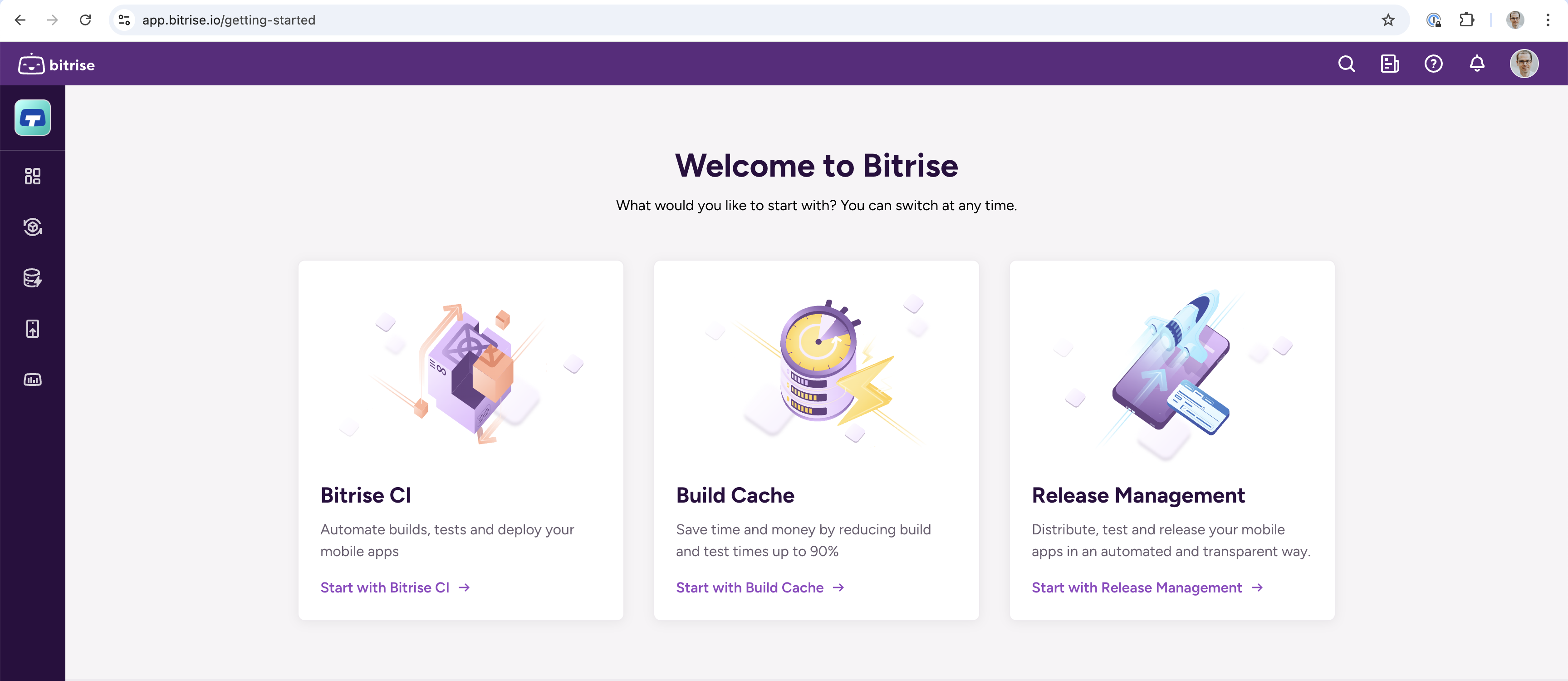
After that, you are ready to roll. Your first workspace will be created automatically, and you will be redirected to the Getting Started page, where you can start with Bitrise CI, Build Cache, or Release Management.
Signing up with emailClick to copy link
-
You can sign up for Bitrise through the Start for free button in the upper right corner of Bitrise. It will take you to the Sign up page.
-
Add your email address, username, and password.
Strong passwordPlease note that you must provide a strong password which fulfills these requirements:
- It should have at least 8 characters.
- One upper case character.
- One lower case character.
- One number.
- Cannot contain the same character more than 3 times in a row (aaa).
- Cannot contain your email or username.
-
Check the I agree to the Bitrise Terms of Service, and click the Sign up button.
-
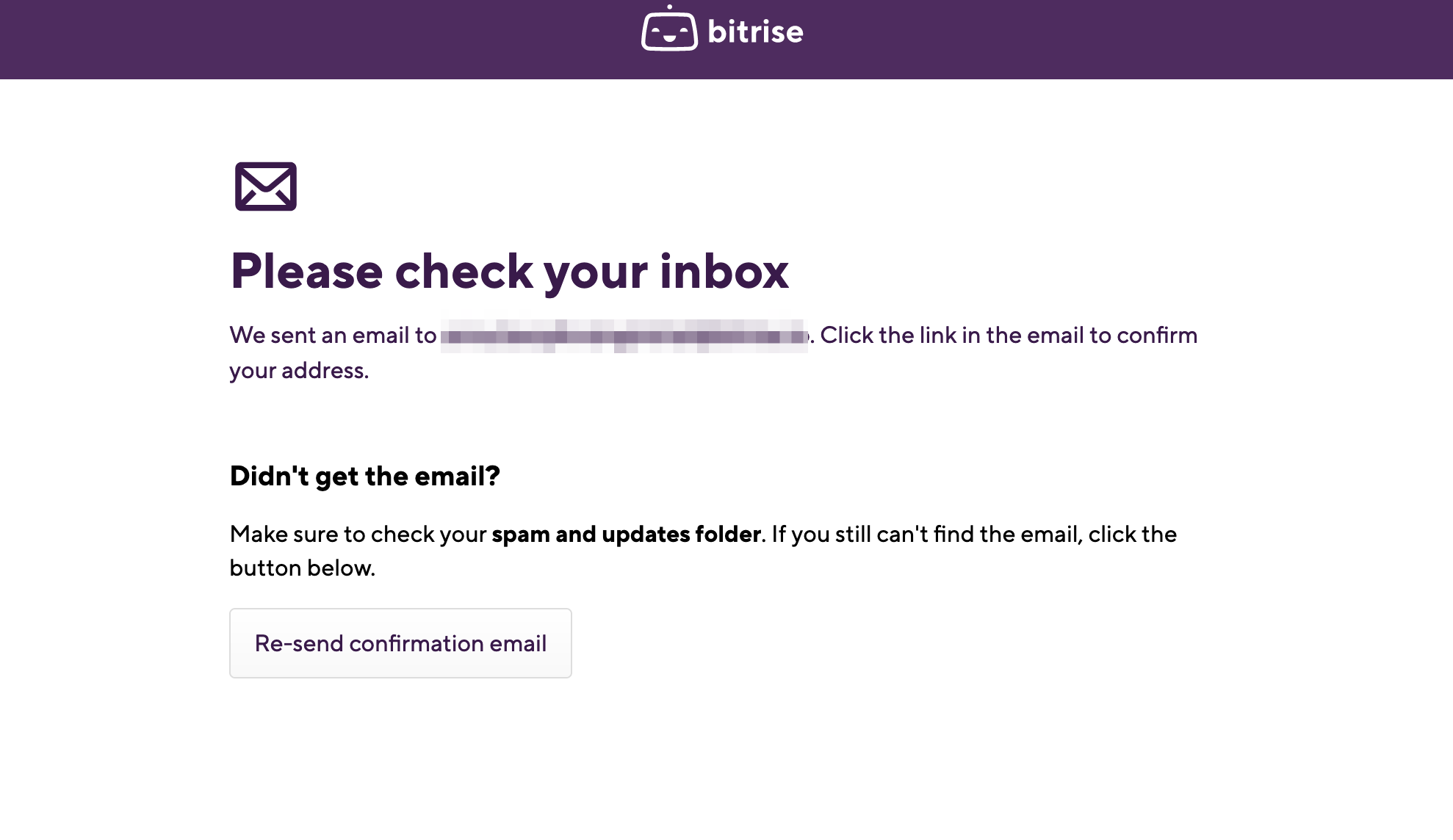
Check your inbox for a confirmation email from Bitrise and follow the instructions there. If you haven’t received a confirmation email from us, click the Re-send confirmation email button.
And that's it! After confirming your account, your first Workspace will be created automatically, and you will be redirected to the Getting Started page, where you can start with Bitrise CI, Build Cache, or Release Management.