Configuring connected app integration
A connected app in Release Management uses a Google Play Console service account to connect to Google Play and an App Store Connect account to connect to the App Store. When connecting an app for the first time, you have to set up the store connections. You can modify these settings at any time.
You can add multiple service accounts or API keys to your workspace. Each project and each connected app in Release Management can use different service accounts or API keys.
An app in Release Management can either use:
- The store connection of its project.
- A store connection specific to the app.
If, for example, you have multiple App Store Connect API keys set up in your Workspace, you can set one as your project's API key but use a different one for the connected app in Release Management.
Using a project-level store connectionClick to copy link
If you use a project-level store connection, changing the project's service account or API key will change the connected app's connection, too. This can break your releases!
- iOS
- Android
-
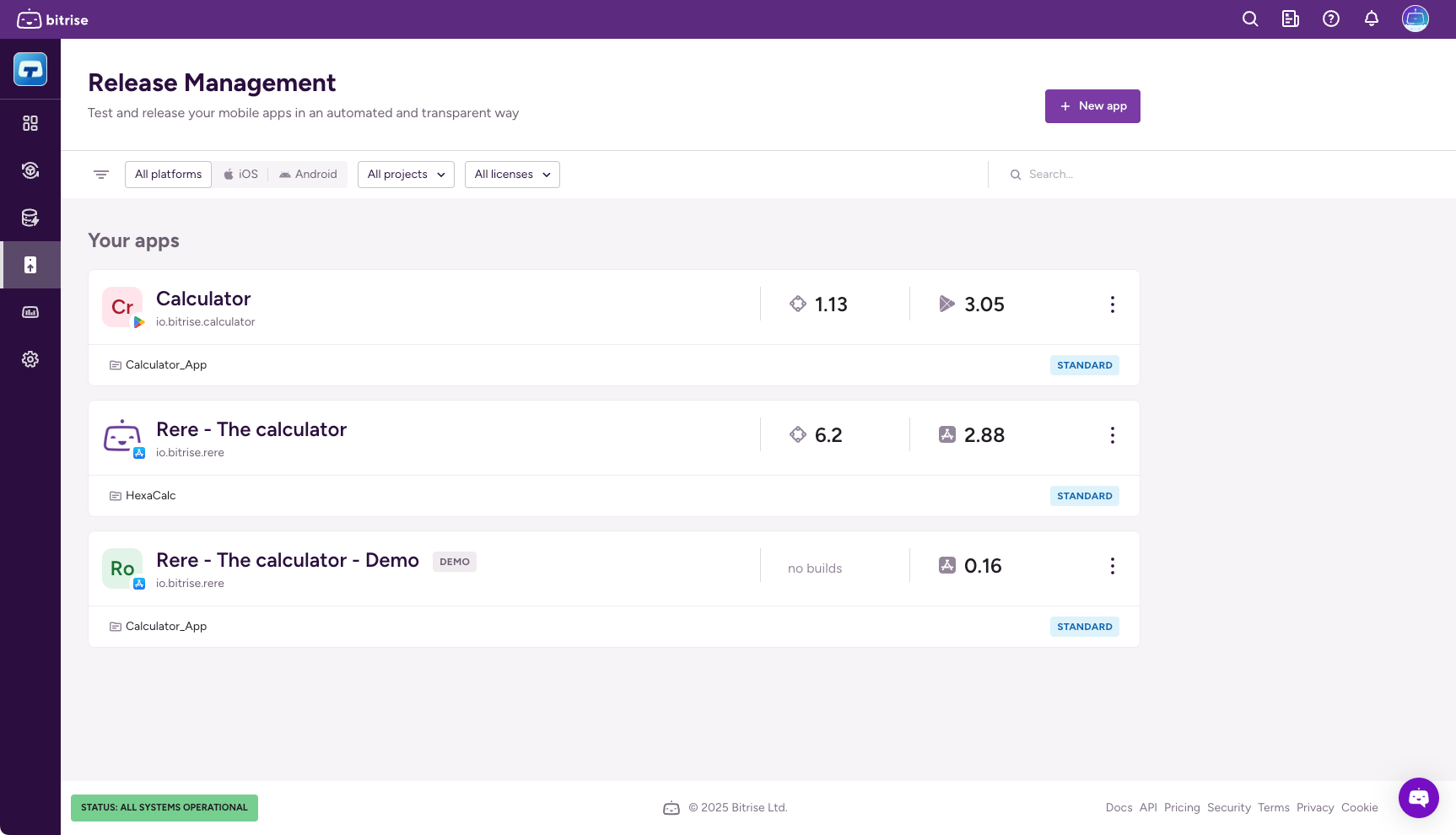
On the Release Management home page, select your app in the Your apps list.
-
On the left, select Integrations.
-
On the Store tab, find the API key card and click Replace.
-
In the dialog, select Use project's API key.
-
Click Save changes.
-
On the Release Management home page, select your app in the Your apps list.
-
On the left, select Integrations.
-
On the Store tab, find the Service account card and click Replace.
-
In the dialog, select Use project's service account.
-
Click Save changes.
Using an app-level store connectionClick to copy link
An app-level store connection means you set the service account or API key specifically for a given connected app. The app-level connection can be different from the project's configured connection.
- iOS
- Android
-
On the Release Management home page, select your app in the Your apps list.
-
On the left, select Integrations.
-
On the Store tab, find the API key card and click Replace.
-
In the dialog, select Set app-level API key.
-
Select an API key from the API key dropdown menu.
-
Click Save changes.
-
On the Release Management home page, select your app in the Your apps list.
-
On the left, select Integrations.
-
On the Store tab, find the Service account card and click Set service account.
-
In the dialog, select Set app-level service account.
-
Select the service account from the Service account dropdown menu.
-
Click Save changes.