Managing user access to a project
Each Bitrise project is owned by a workspace - but this doesn't mean that all members belonging to that workspace have access to a given project. In order to be able to collaborate on a project, users must be assigned to the project.
There are three ways to be invited to collaborate on a project:
- Adding outside contributors.
- Adding one of the groups from the workspace that owns the project.
- Assigning a workspace member to the project. This also allows to set user roles at the same time.
Similarly, there are two ways to revoke access to a project:
Adding an outside contributor to a projectClick to copy link
An outside contributor is a user who is assigned to a project but isn't a member of the workspace that owns the project. To add outside contributors, your workspace must have them enabled.
You need to be a project admin or a workspace owner to be able to add outside contributors to a project. Custom roles don't cover this yet.
-
Open your project on Bitrise with a user that has the Admin role on the project, or a custom role with the Edit workflows permission.
-
On the main page of the project, click on the Project settings button.
-
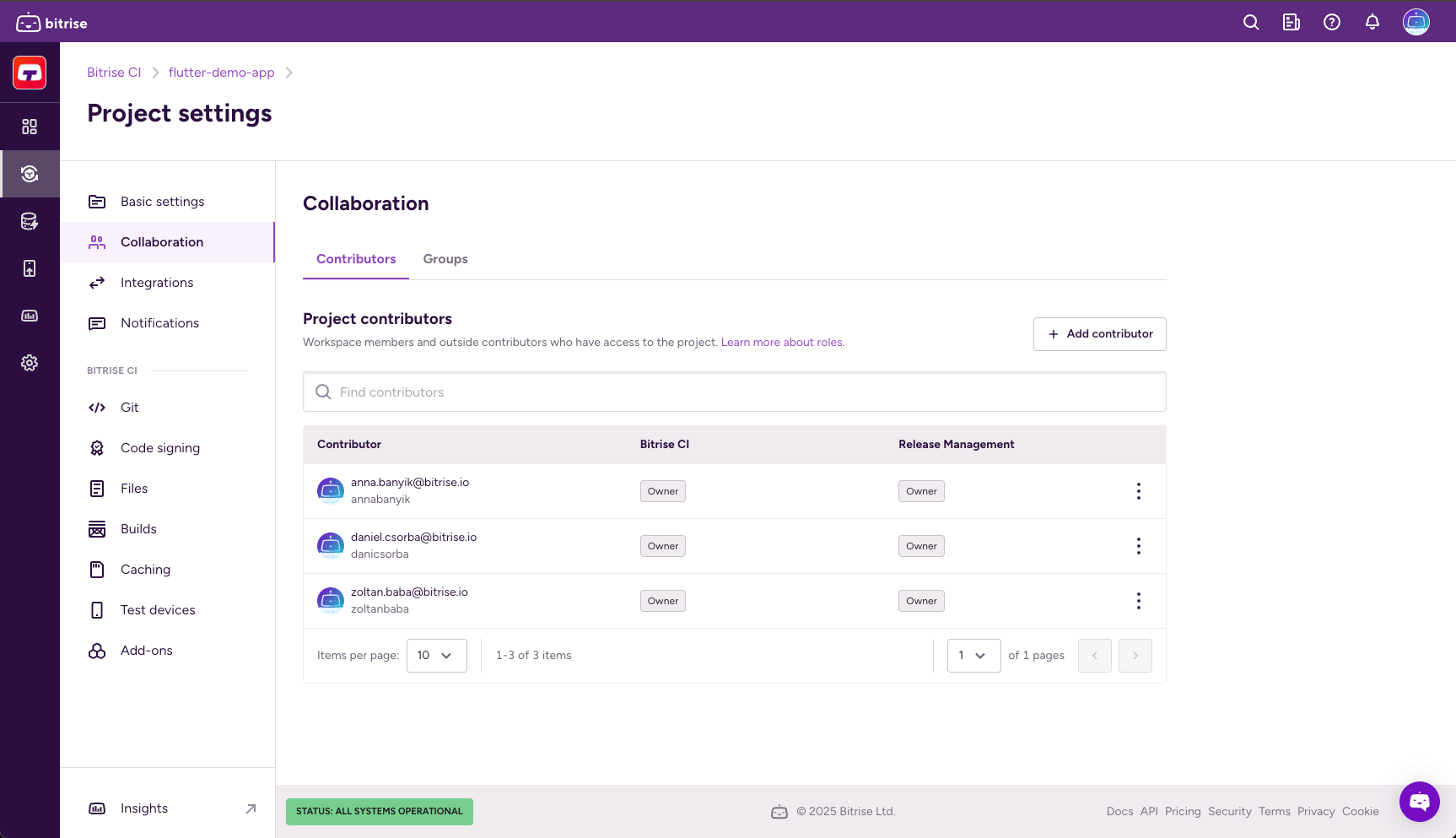
From the menu on the left, select Collaboration.
-
Go to the Contributors tab.
-
Click Add contributor.
-
Select Add outside contributor
-
Type their email address and select their role.
If they are not registered on Bitrise, we will send out an invitation email for them.
-
Click Next.
-
Configure product access by enabling one or more toggles and then selecting a role in the dialog. You have the option to grant universal access or to set roles on a product basis:
- Admin access allows the contributor to manage all aspects of the project, including both the Bitrise CI configuration and the Release Management apps. Note that this gives full access to an outside contributor!
- Select a product to assign the contributor specific roles that only apply to that product. If the project doesn't have a CI configuration or a Release Management app, the respective option won't be available.
-
Click Confirm access.
Adding Workspace groups to a projectClick to copy link
Assigning a workspace group to a project means that all members of that workspace group will have the same role on the project. Roles are different based on product access: both Bitrise CI and Release Management have their own roles.
An project consisting of workspace groups
Let’s say the workspace called TestSpace owns a project called TestProject. TestOrg has the following groups:
- Group Alpha: they are assigned to TestProject with an Admin role. Members of this group can assign other groups to the project or add outside contributors, change project settings, manage roles and Workflows.
- Group Beta: they are assigned to TestProject with a Developer role. Members of this group can run builds, view build logs and view builds.
- Group Gamma: they are assigned to TestProject with a Tester/QA role. They can only view builds.
There are two ways to assign workspace groups to a Bitrise project:
- You can assign it from the Collaboration menu of the Workspace settings page.
- You can assign it on the Project settings page of the project.
Assigning a group from the Workspace settings pageClick to copy link
-
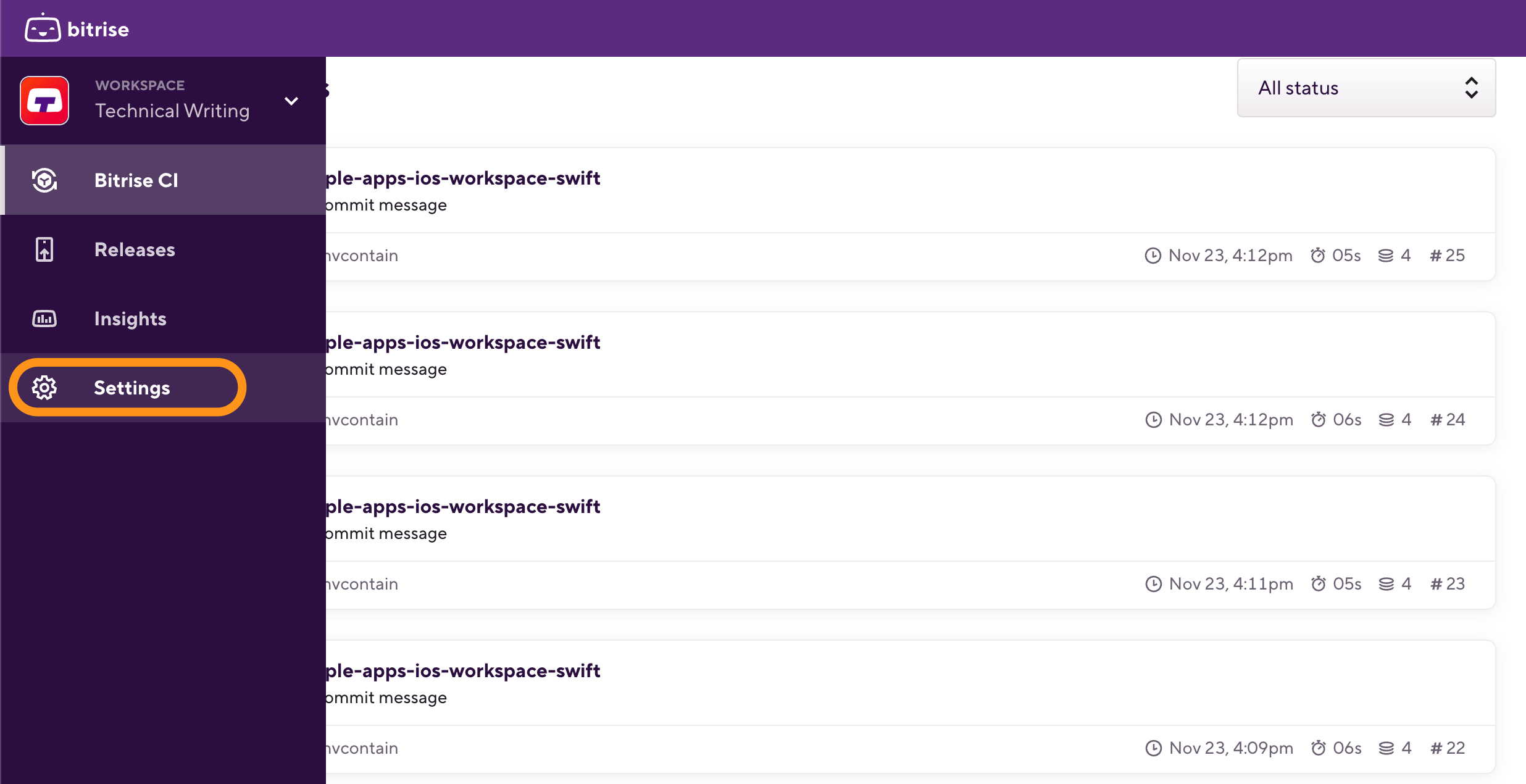
Log in to Bitrise and hover over the left navigation bar.
-
Make sure you have the right workspace selected in the Workspace menu.
-
Select Settings.
-
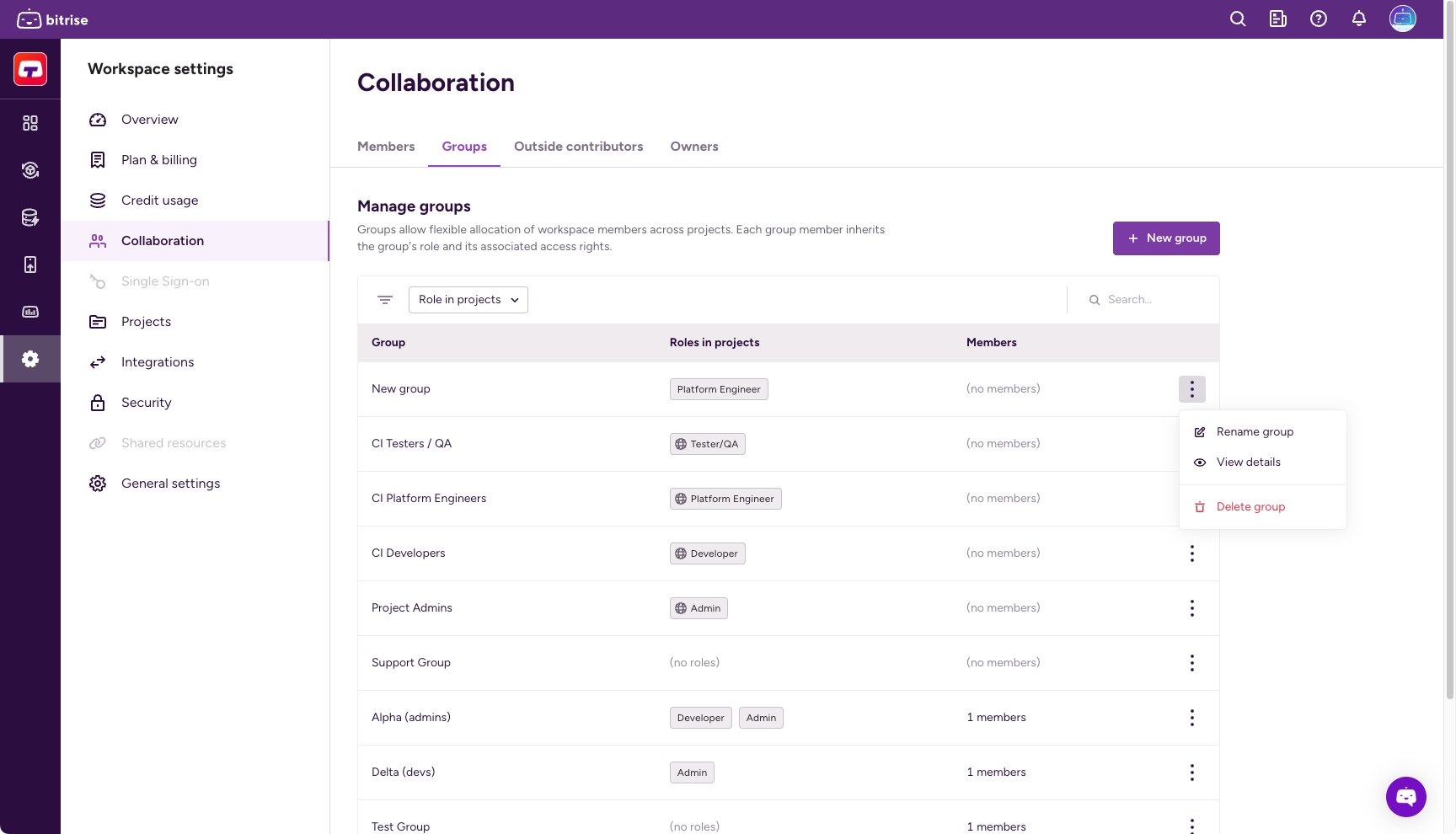
On the left, select Collaboration then go to the Groups tab.
-
Choose the group you wish to assign, and click the options menu (⋮).
-
Select View details and go to the Projects tab.
-
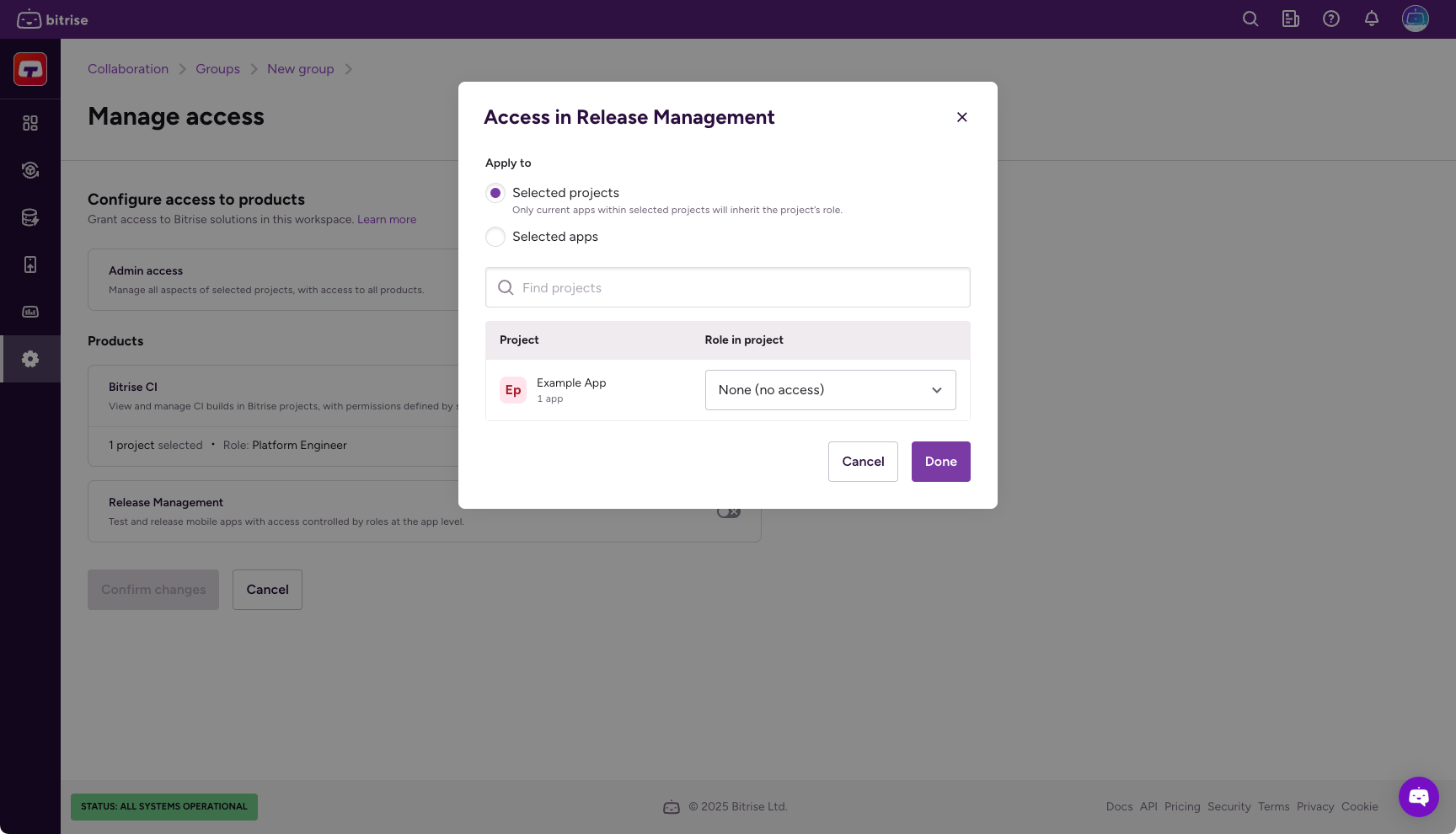
Click Manage access.
-
Configure product access by enabling one or more toggles and then selecting a role for your project in the dialog. You have the option to grant universal access or to set roles on a product basis:
- Admin access allows the contributor to manage all aspects of the project, including both the Bitrise CI configuration and the Release Management apps. Note that this gives full access to an outside contributor!
- Select a product to assign the group specific roles that only apply to that product. If the project doesn't have a CI configuration or a Release Management app, the respective option won't be available.
 Role cheatsheets
You can check out the role cheatsheets here: .
- Roles and permissions for Bitrise CI
- Release Management roles and permissions
- Custom roles for an exact permission set instead of one of the built-in roles above
-
Click Save changes to finalize changes.
Assigning a group from the Project settings pageClick to copy link
-
Open your project on Bitrise with a user that has the Admin role on the project. Custom roles don't cover assigning a group to a project yet.
-
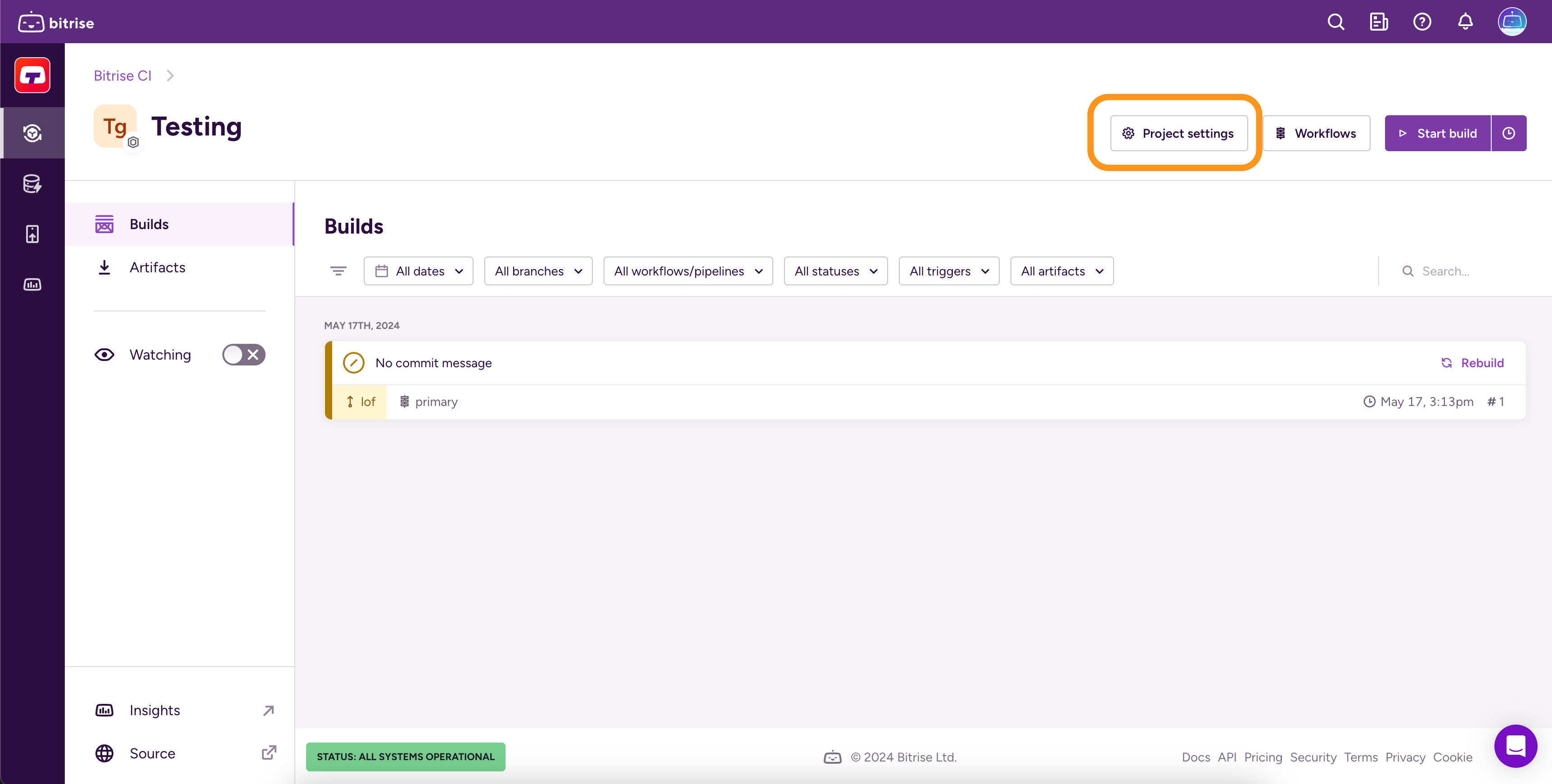
On the main page of the project, click on the Project settings button.
-
On the left, select Collaboration.
-
Go to the Groups tab.
-
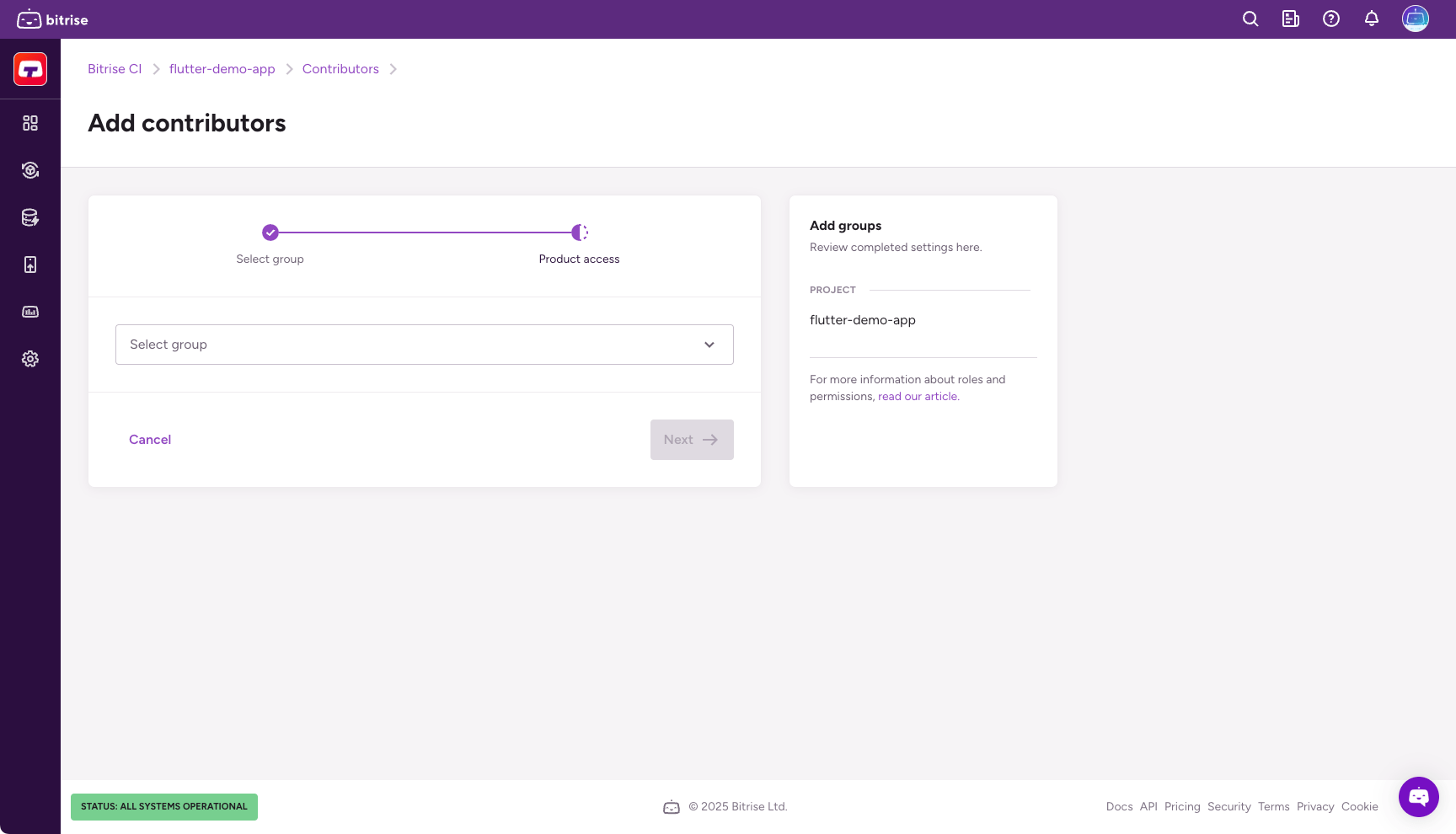
Click on Add group.
-
In the dropdown menu, select the group you need then click Next.
-
Configure product access by enabling one or more toggles and then selecting a role in the dialog. You have the option to grant universal access or to set roles on a product basis:
- Admin access allows the group members to manage all aspects of the project, including both the Bitrise CI configuration and the Release Management apps.
- Select a product to assign the group specific roles that only apply to that product. If the project doesn't have a CI configuration or a Release Management app, the respective option won't be available.
-
Click Confirm access.
Revoking access to a project from a groupClick to copy link
-
Open your project on Bitrise with a user that has the Admin role on the project, or a custom role with the Edit workflows permission.
-
On the main page of the project, click on the Project settings button.
-
From the menu on the left, select Collaboration.
-
Go to the Groups tab.
-
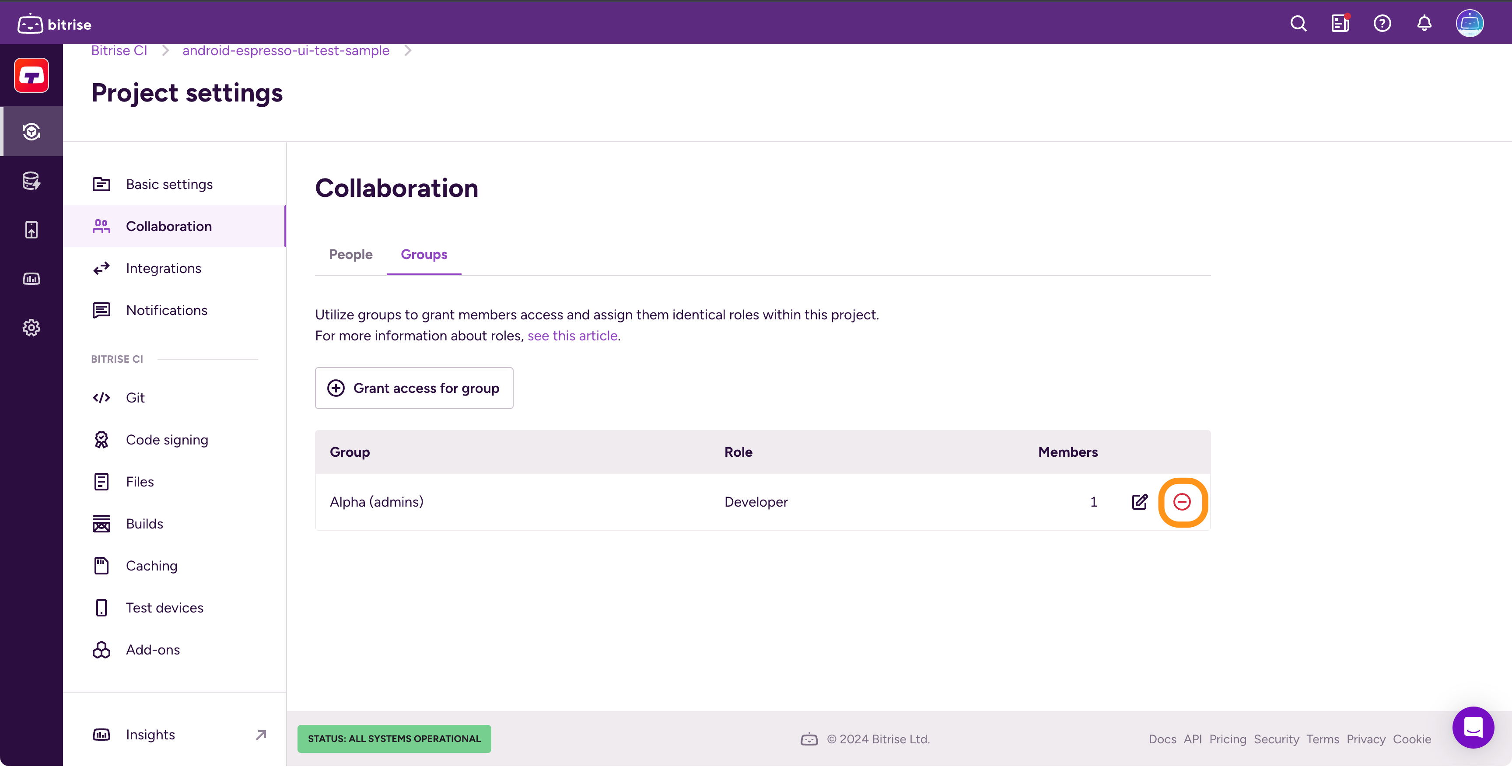
Search for the group you would like to remove and click "
 ".
".
-
Click Remove in the dialog to revoke the group's access from the project.
Revoking access to a project from a single userClick to copy link
-
Open your project on Bitrise with a user that has the Admin role on the project, or a custom role with the Edit workflows permission.
-
On the main page of the project, click on the Project settings button.
-
From the menu on the left, select Collaboration.
-
Go to the Contributors tab.
-
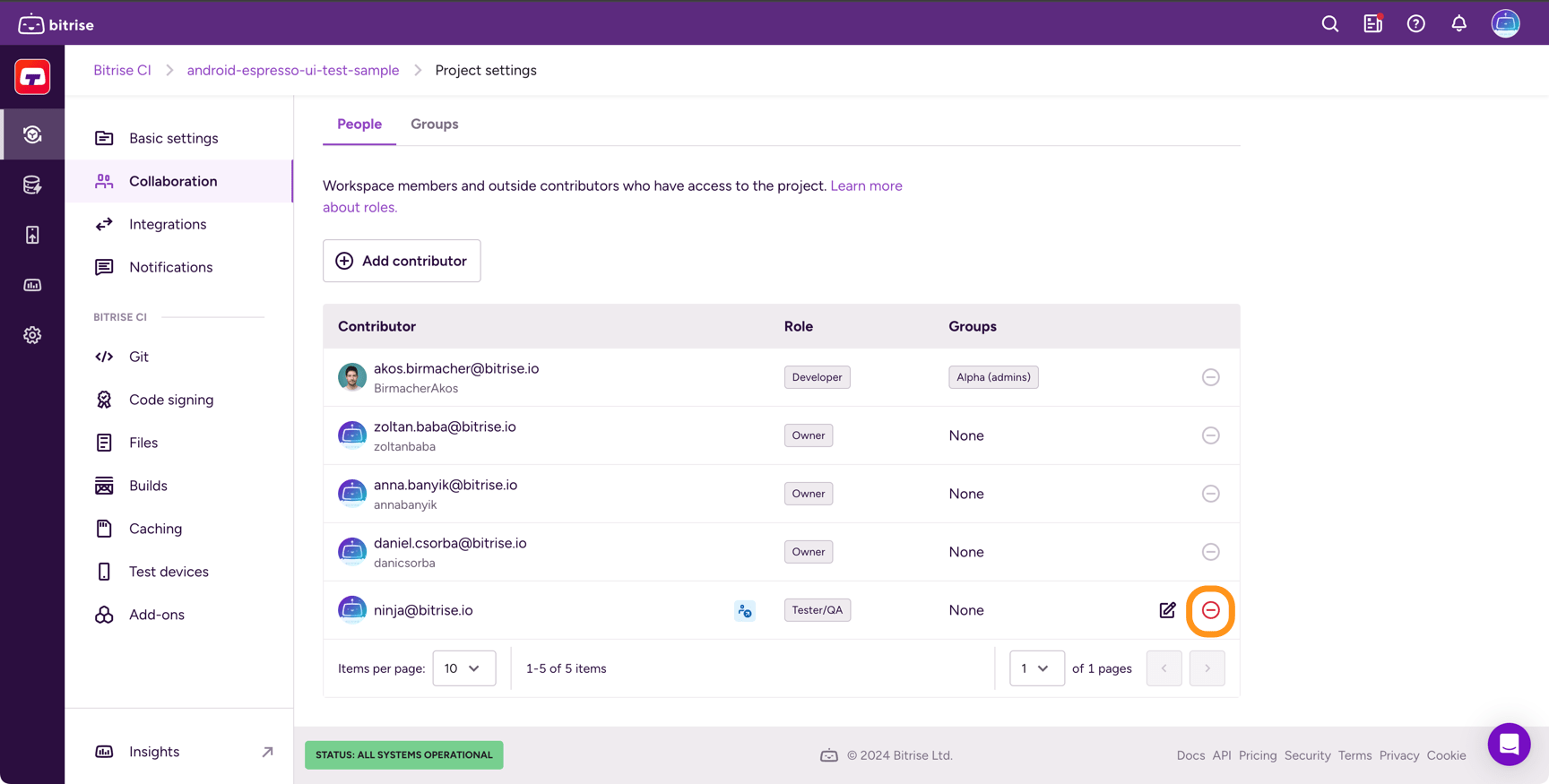
Find the user you would like to remove and click "
".
-
Click Remove in the dialog.