Copying CodePush updates between deployments
Copy a CodePush update from one deployment to another deployment of the same app. A typical use case is moving an update you tested in your Staging deployment to Production. The copy uses the same update file as the original, so you don't need to bundle, sign, or upload it again.
To copy an update, your role needs the Promote CodePush updates permission, and the app needs at least two deployments. See Roles and permissions for Bitrise CodePush and Creating a CodePush deployment.
The CodePush CLI and the API call this operation promoting. See Promoting a release and Promote a package.
Copying an updateClick to copy link
To copy an update, your role needs the Promote CodePush updates permission, and the app needs at least two deployments.
-
Open your app in Release Management.
-
Select CodePush on the left.
-
Select the deployment that contains the update.
-
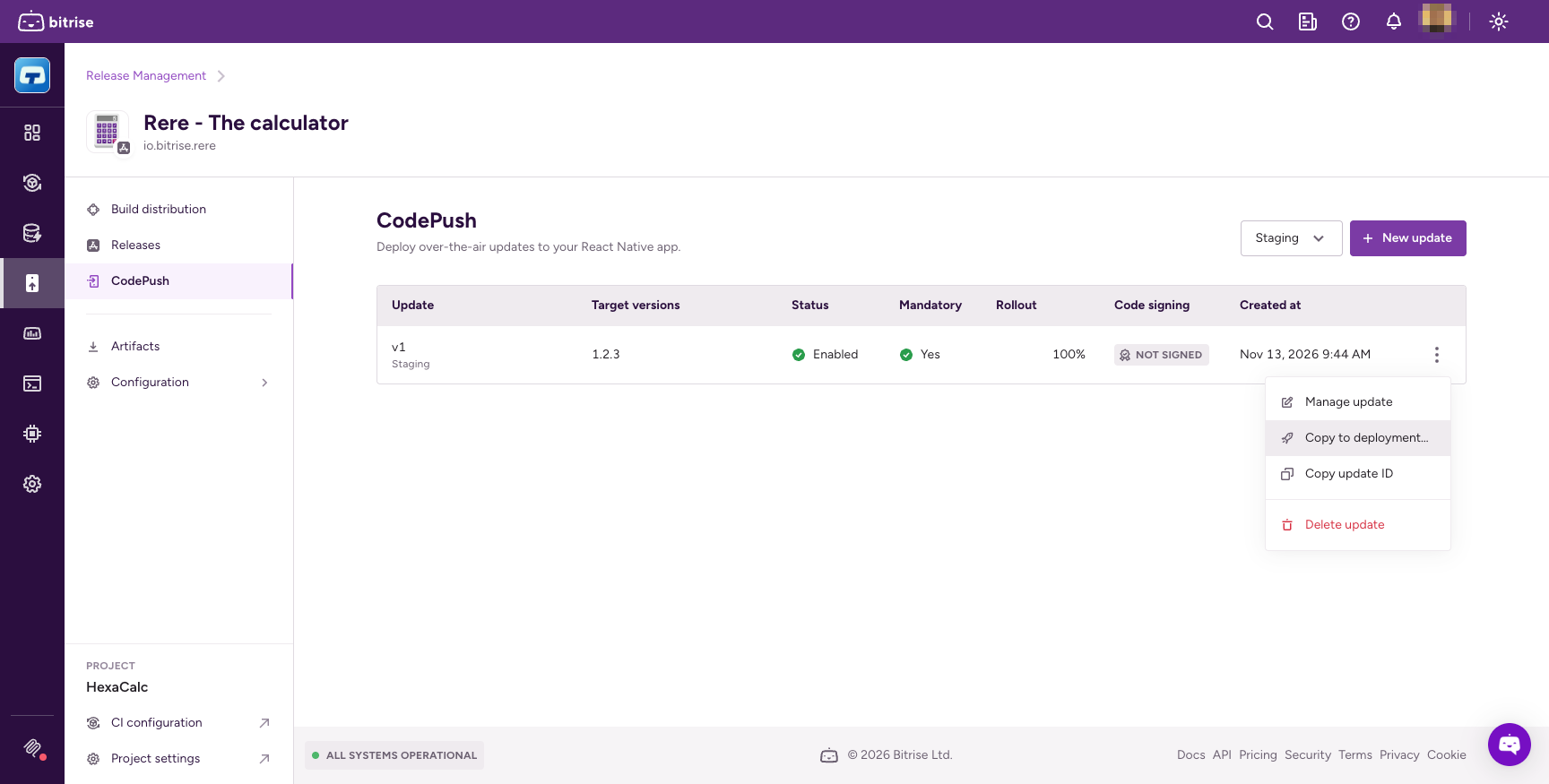
Click the options menu (⋮) at the end of the update's row and select Copy to deployment….
You can also open the update, click Manage update, and select Copy to deployment.
-
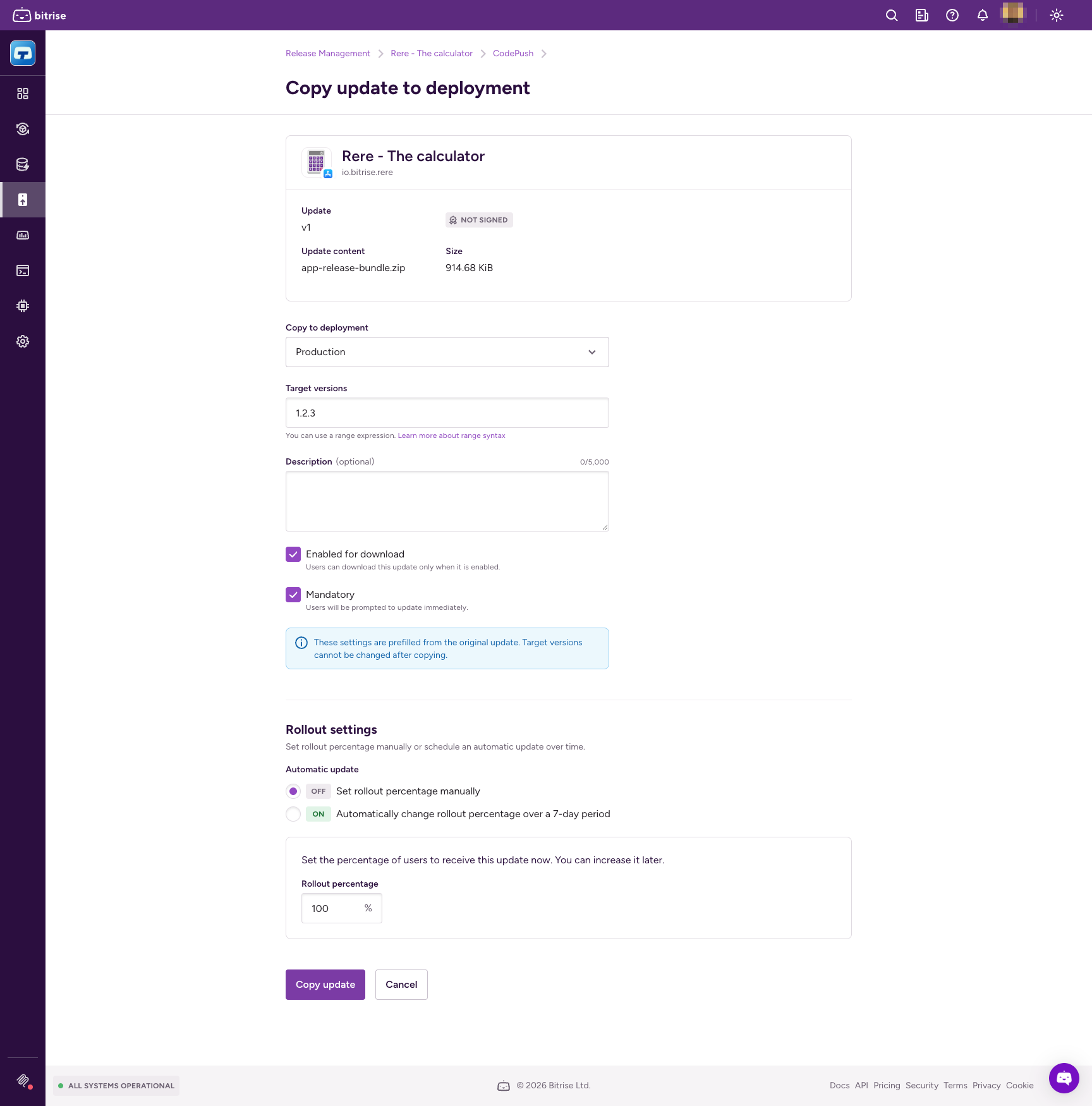
In the Copy to deployment field, select the deployment you want to copy the update to.
-
Optionally, change the settings of the copy.
Bitrise fills in the target versions, the description, and the Enabled for download and Mandatory settings from the original update. You can't change the target versions after you copy the update. The settings work the same way as for a new update: Uploading the package to the Bitrise CodePush Server.
-
In the Rollout settings section, select how the copy rolls out:
- Set rollout percentage manually: enter the percentage of users who receive the update now. You can increase it later.
- Automatically change rollout percentage over a 7-day period: pick a start date and hour. Bitrise raises the rollout in daily steps (1%, 2%, 5%, 10%, 20%, 50%, 100%) from that time.
-
Click Copy update.
Bitrise opens the page of the new update. A notice on the page shows which deployment the update was copied from and when.
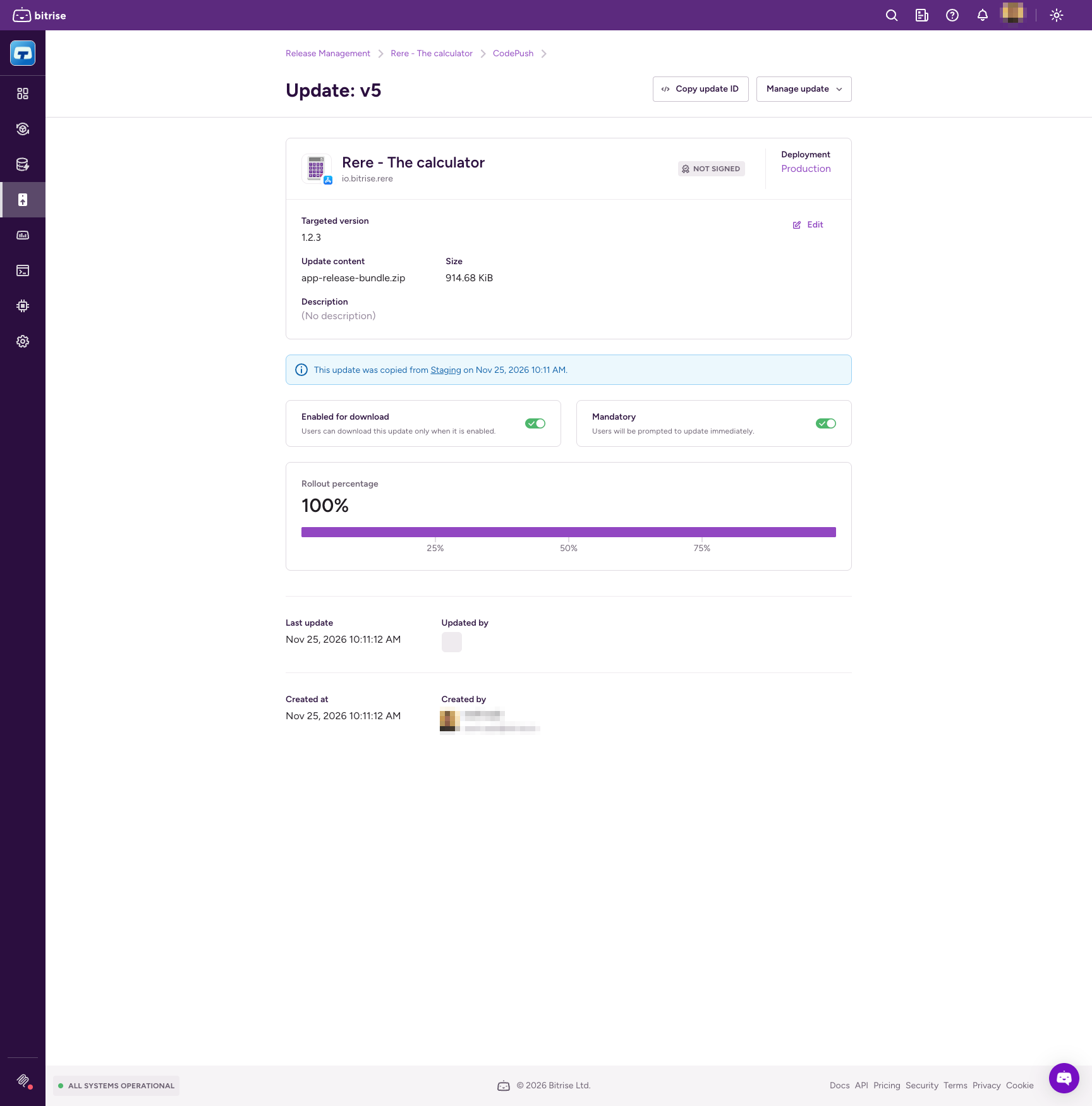
If Bitrise creates the copy but can't schedule its automatic rollout, the page of the new update shows a warning. The copy exists in either case: check the rollout settings on its page and set them again if needed.
Copying limitationsClick to copy link
Bitrise doesn't copy the update if:
- The latest enabled update in the target deployment hasn't reached 100% rollout. Roll it out to 100% or disable it first.
- The target deployment already contains an update with the same contents.