Build numbering and app versioning
All Bitrise builds have a build number. The first build of your project is, by default, number 1, and the build number gets incremented with each build. You can get a build’s Bitrise build number on the website, as well as via the $BITRISE_BUILD_NUMBER Environment Variable. This variable can be used in any Step or script where you need the Bitrise build number for any reason.
You can change the build number manually on the web UI. For details, see: Changing the build number on the web UI.
Bitrise also helps you taking care of your mobile app’s versioning automatically, using Bitrise. We have two Steps to do it for you, one for iOS and one for Android. For details, see: Setting up app versioning automatically on Bitrise.
Changing the build number on the web UIClick to copy link
The build number is automatically incremented whenever you run a build, but you can set it manually on the Project settings page of your Bitrise project.
The build number must be a positive integer. Zero or negative numbers are not accepted. You can, however, set any number you have already used.
-
Open your project on Bitrise with a user that has the Admin role on the project, or a custom role with the Edit workflows permission.
-
On the main page of the project, click on the Project settings button.
-
On the left, select Builds.
-
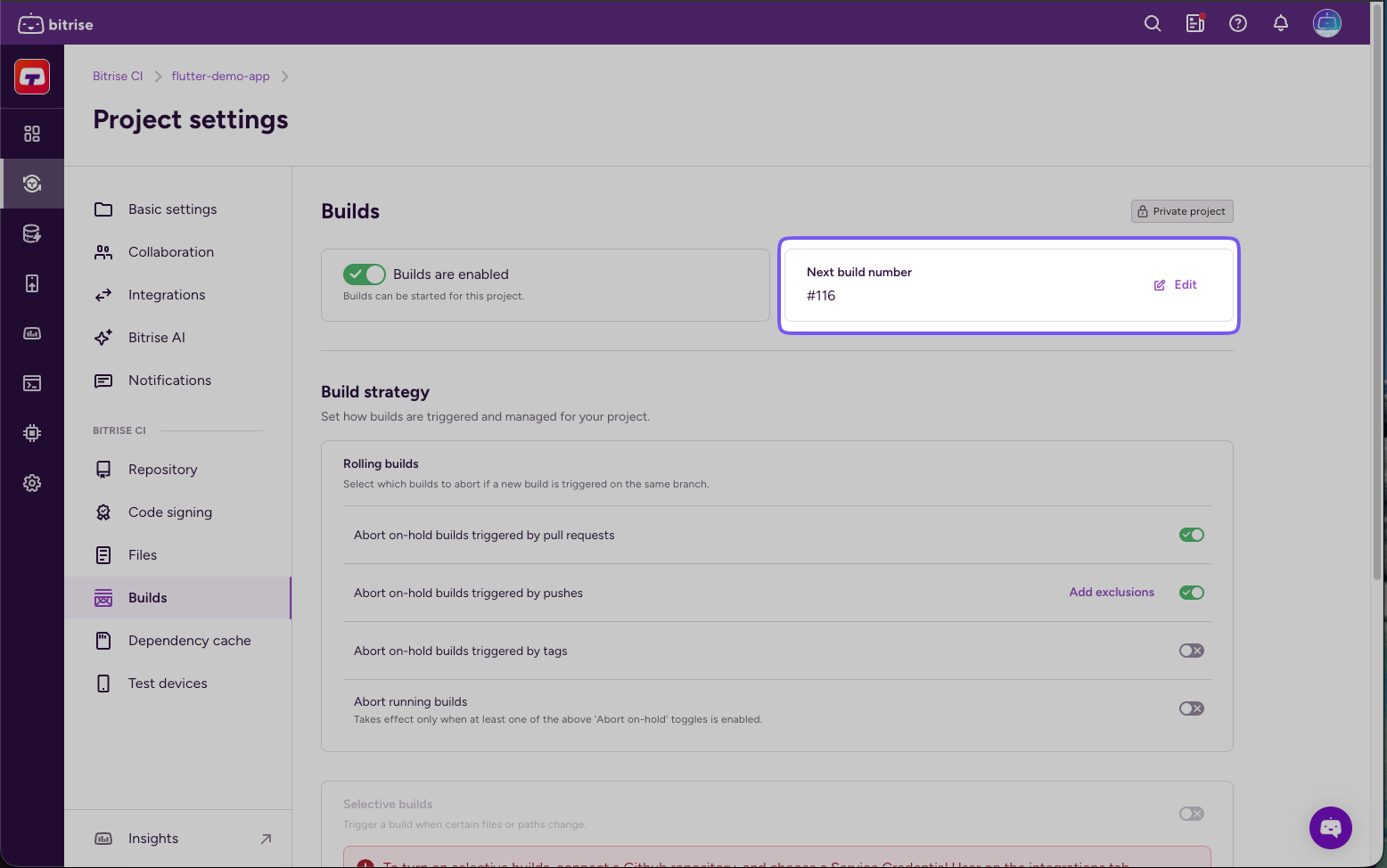
Find Next build number and click Edit.
-
Add the desired build number then click Save.
Setting up app versioning automatically on BitriseClick to copy link
Track the version of your mobile app in its Git repository by modifying the file containing the essential information about the app (for example, the Info.plist file for iOS apps and either the build.gradle file or the AndroidManifest.xml file for Android apps).
Bitrise has two Steps to do this for you. These two Steps can insert the Bitrise build number or some other specified number into their respective files:
- Change Android versionCode and versionName for Android apps.
- Set Xcode Project Build Number for iOS apps.
Both Steps accept either numbers (integers and/or numeric strings) or environment variables in their relevant inputs. By default, both use the $BITRISE_BUILD_NUMBER Environment Variable as their default value for the build number.
Setting the versionCode and the versionName of an Android appClick to copy link
For an Android app, the setting is used as an internal version number, to determine if a build of the app is more recent than another build. The versionName setting is a string used as the version number shown to users.
For in-depth information about Android versioning, please check out the Android developer guide on the subject.
In this guide, we’re setting the version information in the build.gradle file. This is the recommended method: you can also set it directly in the AndroidManifest.xml file but be aware that any version info set in the manifest file before the build will be overwritten by the build.gradle file’s settings during the build.
To configure Android versioning:
-
Add the Change Android versionCode and versionName Step to your Workflow.
-
Set the the path to your
build.gradlefile in the Path to the build.gradle file input.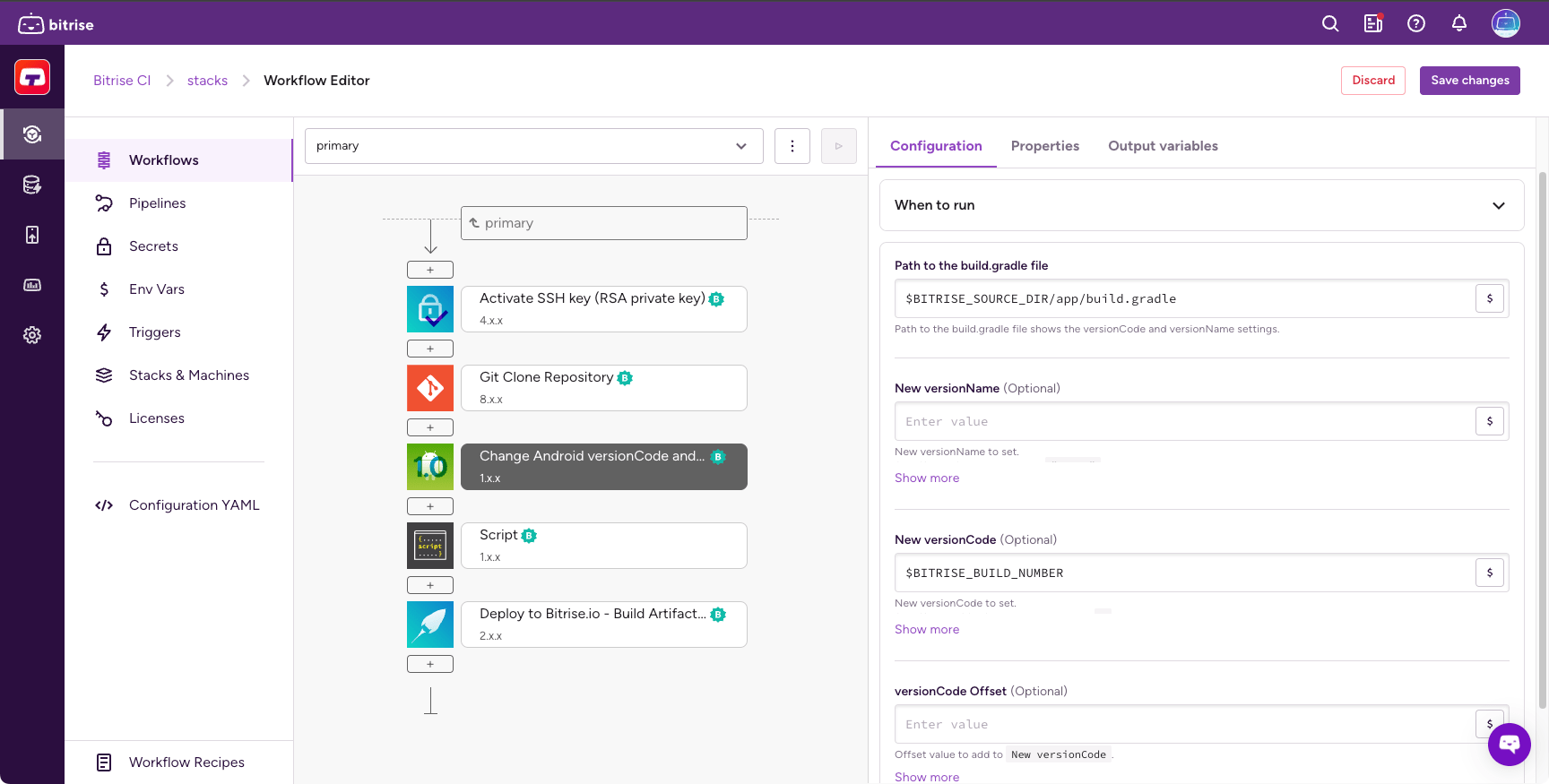
-
Add a value in the New versionName input.
-
Add a value in the New versionCode input.
The default value is the $BITRISE_BUILD_NUMBER Environment Variable.
Setting the CFBundleVersion and CFBundleShortVersionString of an iOS appClick to copy link
For an iOS app, the value of the CFBundleVersion key (“Bundle version” in Xcode) is the build number of the app while the value of the CFBundleShortVersionString key (“Bundle versions string, short” in Xcode) is the version number of the app.
For in-depth information about iOS versioning, including the functions of the CFBundleVersion and the CFBundleShortVersionString keys, please check out this Apple technical note; you can also look up the summary of most important keys.
To set up iOS versioning on Bitrise using Xcode 13+, update the following in Xcode:
- Set the Generate Info.plist File to
No, under PROJECT and TARGETS on the Build Settings tab. - Make sure you have all the necessary keys defined in the
Info.plistfile.
- Add the Set Xcode Project Build Number Step to your Workflow.
- Check the Project path and Scheme inputs. They default to
$BITRISE_PROJECT_PATHand$BITRISE_SCHEME, so you usually don't need to change them. Optionally, set Target or Configuration to limit the change to one target or build configuration. - Add a value in the Build Number input. This sets the
CFBundleVersionkey to the specified value in theInfo.plistfile. The default value is the $BITRISE_BUILD_NUMBER Environment Value. - Optionally, add a value in the Version Number input. This will set the
CFBundleShortVersionStringkey to the specified value in theInfo.plistfile. This input is not required.
Offsetting the build versionClick to copy link
You can offset your app’s build version numbers if you tracked versions differently before using Bitrise. For example, if your app already had six builds before you started using Bitrise, you can offset the version code so it continues from where you left off, instead of restarting from 1.
- Android
- iOS
- Add the Change Android versionCode and versionName Step to your Workflow.
- In the New versionCode input, use
$BITRISE_BUILD_NUMBER(this is the input's default value). - In the versionCode Offset input, set the value to add to the build number. This can be a fixed integer or an Environment Variable.
Let’s say you're about to run your app's fifth build on Bitrise, and the app already had six builds before you started using Bitrise. To keep versionCode numbering continuous:
- New versionCode:
$BITRISE_BUILD_NUMBER - versionCode Offset:
6 - New versionName:
1.0.5
$BITRISE_BUILD_NUMBER (5, in this example) is added to the versionCode Offset (6), so versionCode is set to 11. versionName isn't affected by the offset and stays 1.0.5 — so this build is versionName 1.0.5, versionCode 11 (the 11th build of version 1.0.5).
- Add the Set Xcode Project Build Number Step to your Workflow.
- In the Build Number input, use
$BITRISE_BUILD_NUMBER(this is the input's default value). - In the Build Number Offset input, set the value to add to the build number. This can be a fixed integer or an Environment Variable.
Let’s say you're about to run your app's fifth build on Bitrise, and the app already had six builds before you started using Bitrise. To keep the build number continuous:
- Build Number:
$BITRISE_BUILD_NUMBER - Build Number Offset:
6 - Version Number:
1.1
$BITRISE_BUILD_NUMBER (5, in this example) is added to the Build Number Offset (6), so CFBundleVersion is set to 11. CFBundleShortVersionString isn't affected by the offset and stays 1.1 — so this build is version 1.1, build 11.