Configuring build triggers
This page details information about target-based build triggers, defined within a Workflow or a Pipeline. We recommend this approach for all new users as it offers a more granular and flexible build trigger system.
Existing configurations might use legacy, project-based triggers. Read more about them: Legacy project-based triggers.
Creating build triggersClick to copy link
You create build triggers directly in a Workflow or Pipeline. Such triggers allow a single code event to trigger multiple Workflows or Pipelines. You can create triggers via the UI or in the configuration YAML file.
To create triggers:
- Workflow Editor
- Configuration YAML
-
Log in to Bitrise and select Bitrise CI on the left, then select your project.
-
Click the Workflows button on the main page.
-
Select a Workflow.
-
Select the Triggers tab on the Workflow's page.
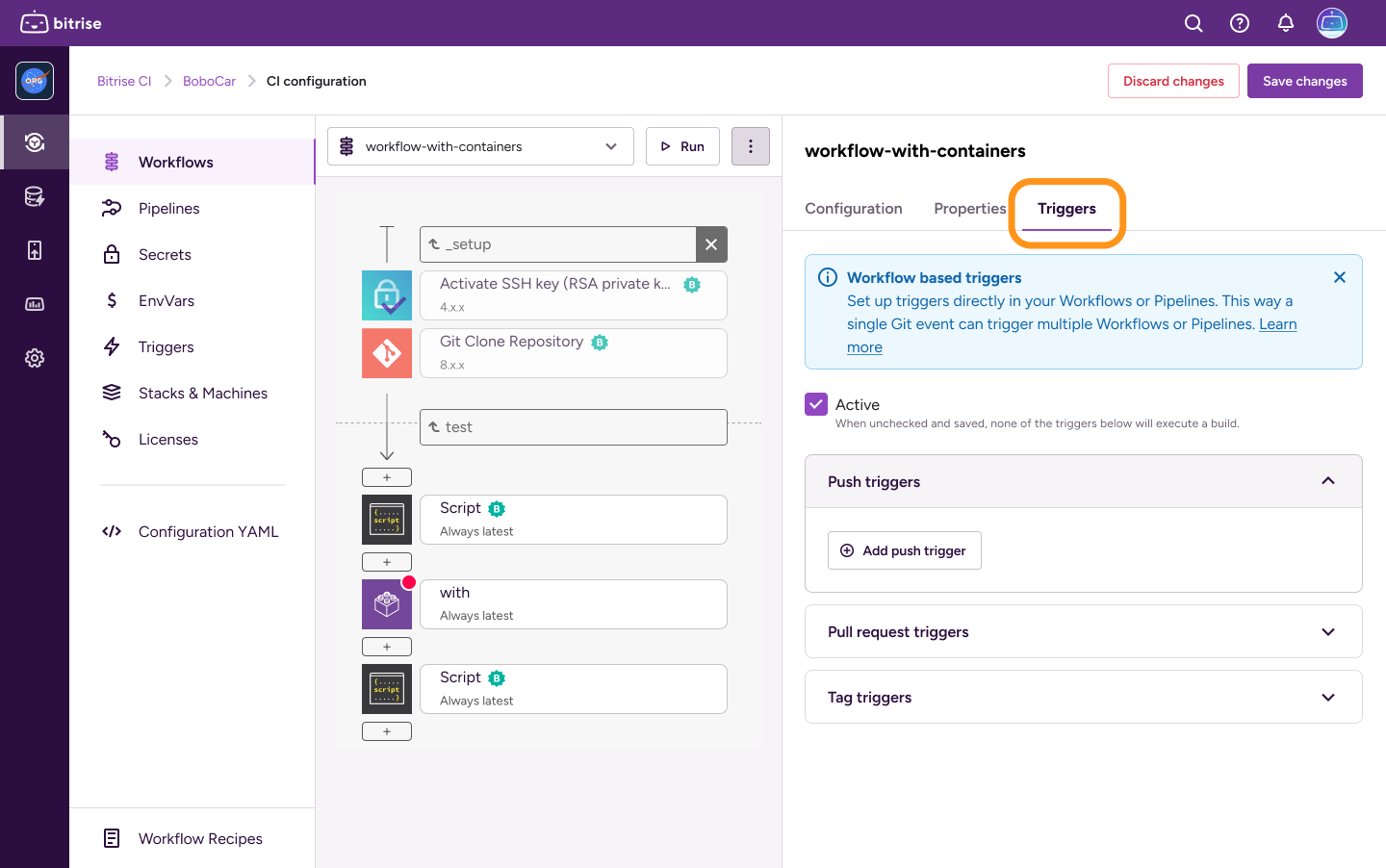
-
Select the trigger type and click the Add trigger button.
-
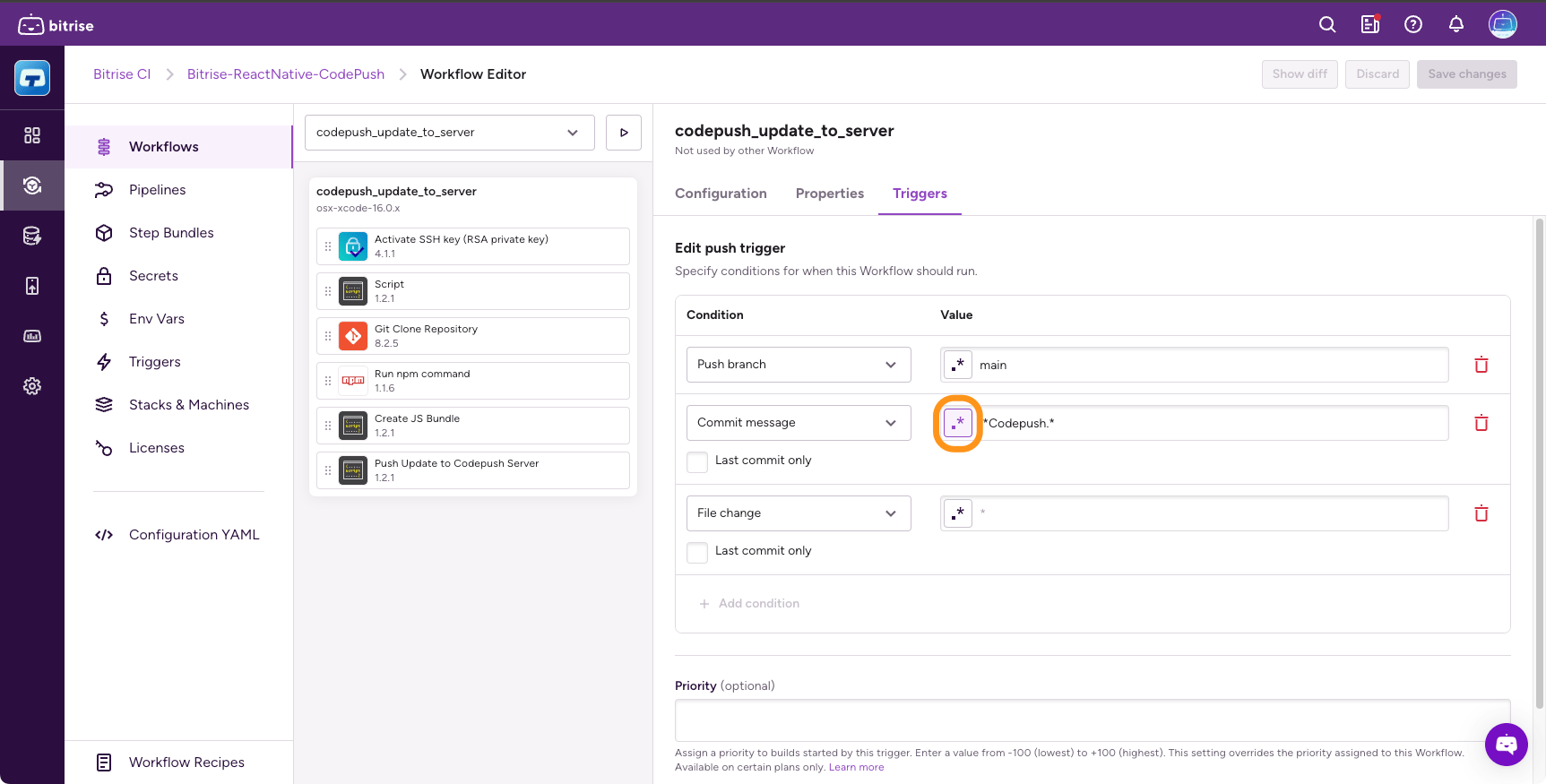
Configure your trigger in the dialog.
Click the regex pattern button to turn on regular expressions when defining a value for the trigger condition.
-
When done, click Add trigger.
-
Open your configuration YAML file.
-
Find the Workflow.
-
In the Workflow, add a
triggersproperty.my-workflow:triggers: -
Create your triggers. You can find the exact syntax for the different trigger types here: YAML syntax for build triggers.
For example, this trigger starts a build with the Workflow called
my-workflow:my-workflow:triggers:push:- commit_message: your_messageYou can use two properties for pattern matching:
patternallows you to use simple wildcard matching.regexallows you to use complex pattern matching with regular expressions.
my_awesome_workflowtriggers:push:- branch: main- commit_message:pattern: "hello"last_commit: truepull_request:- source_branch: "*" -
Save the configuration.
Adding a new target-based trigger on the Triggers pageClick to copy link
You can quickly add new target-based triggers without leaving the Triggers page. For example, after reviewing your active triggers, you can immediately add another one without switching context, speeding up your setup process.
-
Go to your project's Triggers page.
-
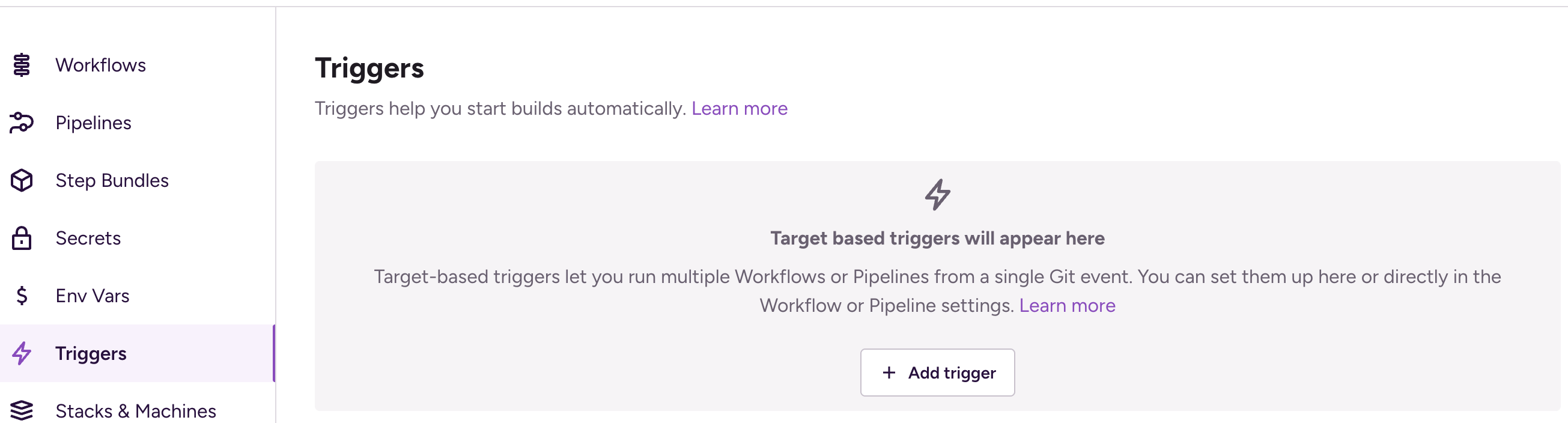
If you don't have triggers yet, you’ll see a new Add Trigger button in the middle on the Triggers page. Click Add trigger and fill out the dialog.
-
If you already have target-based triggers, the add trigger button is above the triggers in the top-right corner. Click add trigger and fill out the dialog.
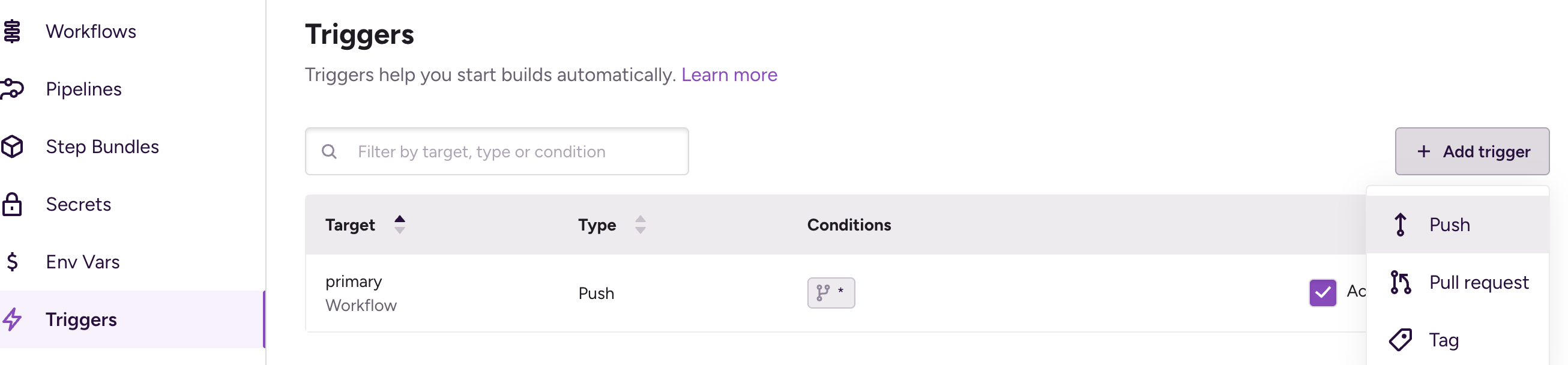
Adding a trigger here creates a specific workflow, which then appears under that workflow’s Triggers tab on the Workflows page for easy management.
Disabling a triggerClick to copy link
You can temporarily disable any build trigger. A disabled trigger doesn't trigger builds but retains all configuration information. You can reactivate a disabled trigger at any time.
To disable a build trigger:
- Workflow Editor
- Configuration YAML
-
Open the Workflow Editor on Bitrise.
-
Select a Workflow or Pipeline.
-
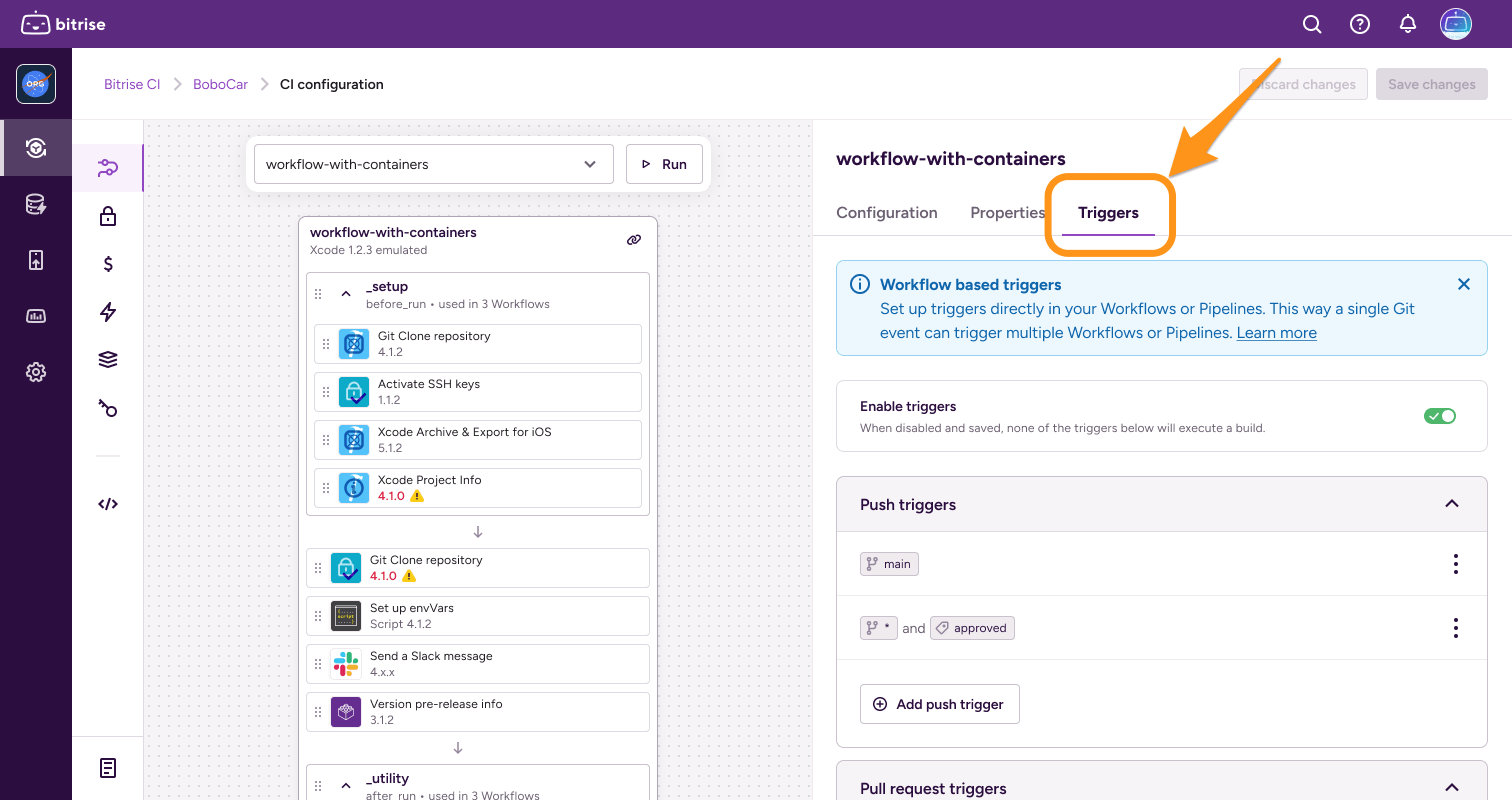
On the Workflow page, select the Triggers tab.
-
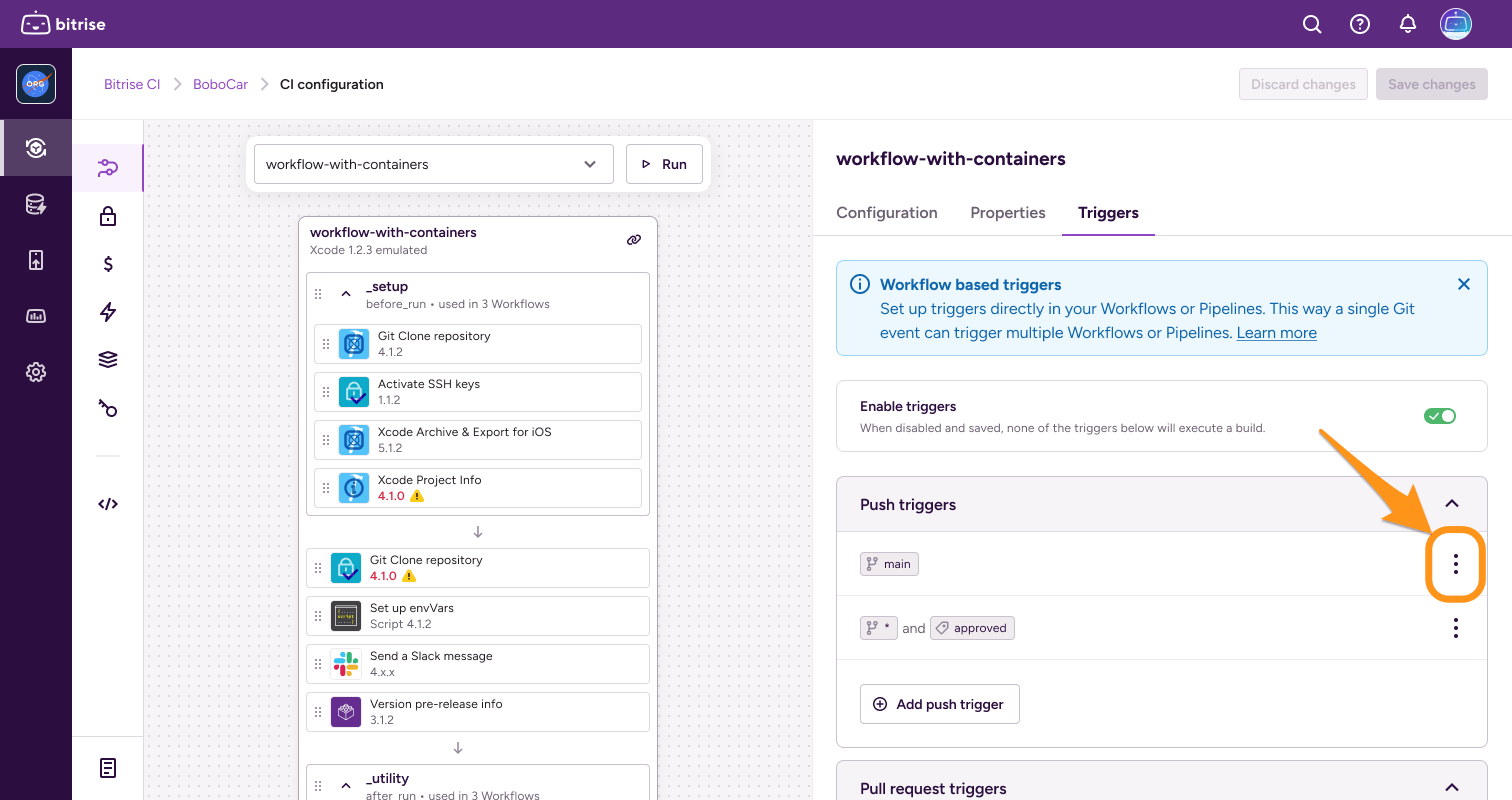
Find the trigger you need and click the options menu (⋮) next to its name.
-
Select Disable trigger.
-
Open your configuration YAML file.
-
Find the Workflow or Pipeline and its
triggersproperty. -
Add
enabled: falseto the trigger you want to disable.triggers:push:- branch: mainenabled: false
Creating a trigger for the most recent Git commitClick to copy link
By default, when using the Commit message or File change condition in a code push trigger, Bitrise evaluates all commit messages and all changed files included in a single code push.
However, you can configure your triggers to evaluate only the last commit in a push. If a push contains multiple commits, only the most recent one will be evaluated.
- Workflow Editor
- Configuration YAML
-
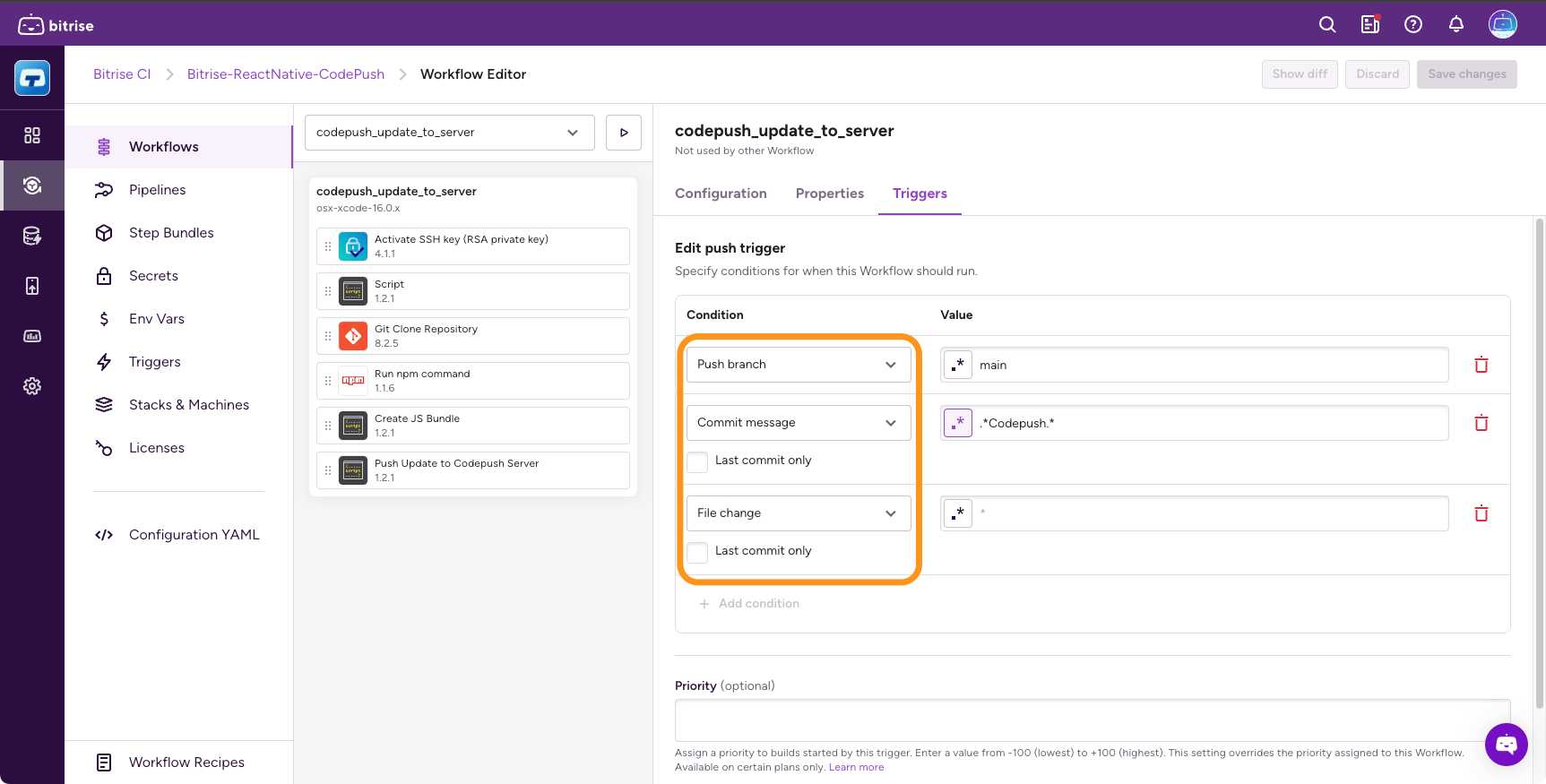
Select either the Commit message or the File change condition.
-
Under the condition, enable Last commit only.
-
Open your configuration YAML file and go to a Workflow.
-
Add a new push trigger. In the example, we're using the
commit_messagecondition.my-workflow:triggers:push:- commit_message: your_message -
Add the
last_commitproperty and set it totrue.my-workflow:triggers:push:- commit_message: your_messagelast_commit: true
Triggering builds from draft PRsClick to copy link
GitHub and GitLab offers a feature called draft pull request (or merge request in the case of GitLab): when you create a pull request (PR), you can choose to create a pull request that is ready for review or a draft pull request. Draft pull requests cannot be merged, and code owners are not automatically requested to review draft pull requests.
This feature is only supported for GitHub and GitLab repositories.
By default, opening a draft PR triggers builds. You can disable this at any time.
If opening a draft PR triggers a build, submitting it for review (converting it to "full" PR, in other words) will not trigger another. You can check out the exact code events that trigger builds depending on the draft PR trigger settings: Build trigger behavior for draft PRs.
Each separate trigger has its own toggle: you can configure your app so that certain triggers start a build from draft PRs while other triggers don't.
Disabling builds from a draft PRClick to copy link
This guide tells you how to disable triggering builds from a draft PR altogether. You can, however, also skip certain Steps in a build that is triggered by a draft pull request. You just need to use a run_if condition and the GITHUB_PR_IS_DRAFT Environment Variable: for more information, see Enabling or disabling a Step conditionally.
- Workflow Editor
- Configuration YAML
-
Log in to Bitrise and select Bitrise CI on the left, then select your project.
-
Click the Workflows button on the main page.
-
Open your Workflow and select the Triggers tab.
If you have a Pipeline, you can only disable the setting in the configuration YAML file.
-
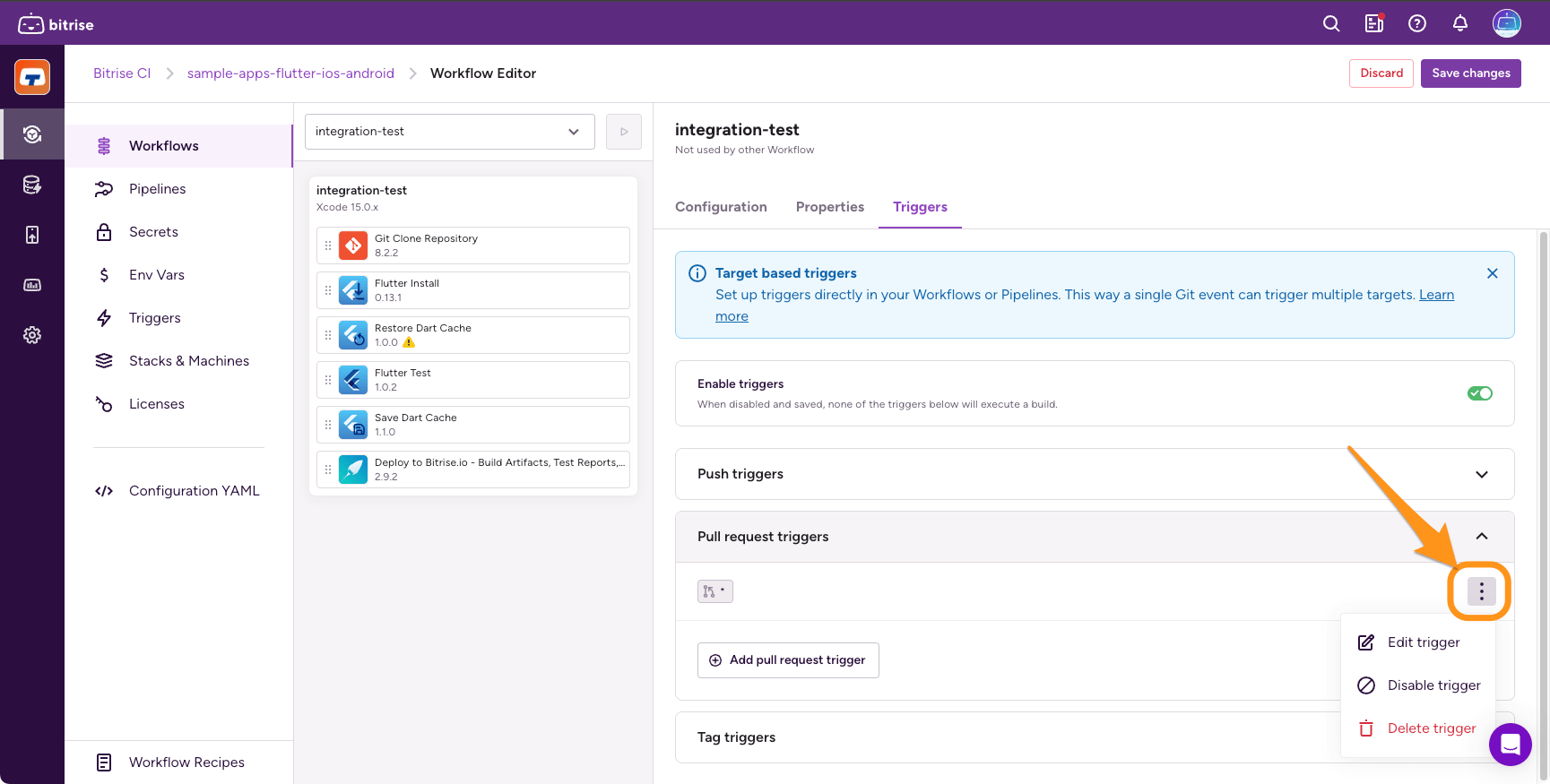
Find the trigger you need and click the options menu (⋮) next to its name.
-
Select Edit trigger from the menu.
-
Uncheck the Include draft pull requests option and click Apply changes.
-
Open your configuration YAML file.
-
Find the
triggerselement in all Workflows or Pipelines you want to modify. -
Add
draft_enabled: falseto the trigger entries you need.triggers:pull_request:- target_branch: "develop"draft_enabled: false- target_branch: "main"draft_enabled: false- comment: 'run Bitrise'This will start workflows for non-draft PRs against the develop branch and the main branch, or anytime
run Bitriseis commented on any PR.
Build trigger behavior for draft PRsClick to copy link
The table shows whether a build is triggered when a specific action is performed regarding draft PRs, depending on the draft PR trigger settings. For example, converting a draft PR to a PR doesn't trigger a build if the draft PR trigger is enabled but it does trigger a build when it's disabled.
| Action | Draft PR trigger is enabled | Draft PR trigger is disabled |
|---|---|---|
| Open a draft PR |  |  |
| Push a commit to a draft PR | | |
| Convert a draft PR to PR | | |
| Convert PR to draft PR | | |
Supported trigger conditionsClick to copy link
Not all trigger conditions are available for all Git providers. For details, check out the tables for both push triggers and pull request triggers.
Push trigger conditionsClick to copy link
| Git provider | Branch | Commit message | Files changed |
|---|---|---|---|
| GitHub (cloud and self-hosted) | | | |
| GitLab (cloud and self-hosted) | | | |
| Bitbucket (cloud and self-hosted) | | | |
| Assembla | | | |
| Deveo (Perforce) | | | |
| Gogs | | | |
| Azure DevOps | | | |
Pull request trigger conditionsClick to copy link
| Git provider | Source branch | Target branch | Labels | Comments | Commit message | Changed files |
|---|---|---|---|---|---|---|
| GitHub (cloud and self-hosted) | | | | | | |
| GitLab (cloud and self-hosted) | | | | | | |
| Bitbucket (cloud and self-hosted) | | | N/A | | | |
| Assembla | | | N/A | | | |
| Deveo (Perforce) | | | | | | |
| Gogs | | | | | | |
| Azure DevOps | | | | | | |
Assembla, Deveo (Perforce), and Gogs only support push-based triggers. Pull request triggers aren't available for these providers.
For a pull request in a GitHub stack, Bitrise matches the target branch condition against the base branch of the stack, not against the branch the pull request targets directly.
Take a stack where feature/part-2 targets feature/part-1, and the whole stack lands on main. A target_branch: main condition matches every pull request in the stack. A condition set to feature/part-1 matches none of them.