Detecting and aborting hanging Steps
You can detect and abort hanging Steps that do not produce any log output for a certain amount of time using the No Output Timeout function. You can use this function to automatically abort hung builds after a configurable timeout period to save credits and to enable Bitrise to gather data on hanging builds.
You can use the No Output Timeout function in two ways:
The No Output Timeout function can be used alongside other timeout functionalities, such as the one described in the M1 Hanging builds issue guide or in Setting a time limit for Steps.
Enabling the No Output Timeout function globally for all StepsClick to copy link
You must use Bitrise 1.50.0 or a newer version to use the No Output Timeout function.
To enable the No Output Timeout globally for all Steps:
-
Log in to Bitrise and select Bitrise CI on the left, then select your project.
-
Click the Workflows button on the main page.
-
Go to the Secrets tab.
-
Add a new secret Env Var:
BITRISE_NO_OUTPUT_TIMEOUTand set its value to the number of seconds you want the build to wait for output logs before aborting.We recommend setting it to 600 seconds (10 minutes).
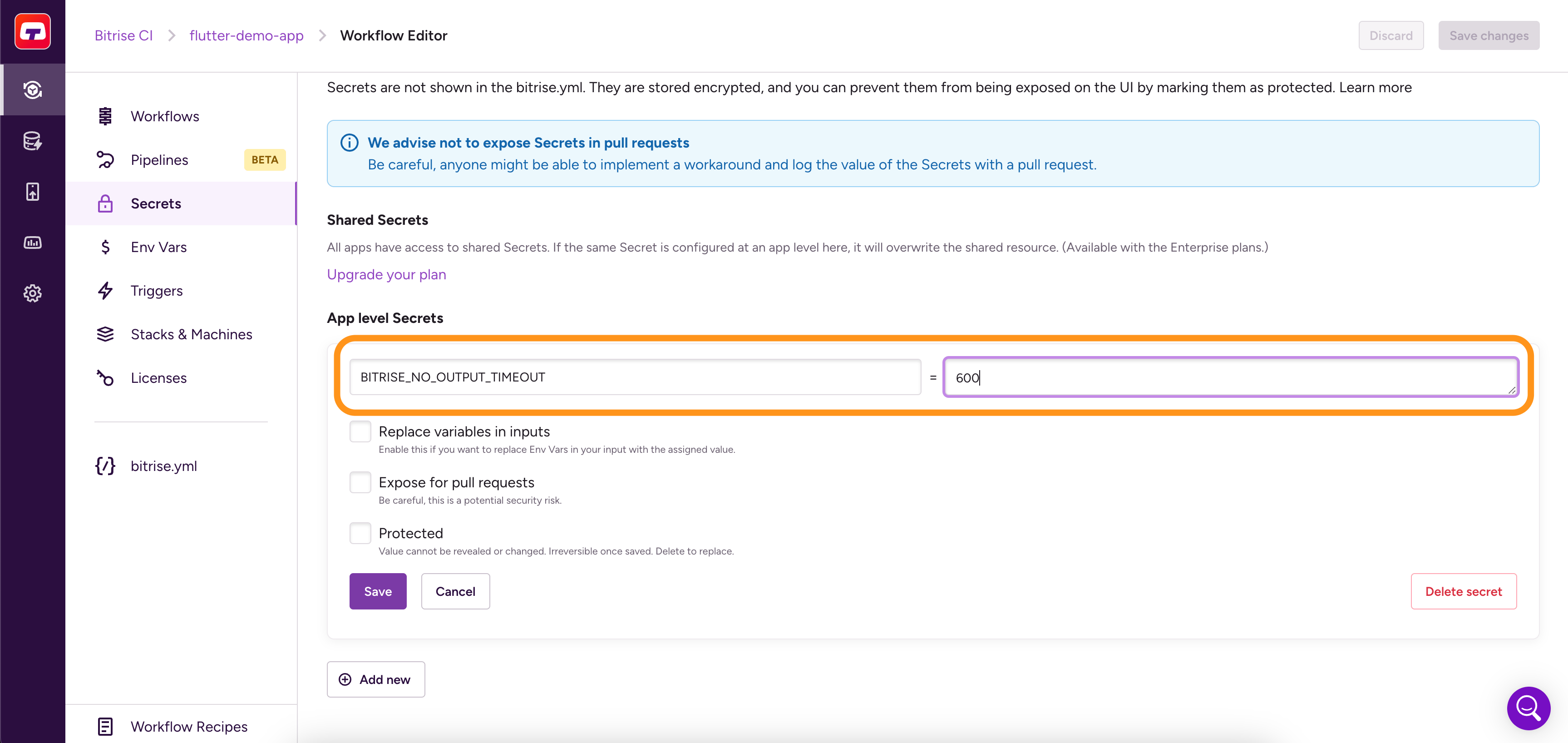 Aborting a hanging build automatically
Compared to setting a time limit for Steps, the No Output Timeout function only aborts a build no output log is generated for a set amount of time.
Any log output will reset the timeout. This can result in a Step running longer than the value you set in
BITRISE_NO_OUTPUT_TIMEOUT. -
Click Save. You can check the Build log of your build to determine if the function is enabled.
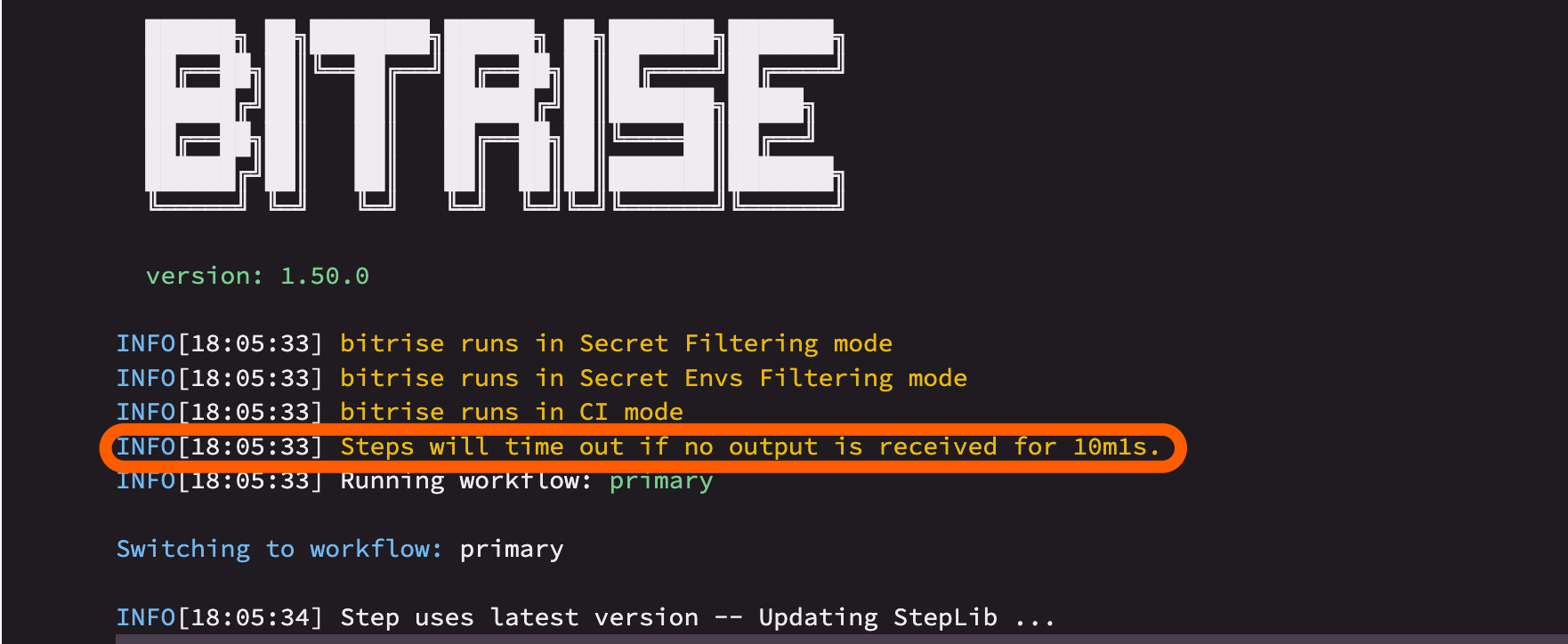
And that's it! From now on, whenever a Step does not produce an output log for the number of seconds you set in BITRISE_NO_OUTPUT_TIMEOUT , your build automatically aborts with the message: Abort via Bitrise CLI (no output timeout).
If you enabled the No Output Timeout function globally and want to disable it for specific Steps, you can add the no_output_timeout: 0 Step property just above the inputs: part of the chosen Step(s) in the bitrise.yml.
For example:
steps:
    - virtual-device-testing-for-ios@1:
        no_output_timeout: 0
        inputs:
        - zip_path: "$BITRISE_PROJECT_PATH"
Enabling the No Output Timeout function for specific StepsClick to copy link
You must use Bitrise 1.50.0 or a newer version to use the No Output Timeout function.
You can enable the No Output Timeout function for specific Steps by adding the no_output_timeout Step property below a Step in your bitrise.yml file.
To do so with the Workflow Editor:
-
Log in to Bitrise and select Bitrise CI on the left, then select your project.
-
Click the Workflows button on the main page.
-
Go to the bitrise.yml tab.
-
Search for the Step(s) where you would like to use the function.
-
Insert
no_output_timeout: 12Step property and value just above theinputs:part of the chosen Step(s) to automatically abort a build if the Step does not produce an output log for 12 seconds.Setting theno_output_timeoutStep property to 0You can disable the No Output Timeout function for a Step by setting the
no_output_timeoutStep property to 0.Let's look at an example where a Script Step will always be aborted automatically:
output_slows_down:steps:- script@1:title: Output is slower and slowerno_output_timeout: 12inputs:- content: |-#!/usr/bin/env bashfor i in {1..5}doDURATION=$((5*i))echo "🏃step output (sleeping ${DURATION}s)"sleep $DURATIONdone
And that's it! Now, if your Step hangs and does not produce a single output log for the number of seconds you specified in the no_output_timeout Step property, the build will be aborted automatically.