Releasing your app on the App Store
After your app has gone through all previous stages, it is ready for release. You can release your app to all users at the same time, or configure phased release for the Apple Store.
Configuring phased releases for the Apple StoreClick to copy link
You can release your app to the Apple Store in phases. With a phased release, you release your apps in several different stages, with only a certain percentage of users getting the new version with each stage. Users aren't notified that they are in a staged release. Automating the process means you don't have to manually release the app at each stage to a different segment of users: Release Management takes care of that automatically.
Google calls this feature a staged rollout while Apple calls it a phased release.
Enabling phased releases for the Apple StoreClick to copy link
If you choose this option, your version update will be released over a seven-day period to a percentage of your users (selected at random by their Apple ID) who has automatic updates turned on. Users aren’t notified that they're in a phased release of your app.
You can enable phased release before the App Store review stage or during the release stage after a successful App Store review.
- Before App Store review
- After App Store review
-
On the App Store review stage, find App Store release settings.
-
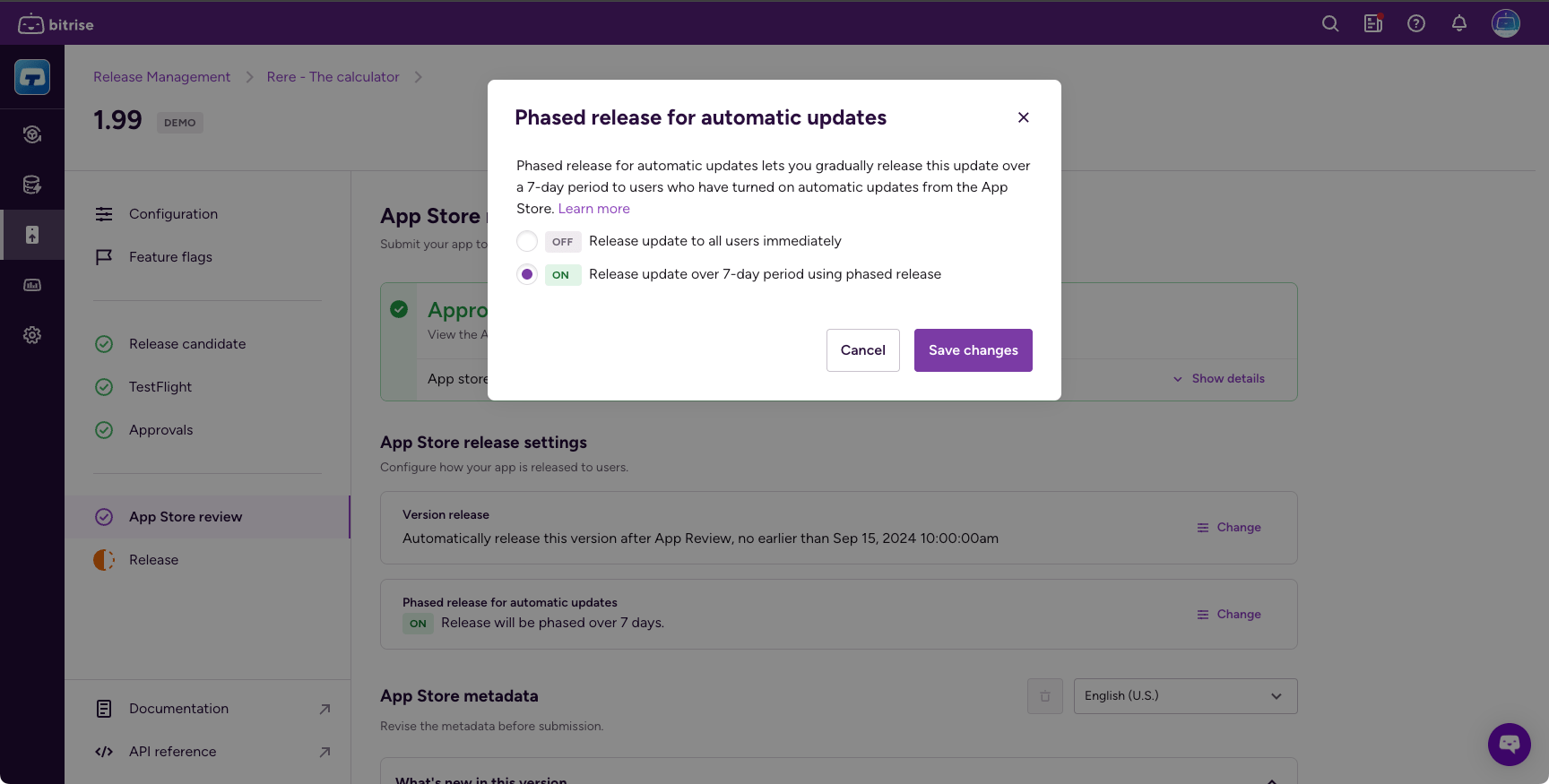
On the right of the Phased release for automatic updates card, click Change.
-
Select the Release update over 7-day period using phased release option.
-
Click Save changes.
-
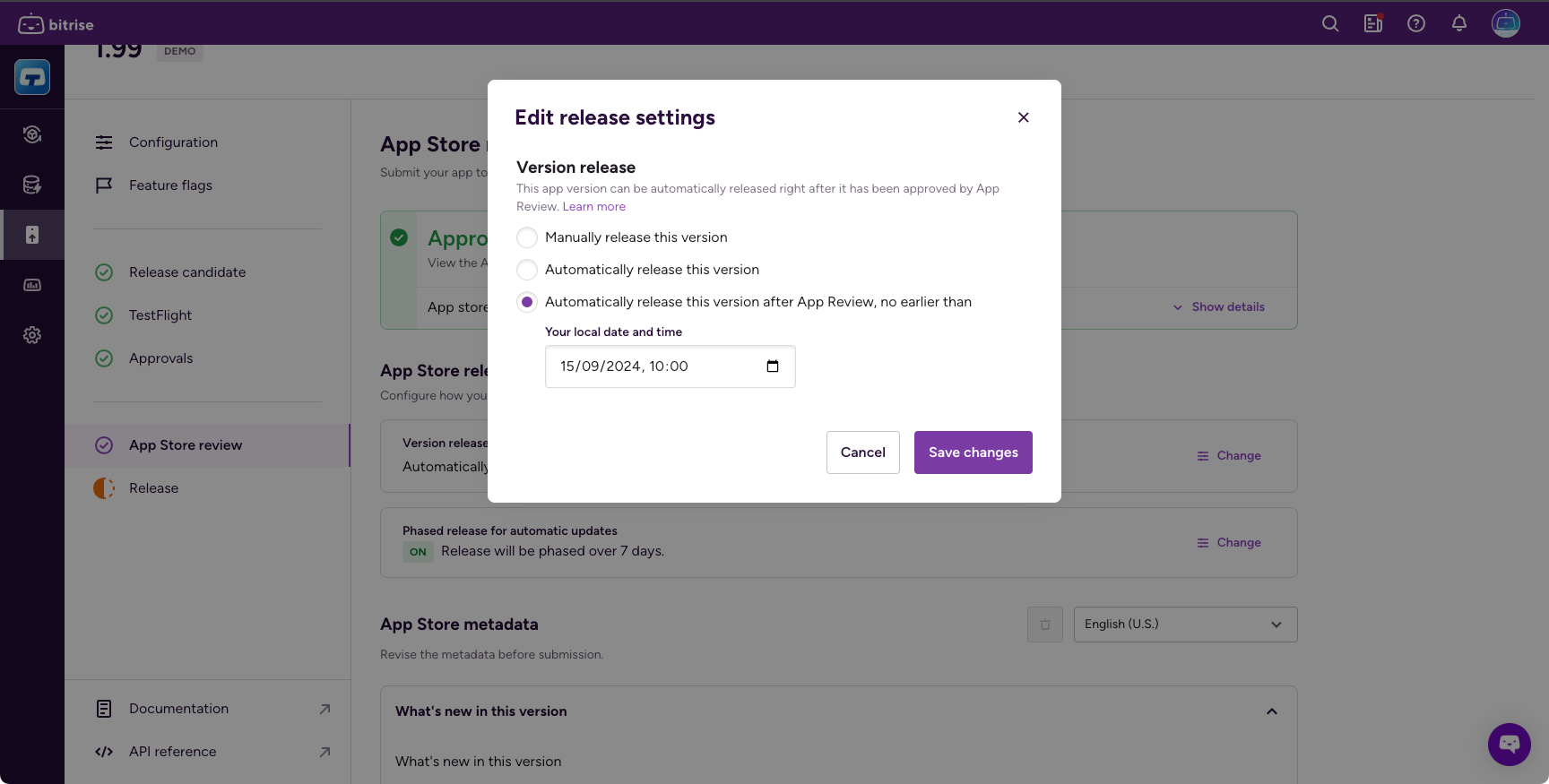
On the App Store review stage or the Release stage, find the Version release card and click Change.
-
In the dialog, choose one of three options:
- Manually release this version
- Automatically release this version
- Automatically release this version after App Review, no earlier than and set a date.
-
On the Release stage, find the Phased release for automatic updates card, and click Change.
-
Select the Release update over 7-day period using phased release option.
Pausing a phased releaseClick to copy link
While your app is in phased release, you can choose to pause the release for a total of 30 days. There’s no limit to the number of pauses.
- On the Release stage, click the Pause button.
- To continue the phased release, click the Continue button.
Releasing your appClick to copy link
Once everything is configured, you can release your app. Depending on your settings, you can either release the app to all your users at the same time, or do a staged rollout.
-
Open your release.
-
Select Release on the left navigation bar.
-
Click Release version. It either releases your app to all users or starts a phased release, depending on your settings. You can change the settings in the App Store release settings section.
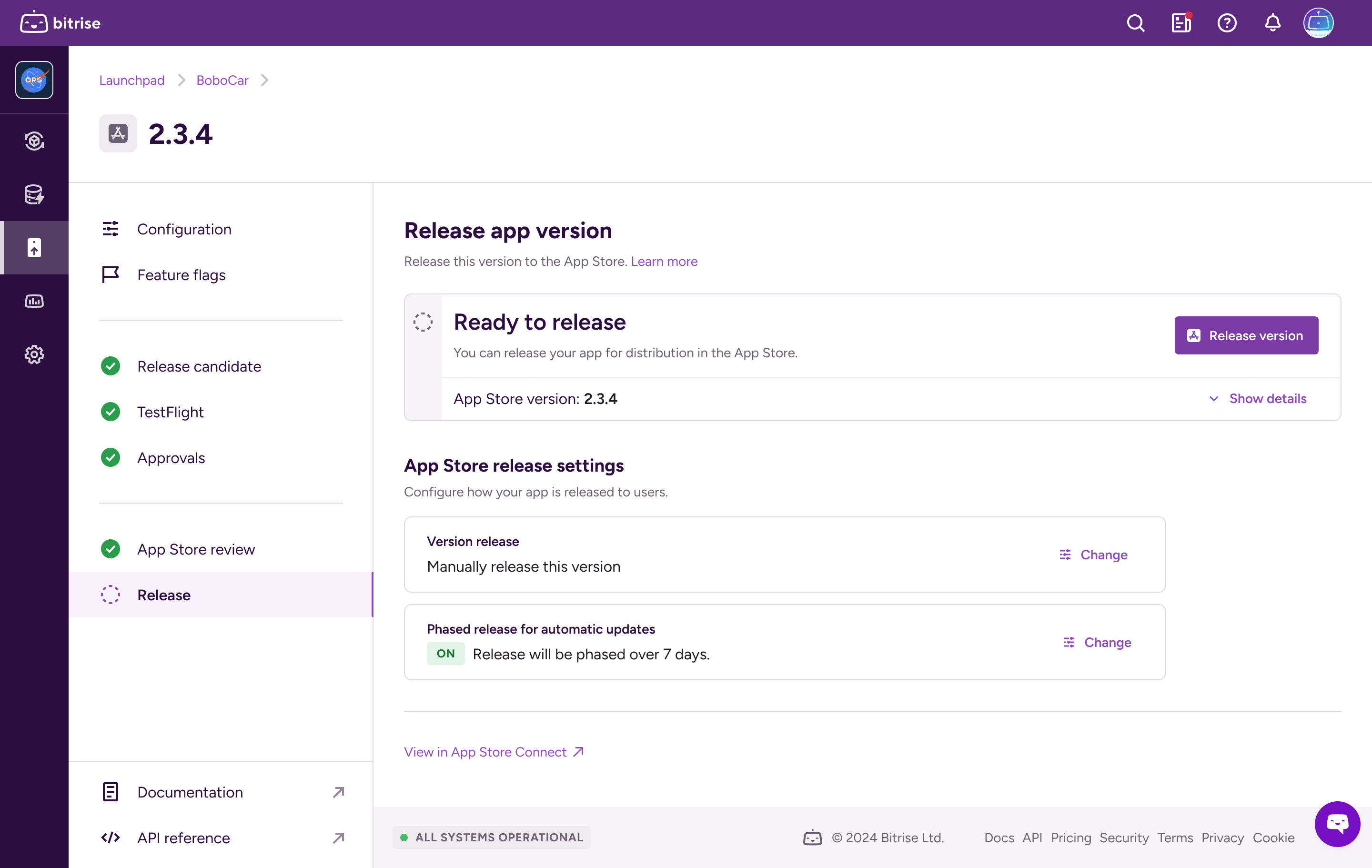
For iOS apps, you can change the date on the Release page if you selected Automatically release this version after App Review, no earlier than in the App Store review stage.