Editing a modular configuration in the Workflow Editor
If your configuration is split across several YAML files with the include keyword, you don't have to leave the Workflow Editor to change one of them. The editor loads your whole file tree: you can read the merged configuration, edit individual modules, and push every change back to your repository in one step.
The Workflow Editor switches to the modular experience automatically when all of the following are true:
- Your configuration is modular: it has at least one
include. - You store your configuration in your own repository, not on bitrise.io.
- Your Workspace is on an Enterprise plan.
In every other case, the Workflow Editor works exactly as it does for a single-file configuration.
For the include keyword, nesting, and merge rules, see Modular YAML configuration.
Merged config and module viewsClick to copy link
The modular editor adds one tab for the merged configuration, plus one tab for each module you open.
The Merged config tab shows your entire configuration with every module assembled and every property resolved: the configuration that actually runs. It's read-only by design, so that every change stays traceable to the file that owns it. You can start builds here.
A module tab shows a single file. Inside an editable module, entities that the file only refers to are read-only: a Workflow defined in another module shows up here, but you edit its definition in the module that owns it.
| Surface | What you see | Editing | Starting builds |
|---|---|---|---|
| Merged config | The full, resolved configuration | Read-only | Yes |
| A module in your repository | What the file defines, plus references to entities defined elsewhere | Full editing | No |
| A module from another repository, branch, tag, or commit | What the file defines | Read-only | No |
Finding the module you need to editClick to copy link
You don't have to know which file defines what. Start in Merged config and let the editor tell you.
- Open the Workflow Editor and stay on the Merged config tab.
- Find the Workflow, Pipeline, or other entity you want to change. Every card shows the module that defines it, for example
Defined in .bitrise/workflows/deploy.yml. - Select the entity, then click Edit definition. The editor opens the module that defines it in a new tab, with the entity selected.
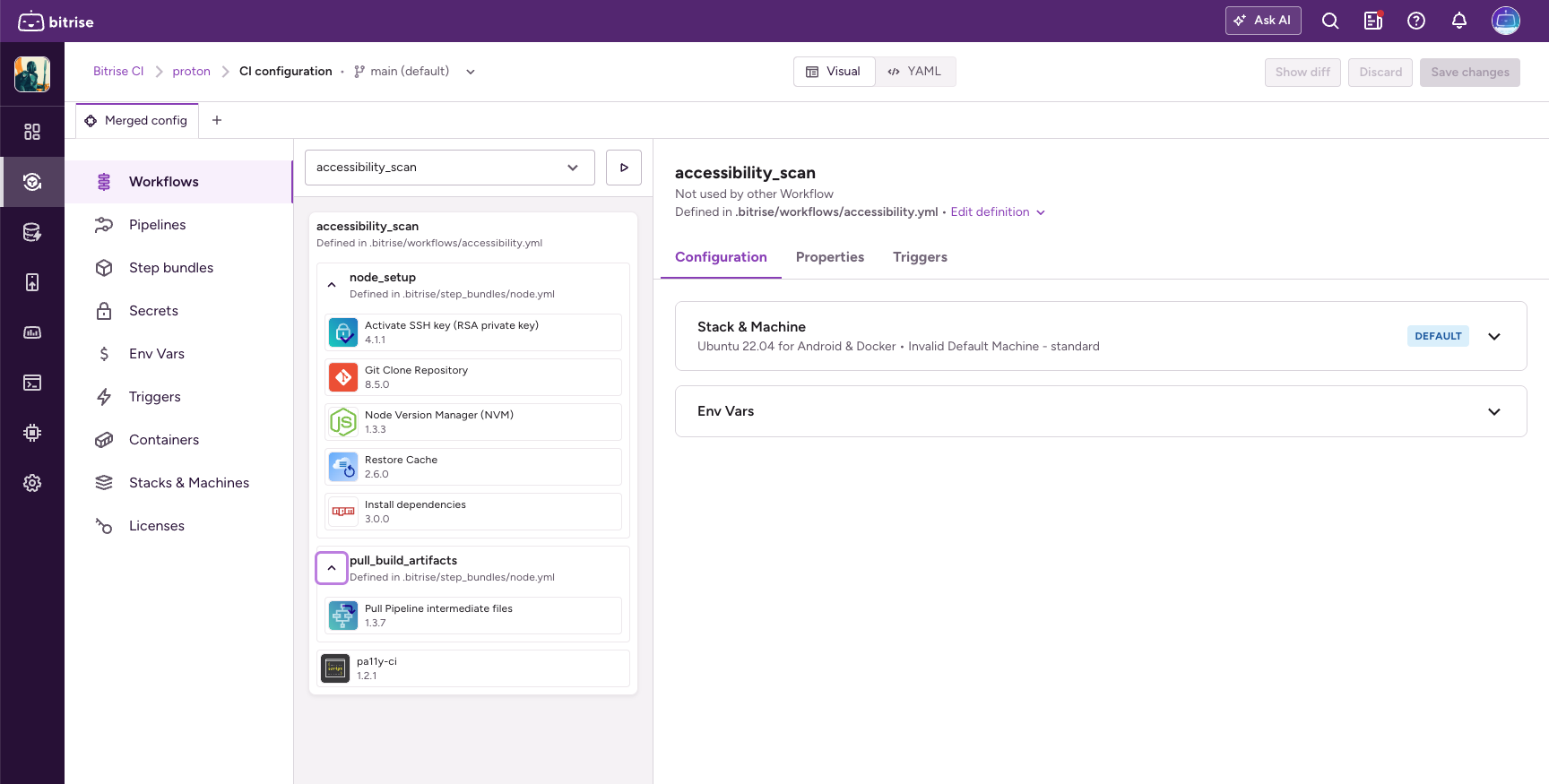
If an entity is defined in more than one module, Edit definition lists those modules in merge order so you can pick the one you want.
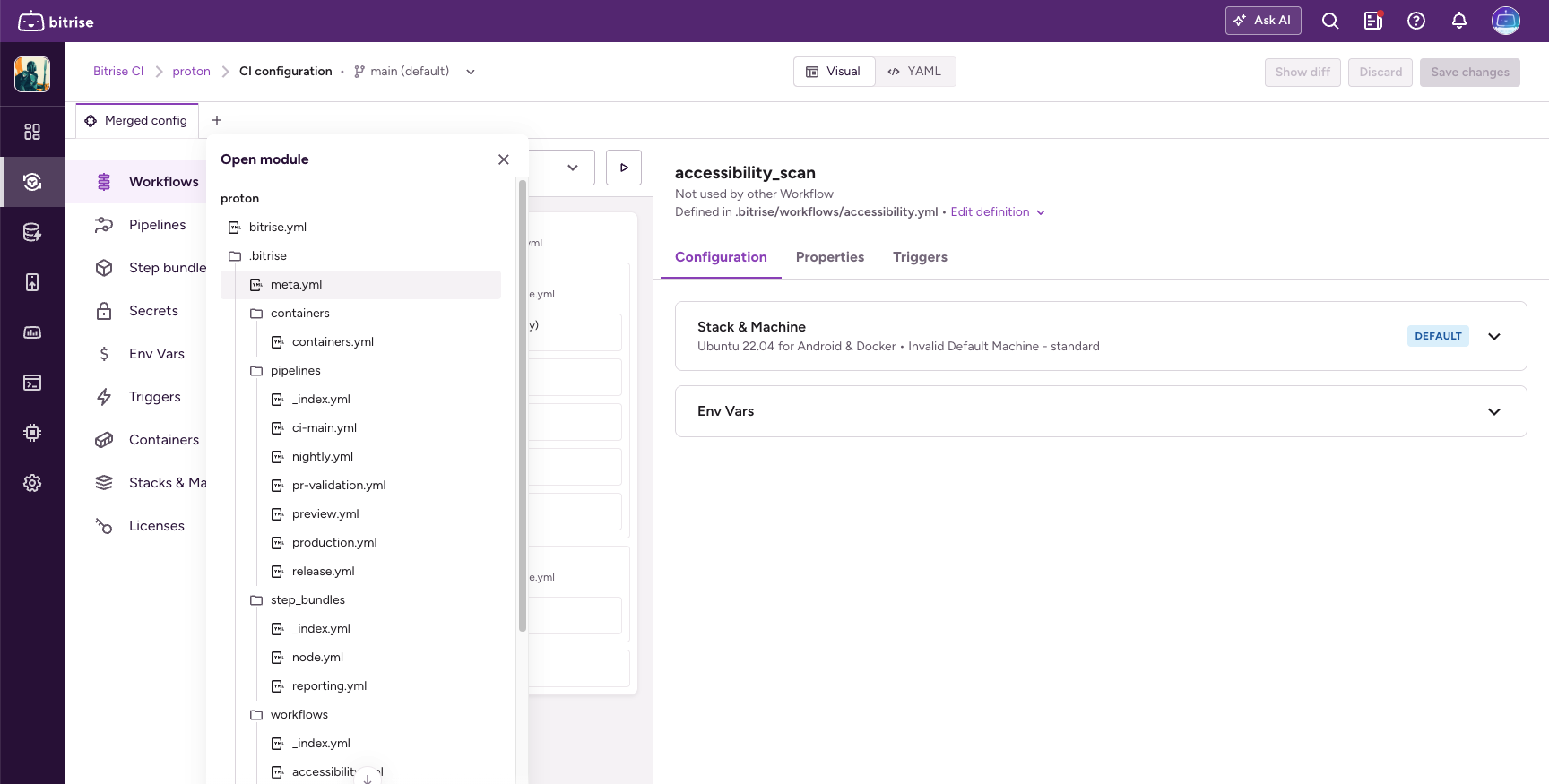
If you already know which file you need, open it directly: click + on the tab bar and select the file in the Open module popover. The popover mirrors your repository's folder structure.
Editing a moduleClick to copy link
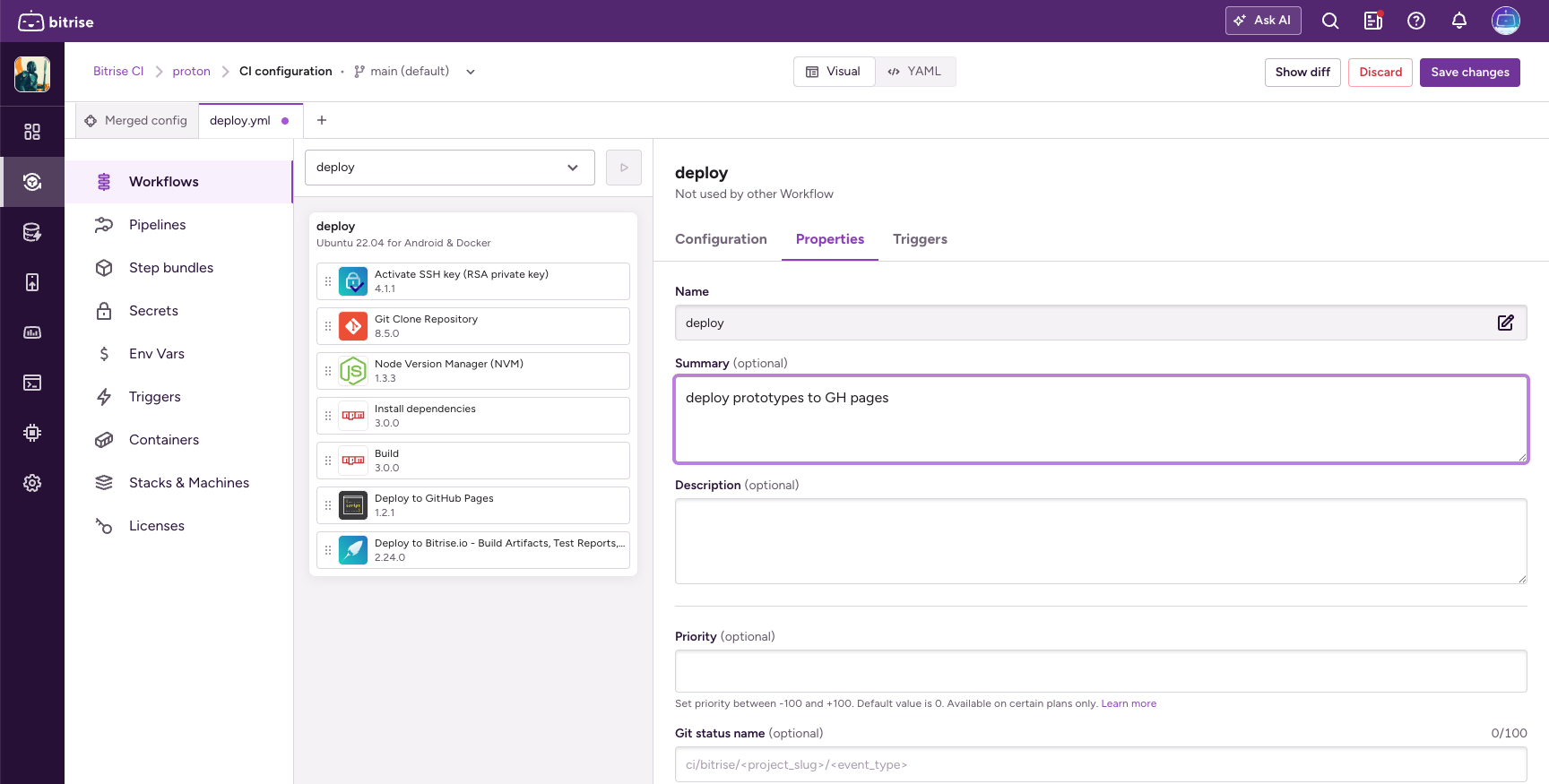
Editing a module is the same as editing a single-file configuration: you can create, edit, delete, and reorder anything the file defines, on any page of the editor: Workflows, Pipelines, Step bundles, Env Vars, Triggers, Containers, Stacks & Machines.
Two things are specific to modular configurations:
- The active tab is the file you're editing. Switching tabs switches the file. The tab shows a dot while it has unsaved changes.
- Entities defined in another module are read-only here. You can still change how the module you're editing uses them: you can remove a Workflow from a Pipeline, for example. To change the definition itself, use Edit definition to open the module that owns it.
Pickers work across the whole configuration: a Workflow defined in one module can be referenced from another.
Starting a buildClick to copy link
Start builds from the Merged config tab. A single module is usually an incomplete slice of the configuration: another file can add Steps or change triggers. Running from a module could run something different from what you see.
Pushing your changesClick to copy link
Saving pushes your changed modules together, to one branch. On GitHub and GitLab, a save is a single commit; on Bitbucket Cloud, each changed module is committed separately.
- Click Save changes.
- Check the list of changed modules in the Push changes dialog. Each module is listed with its full path.
- Choose Current branch, or New branch and name it.
- Write a commit message.
- Click Push changes.
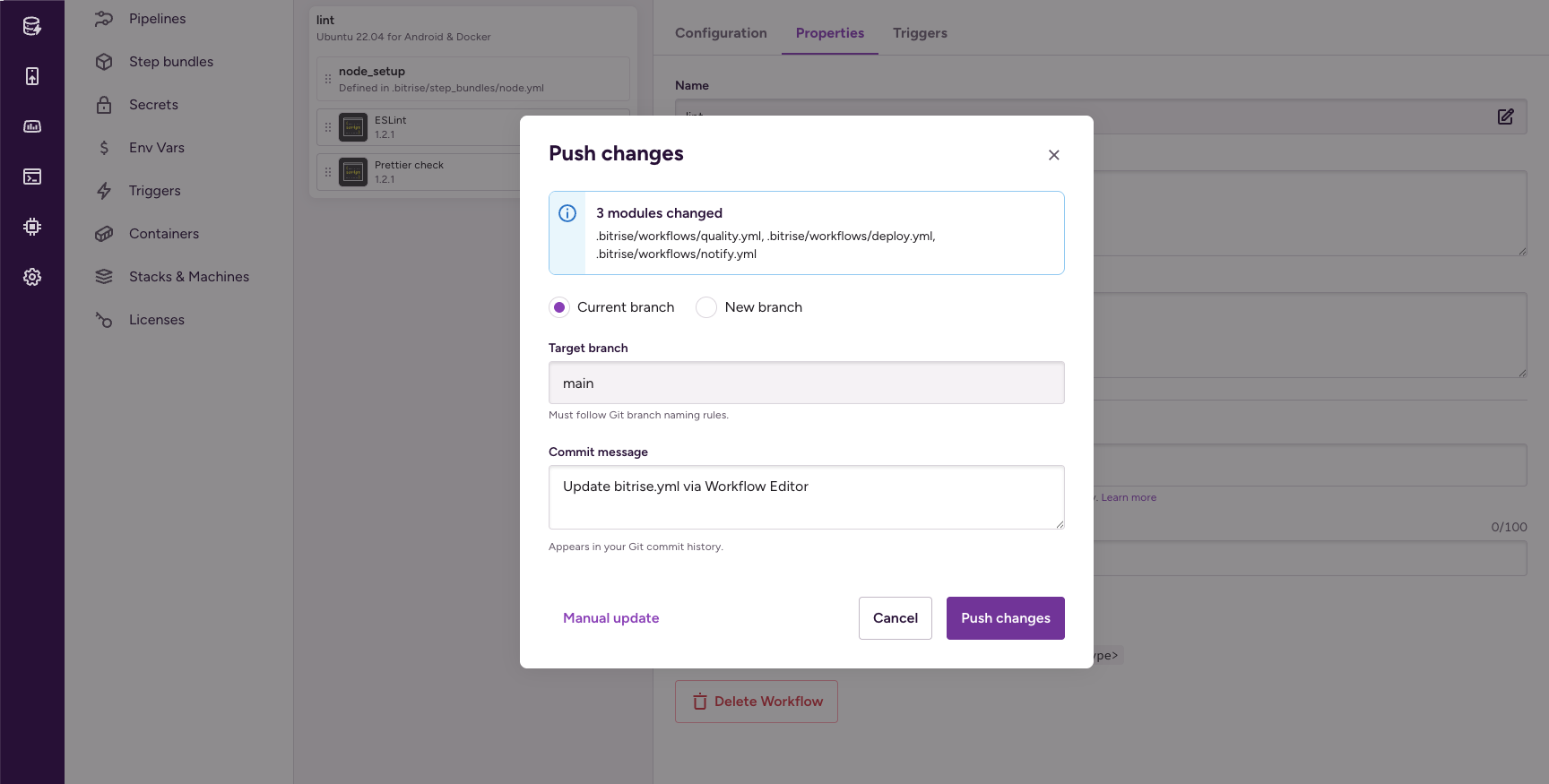
Only modules you actually changed are written, and read-only modules are never touched. After a successful push, the editor reloads your configuration so that any changes to include take effect.
If someone else pushed while you were editing, and one of the modules you changed also changed in the repository, the push is rejected as a whole. None of your modules are written, so your repository is never left half-updated.
If you commit your configuration changes by hand, click Manual update in the push dialog. You get every changed module with a download and a copy option, and you commit them to your repository yourself.
LimitationsClick to copy link
- You can't add or remove modules from the editor. Edit the
includelist by hand in YAML mode. The editor picks up the new structure after your next successful save, when it reloads the configuration. - You can't edit
includeparameters such aspath,repository,branch,tag, orcommit. Edit these in YAML mode as well. - You can't edit modules from another repository, branch, tag, or commit. You can open and read them, but you can't change them.
Until the editor reloads, the file tree and the tabs show the structure from the last load, even if you have already edited the include list. The merged configuration reflects your edits immediately.
Troubleshooting modular configurationsClick to copy link
The Workflow Editor doesn't show my modulesClick to copy link
Cause: Your setup doesn't meet all three conditions in When you get the modular editor.
Fix: Check that your configuration has at least one include, that it is stored in your repository, and that your Workspace is on an Enterprise plan. If all three hold and you still get the single-file editor, contact our support team.
The field I want to edit is greyed outClick to copy link
Cause: You are either on the Merged config tab, which is read-only, or in a module that refers to the entity without defining it.
Fix: Select the entity and click Edit definition to open the module that defines it.
I edited the include list, but the tabs and the file tree didn't changeClick to copy link
Cause: The editor reads your file structure when it loads the configuration, so it doesn't restructure itself while you type.
Fix: Save and push your changes. The editor reloads the configuration afterwards, and the new structure appears.
I can't start a build from the module I'm editingClick to copy link
Cause: Builds always run the merged configuration, so you can't start one from a module view.
Fix: Switch to the Merged config tab and start the build there.