Editing your profile settings
On the Profile settings page, you can:
- Change your username and associated email address.
- Change your password.
- Update your personal and company information.
Changing your Bitrise username, email, and passwordClick to copy link
-
Log in to Bitrise, and select Bitrise CI from the left navigation menu.
-
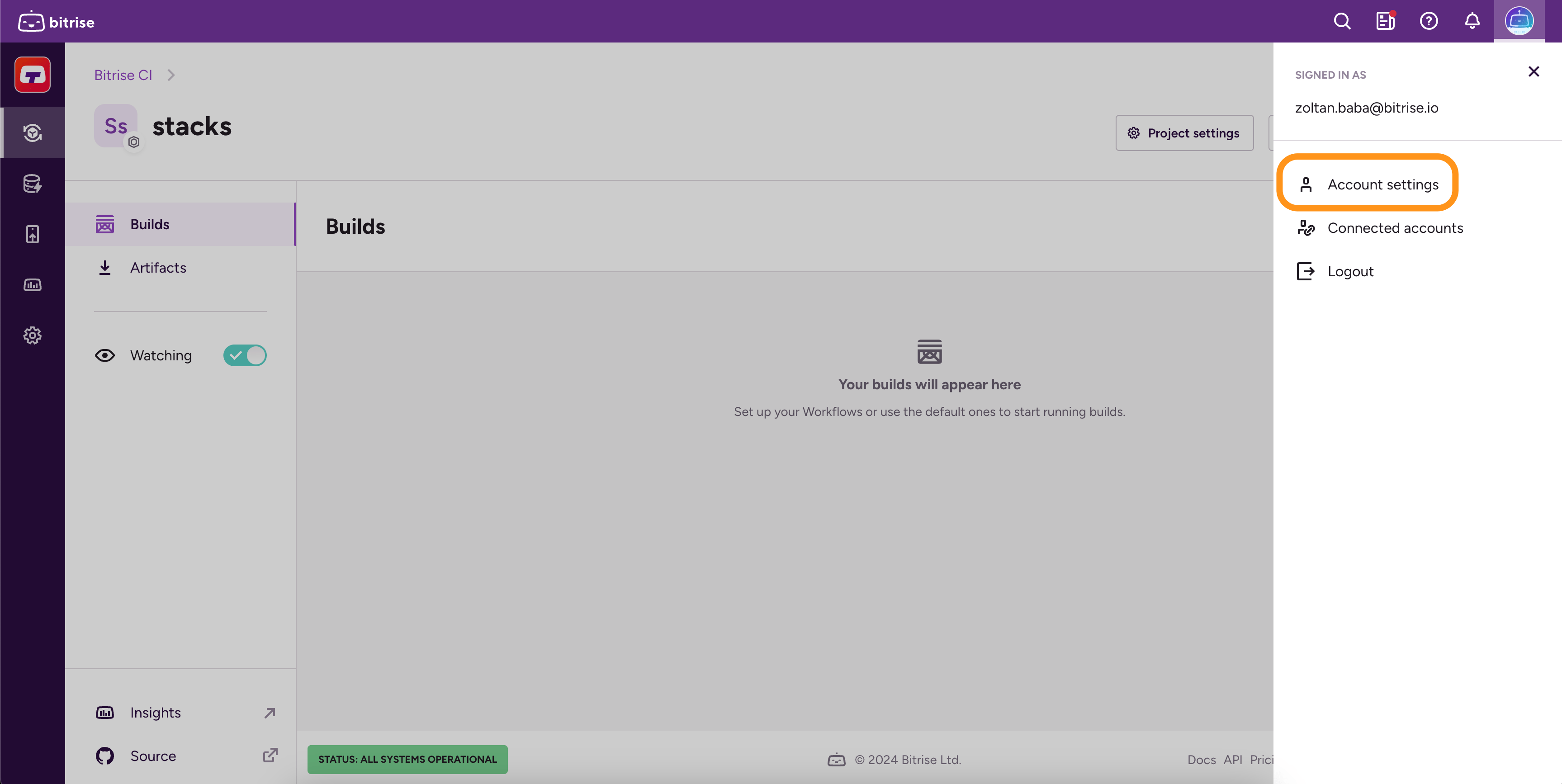
In the upper right corner, click the profile image to open the dropdown menu.
-
Select the Account settings option.
-
Find the Account details section, and click Edit.
-
Enter your current password when prompted, and click Done.
-
To change your username, type in the new username in the Username field.
-
To change your email, type in a new email address in the Email field.
-
To change your password, type in a new password in the New password field, and then type it again in the Confirm new password field.
-
When done, click Confirm changes.
Adding an avatar to your accountClick to copy link
You can add your own personalized avatar to your Bitrise account.
-
Log in to Bitrise, and select Bitrise CI from the left navigation menu.
-
In the upper right corner, click the profile image to open the dropdown menu.
-
Select the Account settings option.
-
Scroll down to your avatar below the Account details section, and click Edit.
-
In the Change avatar dialog, drag and drop your new avatar, or select a file from your computer.
-
Click Save changes.
Unselecting notification preferencesClick to copy link
By default Bitrise sends newsletters and platform updates to the email address you provide under your Profile. You can unselect this setting with 3 simple steps:
- Click Profile settings under your avatar.
- Click Notification on the left menu bar. You can see that Newsletters and Platform updates are both enabled by default.
- If you wish to rather not get any or one of the two, notifications, untick the relevant checkbox/es.