Connecting to an Apple service with Apple ID
Connecting to an Apple service (such as the App Store Connect or the Apple Developer Portal) with the Apple ID requires that you first add your Apple ID and password on the Connected accounts page, then select an app to use Apple ID authentication while the build is running.
If you cannot use the API key authentication, we recommend you try this option. Please note that you can only connect one Apple ID to Bitrise.
If two-factor authentication is enabled on your Apple account, you will have to provide the App-specific password during this process. Learn how to generate an app-specific password on the Security section of your Apple ID account page.
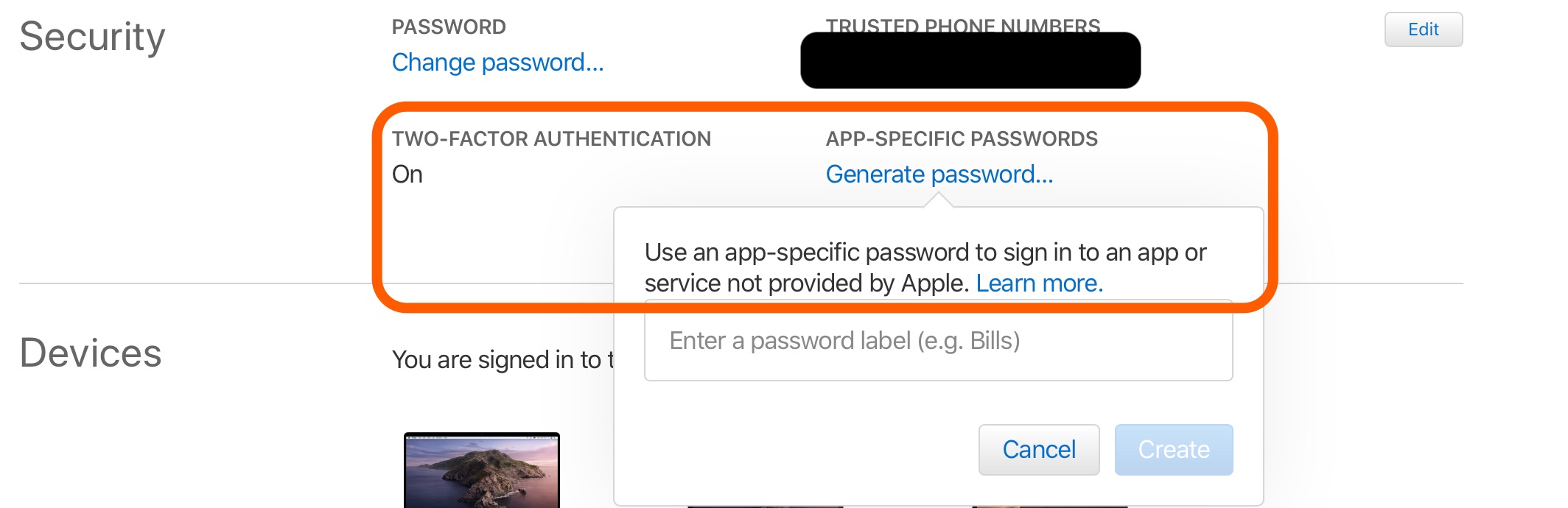
Adding Apple ID authentication data on BitriseClick to copy link
-
Log in to Bitrise, and select Bitrise CI from the left navigation menu.
-
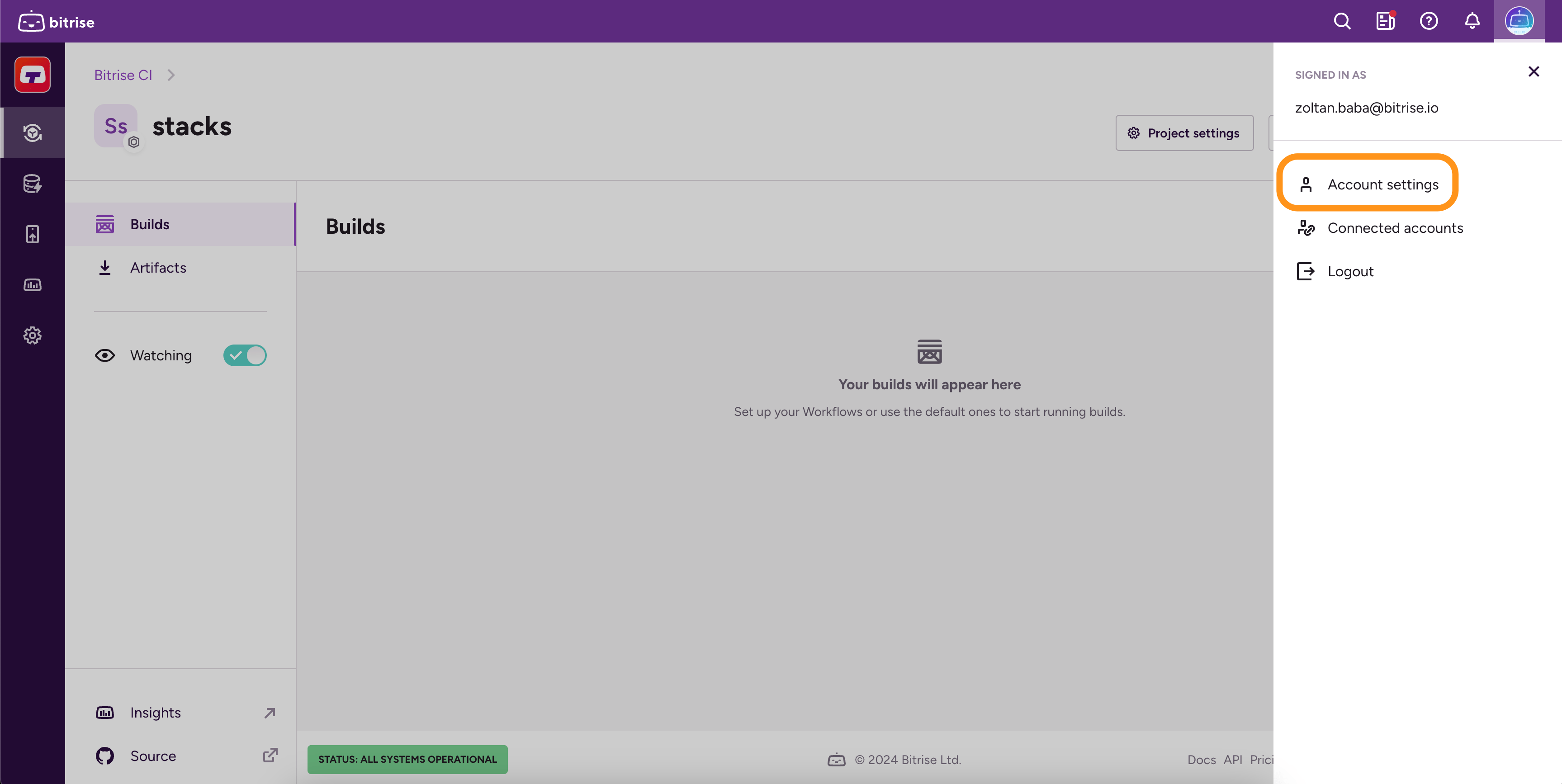
In the upper right corner, click the profile image to open the dropdown menu.
-
Select the Account settings option.
-
On the left, select Connected accounts.
-
On the Apple services tab, click Connect.
-
Provide your Apple ID, Password, and app-specific password in the dialog. Click Next.
-
Enter your verification code in the Two factor authentication dialog. Click Verify.
-
Your authentication expires in 30 days and you will have to authenticate again. When that happens, go to the Connected accounts page and click Re-authenticate. This automatically asks for the two-factor authentication (2FA) code to authenticate again.
-
Continue with Assigning an Apple Developer Account for your app.
Assigning Apple ID authentication to your appClick to copy link
Connecting to an Apple service (such as the App Store Connect or the Apple Developer Portal) with Apple ID authentication requires that you first add your Apple service authentication data on bitrise.io and then assign your Apple credentials to the app. With this method, you don't have to worry about authentication when using Steps that connect to Apple services: all Step inputs related to Apple authentication are automatically filled in.
You can only set your own user account's Apple ID authentication data to an app. If you have an app that needs someone else's Apple credentials, that user must log in and make the change themselves.
To assign Apple ID authentication data to your app:
-
Open your project on Bitrise with a user that has the Admin role on the project, or a custom role with the Edit workflows permission.
-
On the main page of the project, click on the Project settings button.
-
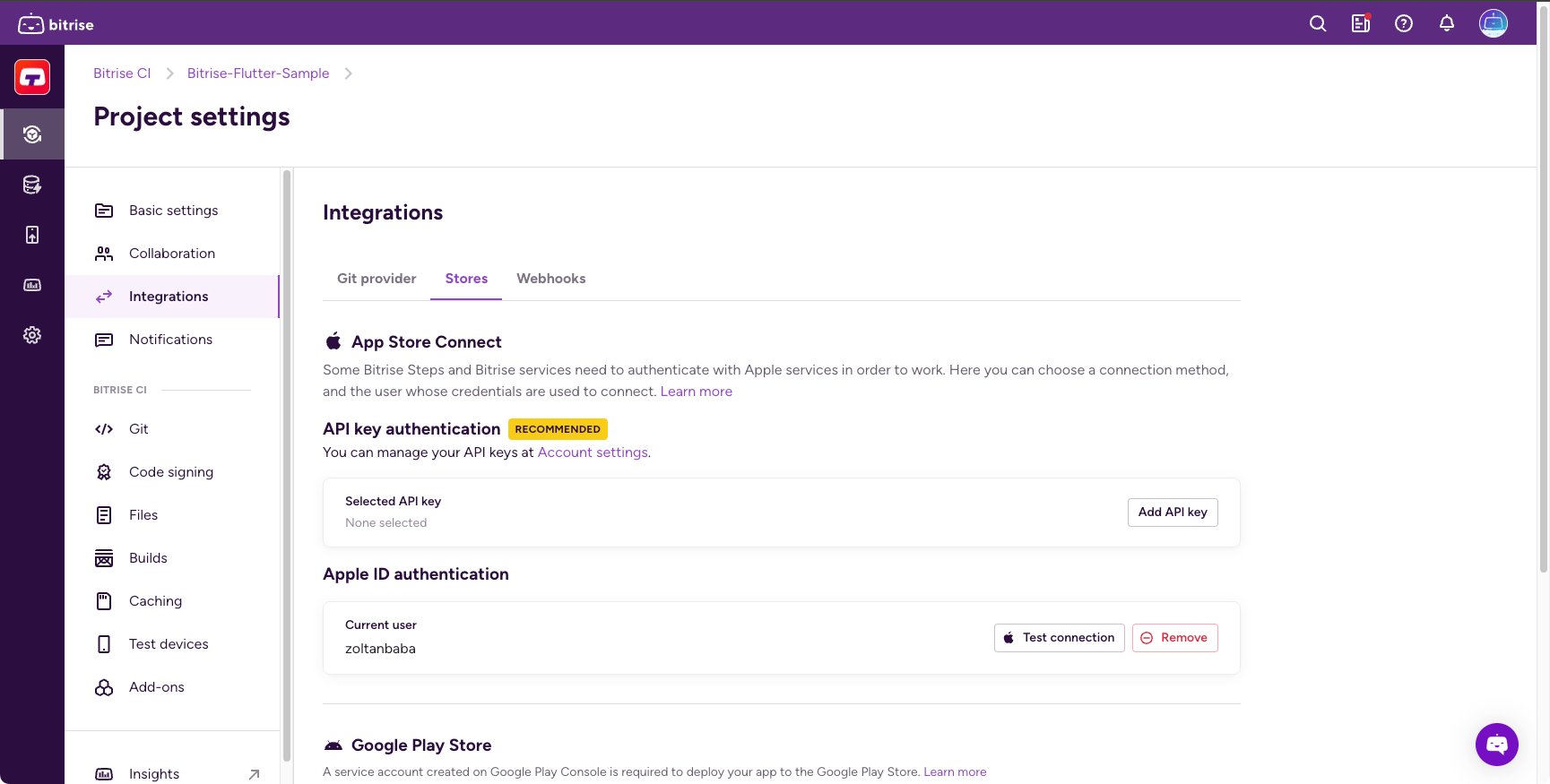
On the left, select Integrations.
-
Scroll down to the Connection to Apple services section.
-
Find the Apple ID authentication option.
-
Click Change to me.
If you can't find this option, you probably haven't set up your Apple credentials on bitrise.io. Note that changing the selected user removes the previous user. If you need to use the previous user's Apple credentials again, that user must log in and change it themselves.
Steps are now able to connect to an Apple service during your build.