Configuring Slack and Teams notifications
You can enable Slack and Microsoft Teams notifications for Release Management events. You need to create an incoming webhook at your preferred service (or both), and add the webhook URL in Release Management.
Please note that this feature is only available on a paid plan.
Configuring notifications for a releaseClick to copy link
You can configure notifications for each individual release:
- Slack
- Teams
-
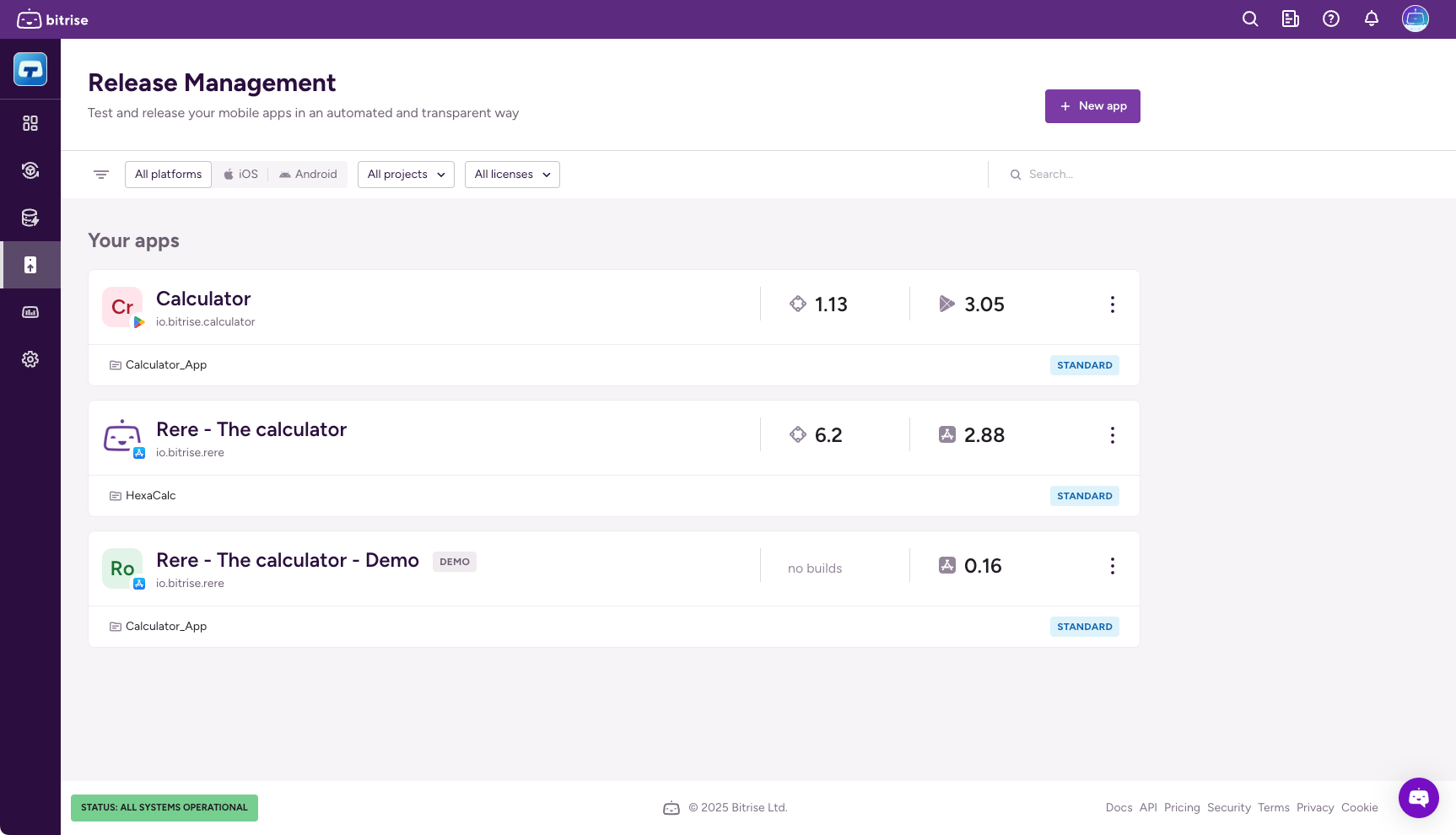
Open Release Management, and select your app from the list.
-
Select Releases and then select the release you need.
-
Select Configuration.
-
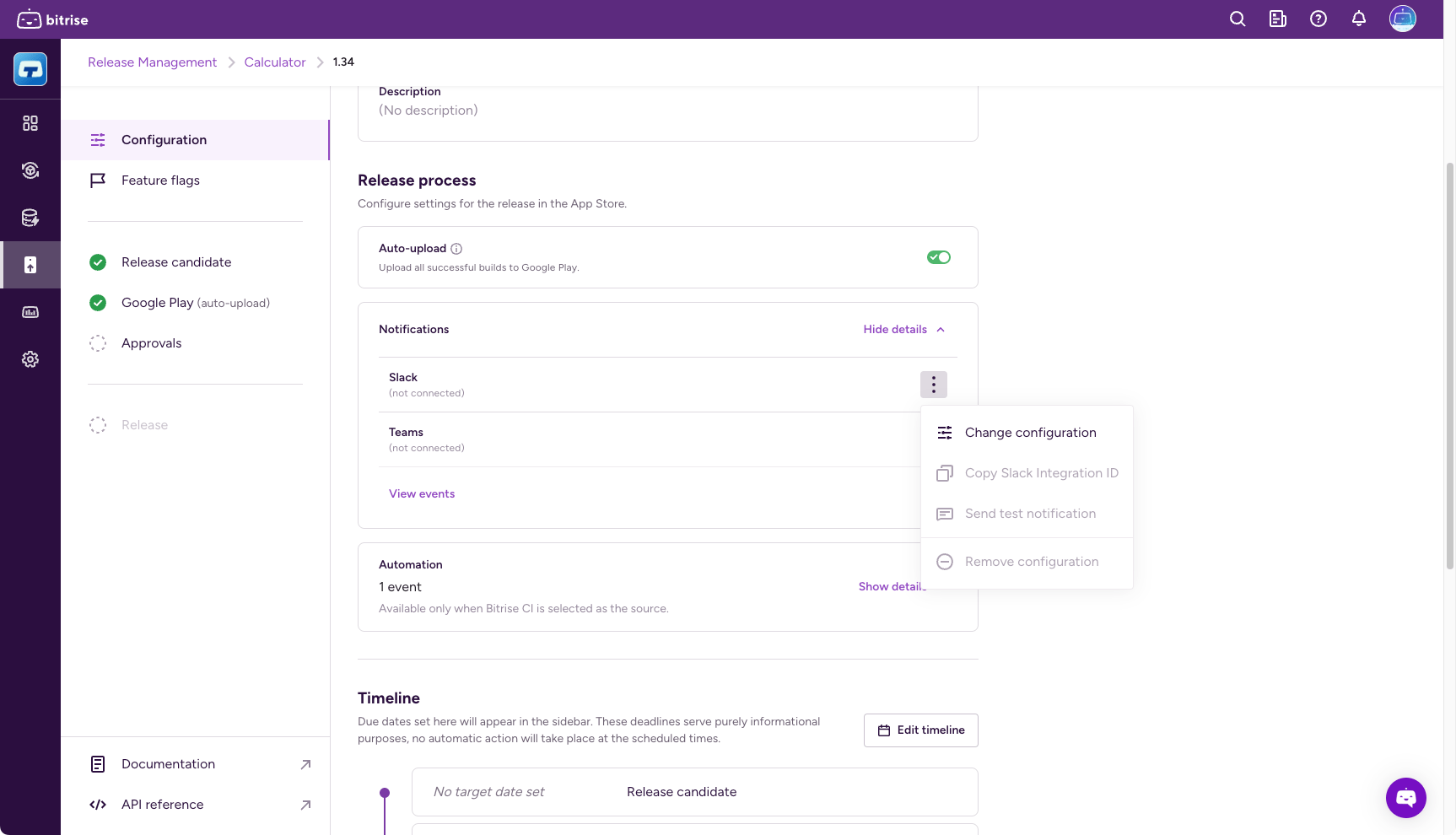
Find the Release process section and the Notifications card.
-
Click Show details.
-
Click the options menu (⋮) next to Slack.
-
Click Change configuration.
-
In the dialog, select your previously configured Slack configuration.
Test notificationClick Send test notification to make sure your configuration works.
-
Configure an incoming webhook for Teams:
-
Open Release Management, and select your app from the list.
-
Select Releases and then select the release you need.
-
Select Configuration.
-
Find the Release process section and the Notifications card.
-
Click Show details.
-
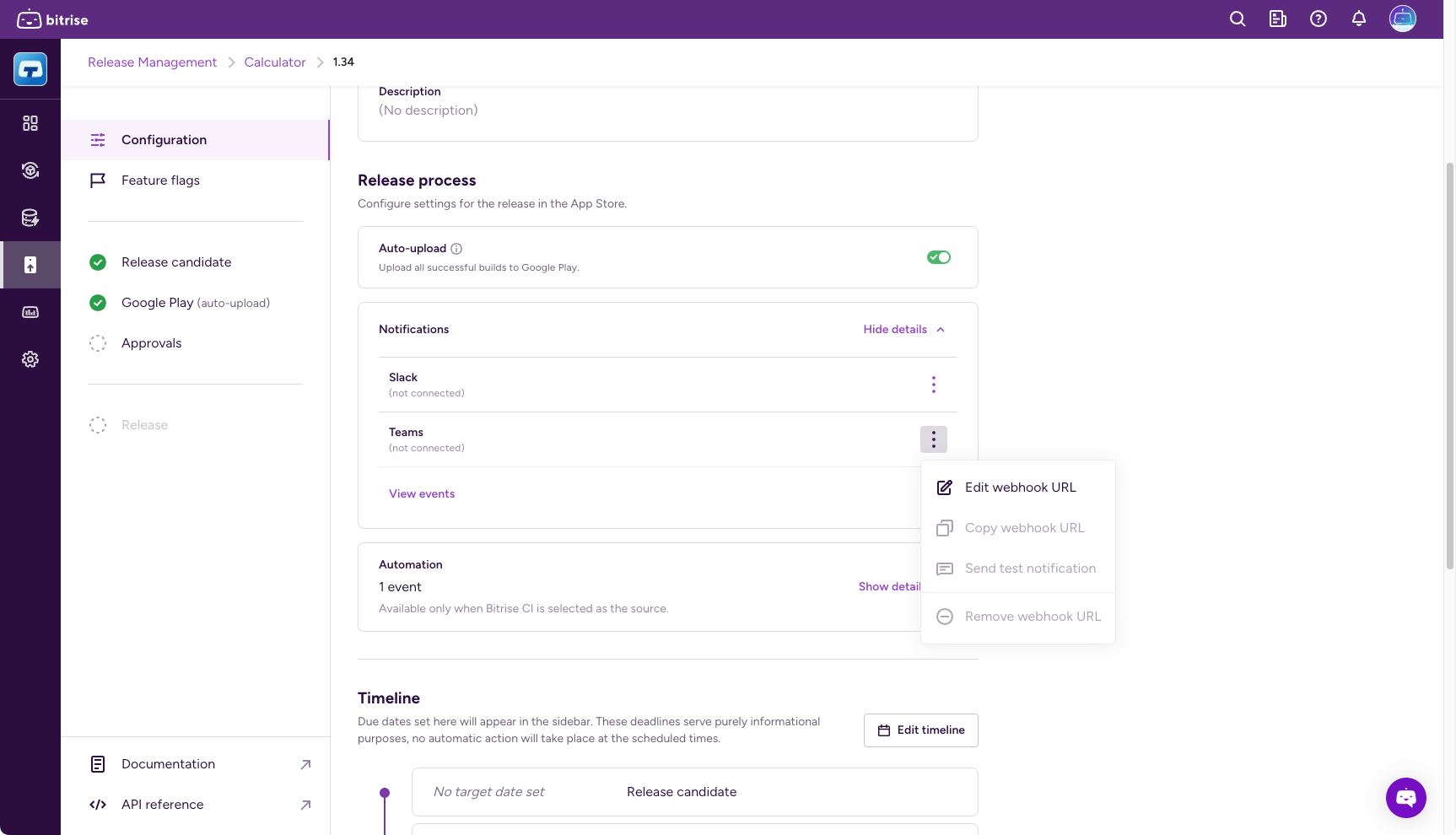
Click the options menu (⋮) next to Teams.
-
Select Edit webhook URL
-
In the dialog, copy and paste your webhook URL in the URL field and click Save.
Test notificationClick Send test notification to make sure your webhook works.
Configuring notifications as a release presetClick to copy link
You can configure notifications as part of a release preset template. These notification settings will be applied to every new release that uses the template.
- Slack
- Teams
-
Open Release Management and select your app from the list.
-
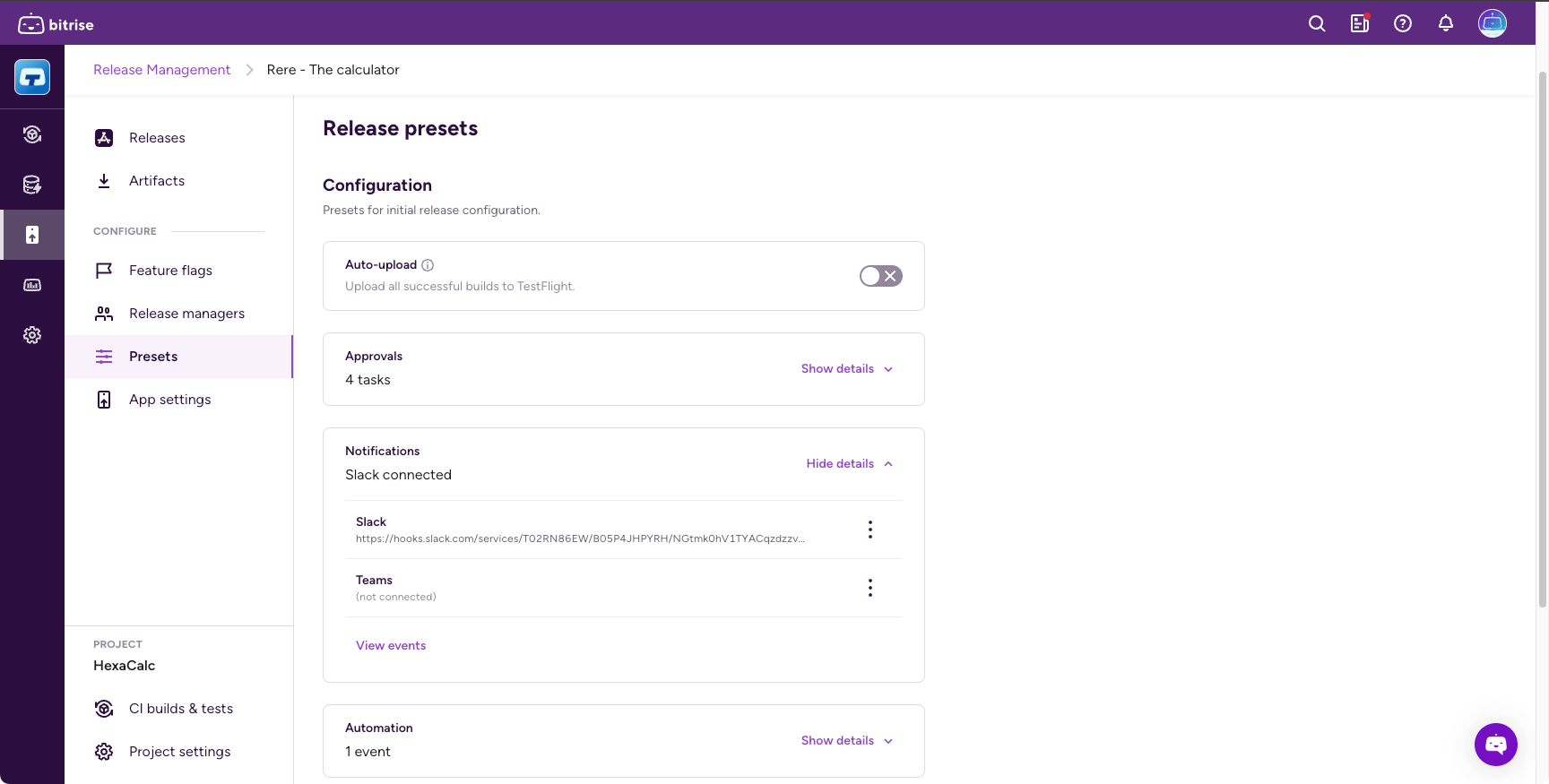
Select Release presets from the left navigation menu.
-
Click the options menu (⋮) next to the template you need, and select Change.
-
In the Notifications section, find Slack, and click the ellipsis next to its name.
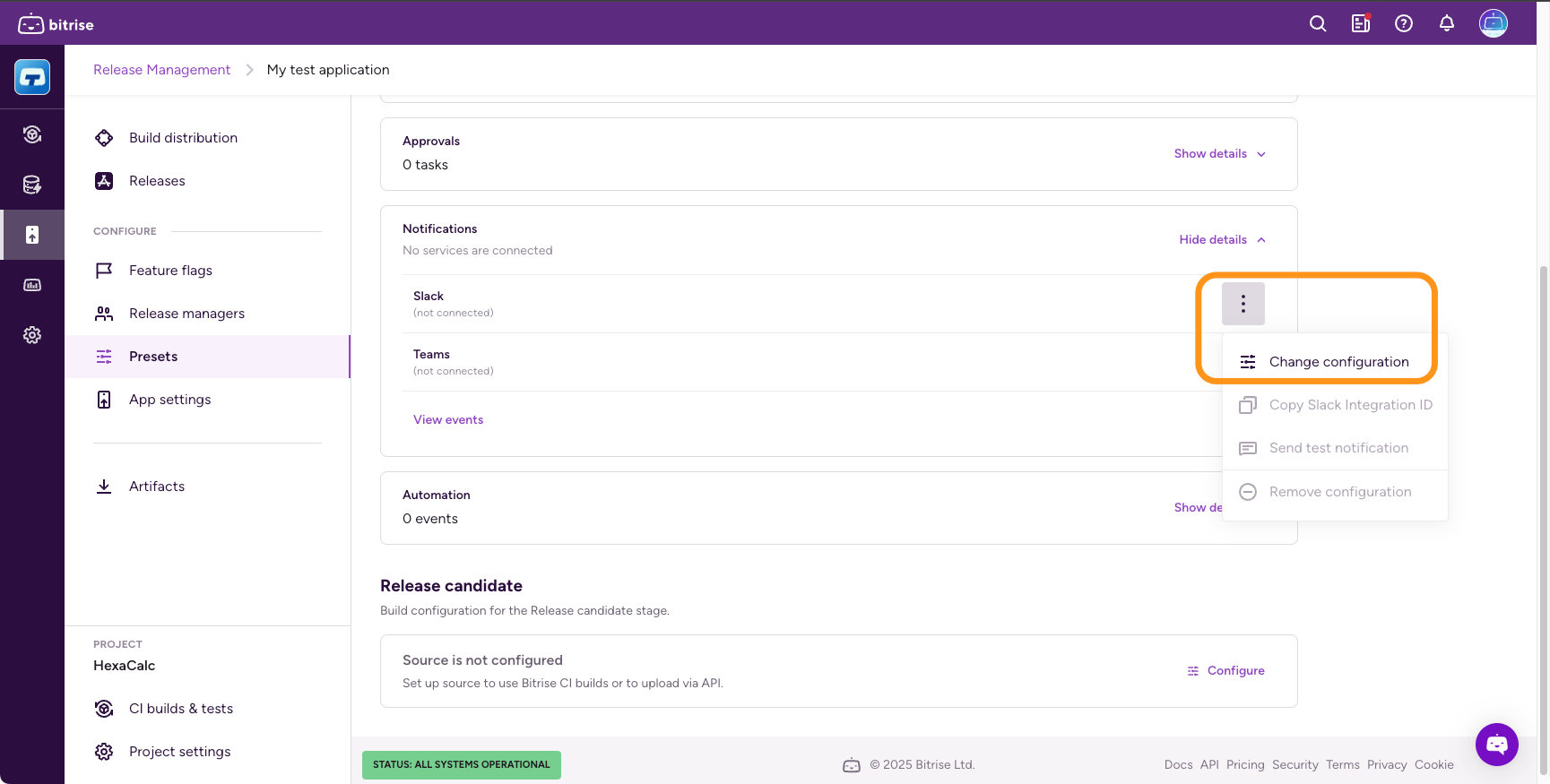
-
Click Change configuration.
-
Select your previously configured integration in the dialog.
Test notificationClick Send test notification to make sure your configuration works.
-
Configure an incoming webhook at Teams.
-
Open Release Management and select your app from the list.
-
Select Release presets from the left navigation menu.
-
Click the options menu (⋮) next to the template you need, and select Change.
-
In the Notifications section, find Teams, and click the ellipsis next to it.
-
Click Edit webhook URL.
-
In the dialog, copy and paste the webhook URL in the URL field and click Save.
Test notificationClick Send test notification to make sure your webhook works.
Notification eventsClick to copy link
| Stage | Event | Event description |
|---|---|---|
| Release candidate | Release candidate set | This event is triggered each time there is a new release candidate is selected in the Release candidate stage. This can happen automatically (a new build generated a new IPA) or manually (the release manager locks a specific artifact on the Release candidate stage). |
| TestFlight upload | Upload and processing finished | This event is triggered when TestFlight processing is finished for an uploaded IPA. First we upload the IPA to TestFlight, then the TestFlight processing starts. When the processing finishes, we trigger the event. |
| Approved by TestFlight App Review | This event is triggered when Apple approves the beta app review that is required for sharing the app with external beta testers. | |
| Rejected by TestFlight App Review | This event is triggered when Apple rejects the beta app review that is required for sharing the app with external beta testers. | |
| Approvals | Release approved | This event is triggered when all tasks are approved at the Approval stage. It will not be triggered for each approval, only when all tasks are done. If there are no approval tasks set, the event will trigger immediately after the previous event. |
| App Store review | Release sent for review | This event happens when the store review submission starts. (Release Manager clicks on the submit button, and Apple accepts it) |
| Status of review submission changed | This event is triggered each time there is a change in the status of the review submission. (Approved, rejected, canceled) | |
| Release | Release started | This event is triggered after the submission was accepted, and the release rollout started (so the new version becomes available in App Store Connect) |
| Release finished | This event is triggered when the release gets a completed status in Release Management (which means the release is fully rolled out to Google Play or the App Store.) |
| Stage | Event | Event description |
|---|---|---|
| Release candidate | Release candidate set | This event is triggered each time there is a new release candidate is selected in the Release Candidate stage. This can happen automatically (a new build generated a new AAB) or manually (the release manager locks a specific artifact on the Release candidate stage). |
| Google Play upload | Upload and processing finished | This event is triggered after the AAB is uploaded to Google Play console and is available in the App bundle explorer. |
| Release on testing track | This event is triggered after the release candidate is released on a Google Play testing track. | |
| Approvals | Release approved | This event is triggered when all tasks are approved at the Approval stage. It will not be triggered for each approval, only when all tasks are done. |
| Release | Release started | This event is triggered when a release is started. It can be a full release or a staged rollout. For a staged rollout, it only happens once, at the first rollout. |
| Release finished | This event is triggered when release is completed in Release Management. | |
| Rollout percentage changed | This event is triggered if the rollout percentage changes from any percentage other than 0%. For example, if the rollout percentage goes from 10% to 20%. It is NOT triggered when the first rollout happens. |