Deploying and viewing test results
View your test results in one place after a Bitrise CI build. All tests will be available on the build page, even if you have multiple testing Steps in your Workflows.
View your test results in one place after a Bitrise CI build. All tests will be available on the build page, even if you have multiple testing Steps in your Workflows. Our goal is to make sure you have accessible and actionable test results on Bitrise, leading to faster time to recover from test
failures and a better overall developer experience.
Deploying test results
Deploy your test results on the build page with minimal configuration. The requirements depend on your setup:
-
Using the official Bitrise testing Steps to run tests
-
Using other Steps to run tests
Deploying results from the official Bitrise testing Steps
The supported testing Steps are the following:
-
Android Unit Test: Running Android unit tests.
-
Android Instrumented Test: Running instrumented tests for Android apps.
-
Xcode Test for iOS: Running unit and UI tests for iOS apps.
-
iOS Device Testing: Device testing for iOS.
-
Virtual Device Testing for Android: Device testing for Android.
-
Flutter Test: Testing Flutter apps.
If you use any of these Steps, make sure you have the Deploy to Bitrise.io Step in your Workflow. Bitrise will automatically deploy your test results to the build page.
Attachments and flaky tests
If your tests generate attachments or you want Bitrise to show flaky tests, the Deploy to Bitrise.io Step must be of version 2.19.1 or newer.
Deploying results from other Steps
If you run your tests using other Steps (for example, you can use Script Steps for a fully custom testing solution), you need some additional configuration.
-
Add the Step running your tests to your Workflow.
-
Add the Export test results to the Test reports Step to your Workflow.
-
Configure the Step: Using the Export test results to Test reports Step.
-
Make sure you have the Deploy to Bitrise.io Step in your Workflow.
Attachments and flaky tests
If your tests generate attachments or you want Bitrise to show flaky tests, the Deploy to Bitrise.io Step must be of version 2.19.1 or newer.
Viewing test results
Rich HTML reporting
If you use rich HTML test reports, you can still find those on the Artifacts tab.
To view your results, open the build page and select the Tests tab. Your tests are sorted into different tabs based on their status:
-
Failed
-
Passed
-
Skipped
-
Error
-
Flaky
By default, Bitrise shows the list of failed tests. You can view test run details within each of these categories.
Click any test to check the details: the duration of the test, the output, and any attachments that the test generated. For easier debugging of failures, test reports displays attached image files in line with their associated test cases.
Supported file formats
Currently, test reports supports the following file formats for attachments:
.jpg, .jpeg, .png, .txt, .log, .mp4, .webm, .ogg
You can view flaky tests on the Flaky tab. Flaky tests are tests that sometimes fail and sometimes succeed without any changes in the code. If a test fails and then succeeds on an automatic retry, Bitrise marks the test as flaky and you can view it on the Flaky tab. It also displays the details and attachments for each retry of the test. You can find more information on how to detect flaky tests and how to quarantine them, if needed, in Detecting and quarantining flaky tests.
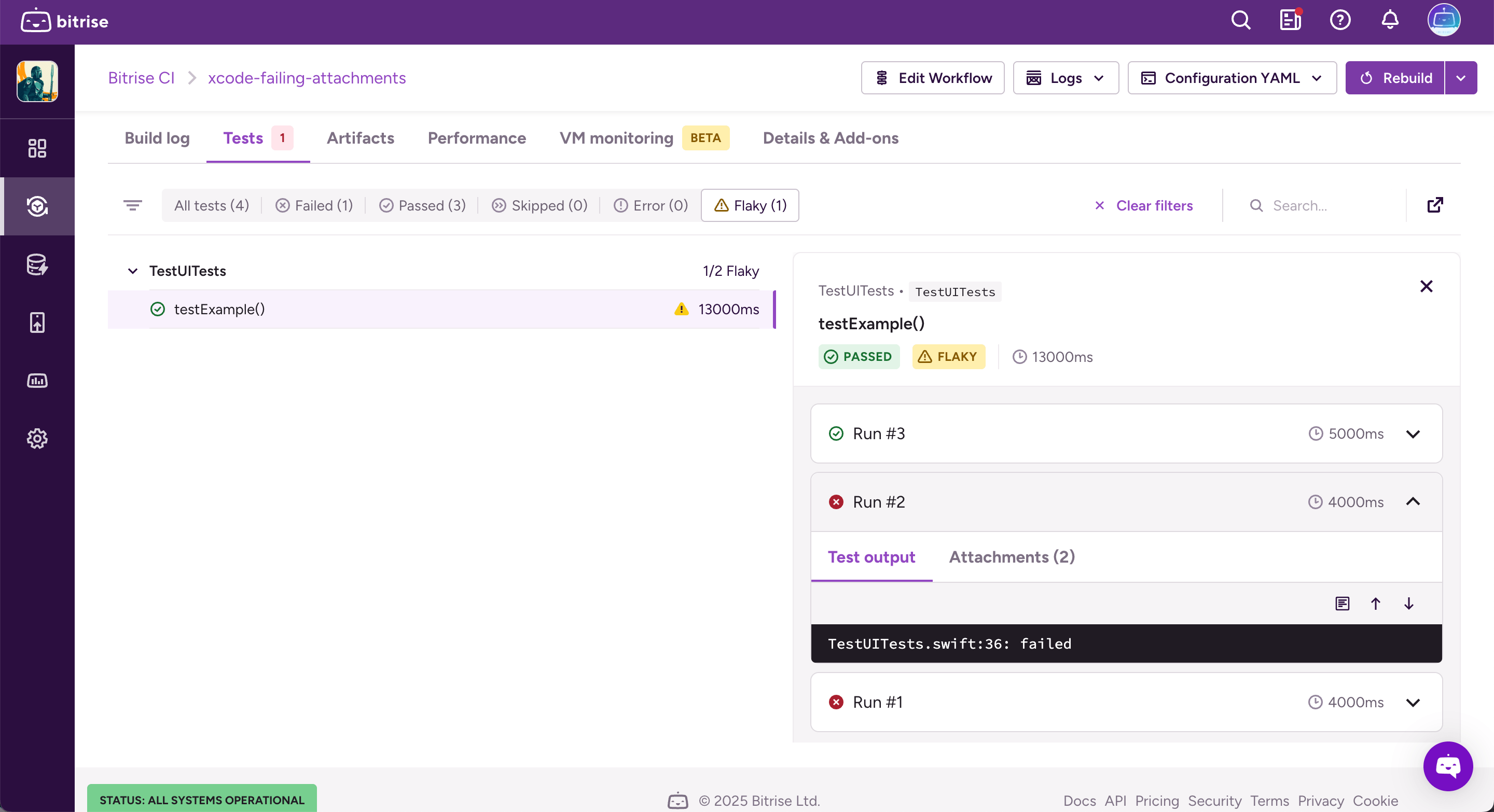
Test reports also supports the use of the system-out tag in JUnit. If a test case includes this tag, we display its contents on the Test output tab. If a test case has both a system-out tag and produces an error message, we display both.
Collating test attachments with test results
Many tests generate image files (screenshot tests, XCUITests, etc). Bitrise test reports automatically collates image files with associated test cases for Xcode tests (using the xcresult file).
Supported file formats
Currently, test reports supports the following file formats for attachments:
.jpg, .jpeg, .png, .txt, .log, .mp4, .webm, .ogg
However, if your test doesn't generate an xcresult file, you can still achieve the same thing by generating a JUnit XML file and using Bitrise Steps:
Workflow Editor
Configuration YAML
-
Generate a
JUnit.xmlfile from your tests.The general file structure should look something like this:
<?xml version="1.0" encoding="UTF-8"?> <testsuites time="15.682687"> <testsuite name="Tests.Registration" time="6.605871"> <testcase name="testCase1" classname="Tests.Registration" time="2.113871" /> </testsuite> </testsuites> -
Add a
<properties>element to associate an attachment with atestcase.The
nameattribute of the element must be set with a valueattachment_#where#is the ordered index of the attachment file, and the value is the filename. Bitrise will show attachments for any test with the attachment properties, but it's most common to only attach screenshots to failed tests. Mark a test as failed with a<failure>element.<testcase name="testCase1" classname="Tests.Registration" time="2.113871" /> <failure message="Assertion error message" type="AssertionError"> Call stack printed here </failure> <properties> <property name="attachment_1" value="pp1.jpg" /> <property name="attachment_2" value="pp2.jpg" /> </properties> </testcase> -
Add the Export test results to Test Reports Step to your Bitrise Workflow. It should be version 1.1.0 or higher.
-
Set a test name in the The name of the test input.
-
Set the path to your JUnit XML file in the Test result search pattern input.
-
Add the Deploy to Bitrise.io Step to the end of your Workflow.
You don't have to change the default input values.
-
Generate a
JUnit.xmlfile from your tests.The general file structure should look something like this:
<?xml version="1.0" encoding="UTF-8"?> <testsuites time="15.682687"> <testsuite name="Tests.Registration" time="6.605871"> <testcase name="testCase1" classname="Tests.Registration" time="2.113871" /> </testsuite> </testsuites> -
Add a
<properties>element to associate an attachment with atestcase.The
nameattribute of the element must be set with a valueattachment_#where#is the ordered index of the attachment file, and the value is the filename. Bitrise will show attachments for any test with the attachment properties, but it's most common to only attach screenshots to failed tests. Mark a test as failed with a<failure>element.<testcase name="testCase1" classname="Tests.Registration" time="2.113871" /> <failure message="Assertion error message" type="AssertionError"> Call stack printed here </failure> <properties> <property name="attachment_1" value="pp1.jpg" /> <property name="attachment_2" value="pp2.jpg" /> </properties> </testcase> -
Add the
custom-test-results-exportStep to your Bitrise Workflow after generating your JUnit XML file. It should be version 1.1.0 or higher.workflows: inline_attachment: steps: - generate-text-file: inputs: - file_name: junit.xml - file_content: "xml content with references to image files here" - custom-test-results-export: -
Set a test name in the
test_nameinput.- custom-test-results-export@1: inputs: - test_name: example_tests -
Set the path to your JUnit XML file in the
search_patterninput.- custom-test-results-export@1: inputs: - test_name: example_tests - search_pattern: junit.xml -
Add the
deploy-to-bitrise-ioStep to the end of your Workflow.You don't have to change the default input values. The full Workflow in your configuration YAML file might look something like this:
workflows:
  inline_attachment:
    steps:
    - generate-text-file@0:
        inputs:
        - file_name: junit.xml
        - file_content: "xml content with references to image files here"
    - custom-test-results-export@1:
        inputs:
        - test_name: example_tests
        - base_path: "."
        - search_pattern: junit.xml
    - script@1:
        inputs:
        - content: |
            #!/usr/bin/env bash
            set -ex
            set -o pipefail

            TEST_RESULTS_DIR=$(find "$BITRISE_TEST_DEPLOY_DIR" -type d -name "example_tests" -print -quit)
            cp ~/*.jpg $TEST_RESULTS_DIR
        title: Copy image files to test directory
    - deploy-to-bitrise-io@2: {}
Using the Export test results to Test reports Step
You can use the Export test results to Test reports Step to make sure your test results appear on the Tests tab, even if you use Steps that don’t automatically export their results.
With the correct configuration, the Step finds the test results in your project’s repository, and puts them in the export directory.
Screenshots and other images
The Step can only export test results, in either .xcresult or JUnit XML format. If your test results are in an .xcresult file, screenshots generated as part of the test are
included and exported to the Tests tab.
If you use the JUnit XML format, you need to export screenshots and other images using a Script Step: Exporting screenshots and other images to Test Reports. In this case, the test results themselves must be exported using the same Script Step. You cannot export screenshots and test results in separate Steps!
-
Log in to Bitrise and select Bitrise CI on the left, then select your project.
-
Click the button on the main page.
-
Add the Export test results to Test reports Step to your Workflow after the Step that runs your tests.
-
In the The name of the test input, set the name of the test run.
-
In the Path where custom test results reside input, set the path where your test results can be found.
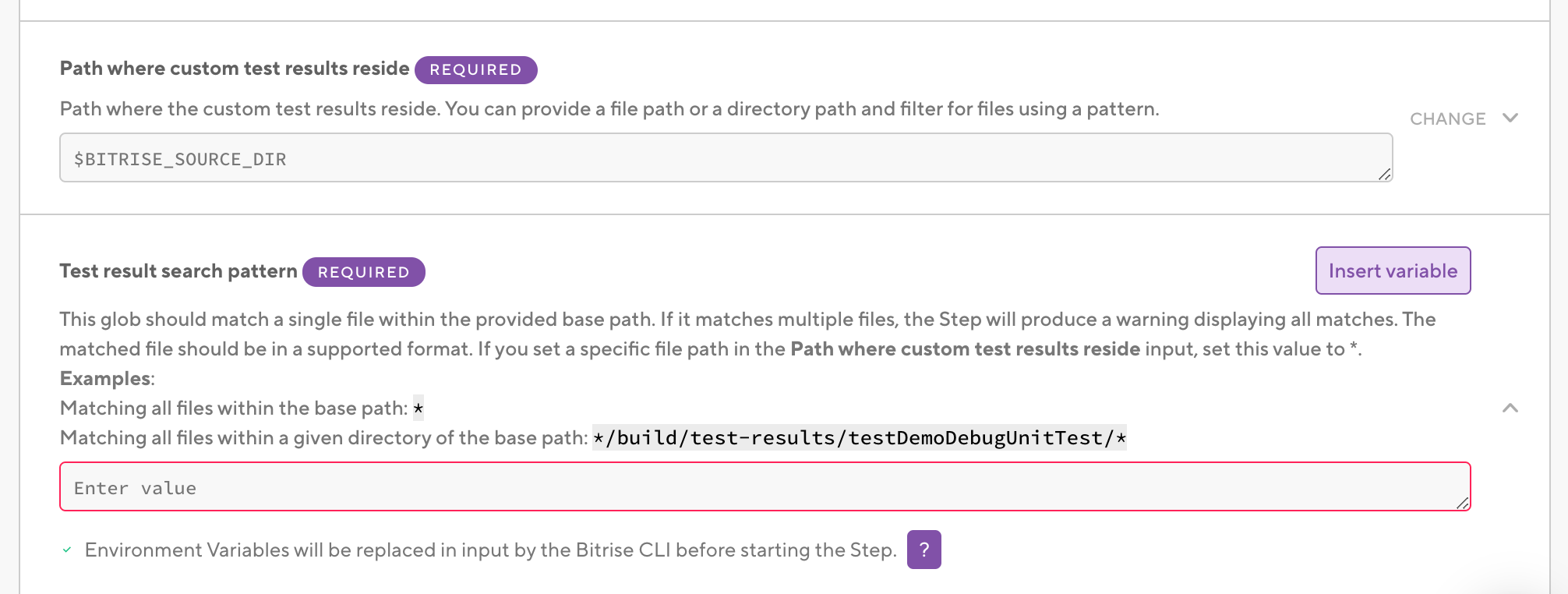
We recommend setting a folder here, though you can also set a specific filepath. The default value is the source directory of your project. Example patterns:
-
If your project’s root directory is
app:app/build/test-results/testDemoDebugUnitTest/ -
If your test results are within a project folder but
appis not the root directory: ./app/build/test-results/testDemoDebugUnitTest/
-
-
In the Test result search pattern input, set a pattern that matches your test result file.
This search pattern is used to search every file and folder of the path that was set in the Path where custom test results reside input.
If there is more than one match, the Step will export the first match with a warning in the logs. If you set a specific filepath in the previous input, just set * here.
Example patterns:
-
Matching all files within the base path:
* -
Matching all files within a given directory of the base path:
*/build/test-results/testDemoDebugUnitTest/*
-
-
In the Step’s test result directory input, make sure the path is correct.
Do NOT modify this input’s value: this is the folder where the Deploy to Bitrise.io Step will look for the test results to export them. It should be set to the
$BITRISE_TEST_RESULT_DIREnv Var. -
Make sure you have a Deploy to Bitrise.io Step in your Workflow.
If your tests generate attachments, make sure the Step is of version 2.19.x or newer.