Setting the stack for your builds
The build stack indicates the virtual machine version that Bitrise will use to run your build. You can set the stack for all your builds, or you can set Workflow-specific stacks, either in the Workflow Editor or in the bitrise.yml file.
The build stack indicates the virtual machine version that we will use to run your build. You can set the stack for all your builds, or you can set Workflow-specific stacks.
Changing machine types using the API
You can also change build machine types for all apps owned by a single user or Workspace using the API: Changing machine types in all apps at the same time.
Setting the stack in the Workflow Editor
The simplest way to configure the build stack is in the Workflow Editor. You can set both the default stack and Workflow-specific stacks.
Setting the default stack
The default stack of your app is the stack that is used if you haven't set a specific stack for a Workflow.
Project type
Note that if you change the project type on the app's Settings tab to a type that isn't compatible with your selected default stack, we'll automatically change the stack to a compatible one.
-
Log in to Bitrise and select Bitrise CI on the left, then select your project.
-
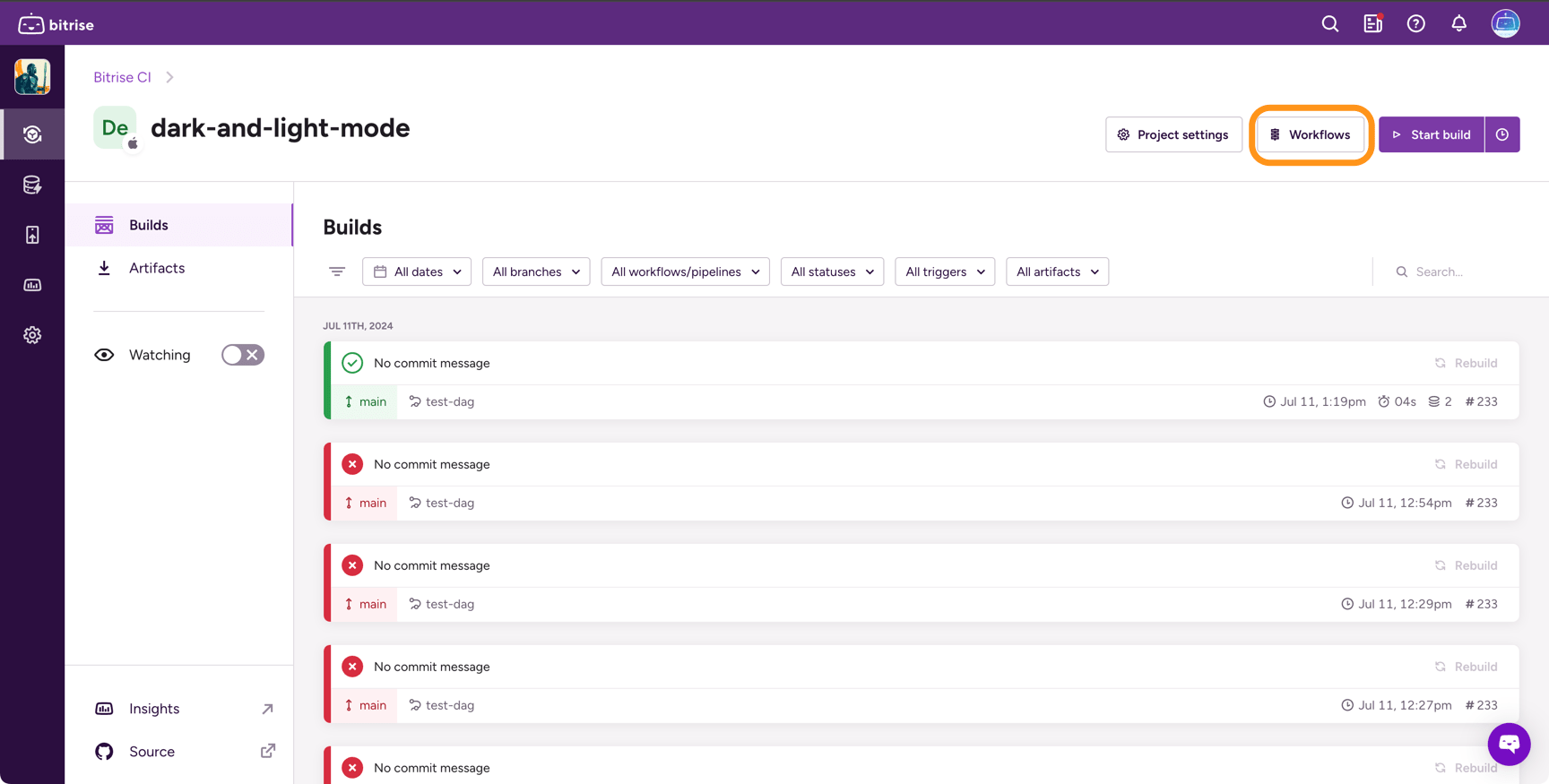
Click the button on the main page.
-
On the left, select Stacks & Machines.
-
In the Default Stack section, open the dropdown menu and select the stack you need.
-
Click in the top right corner.
Setting a Workflow-specific stack
When you set a stack for a Workflow, that Workflow will always run on that stack, regardless of the default stack.
-
Log in to Bitrise and select Bitrise CI on the left, then select your project.
-
Click the button on the main page.
-
On the left, select Stacks & Machines.
-
Scroll down to find the Workflow you need.
-
Select a stack.
-
Click in the top right corner.
Setting the machine type in the Workflow Editor
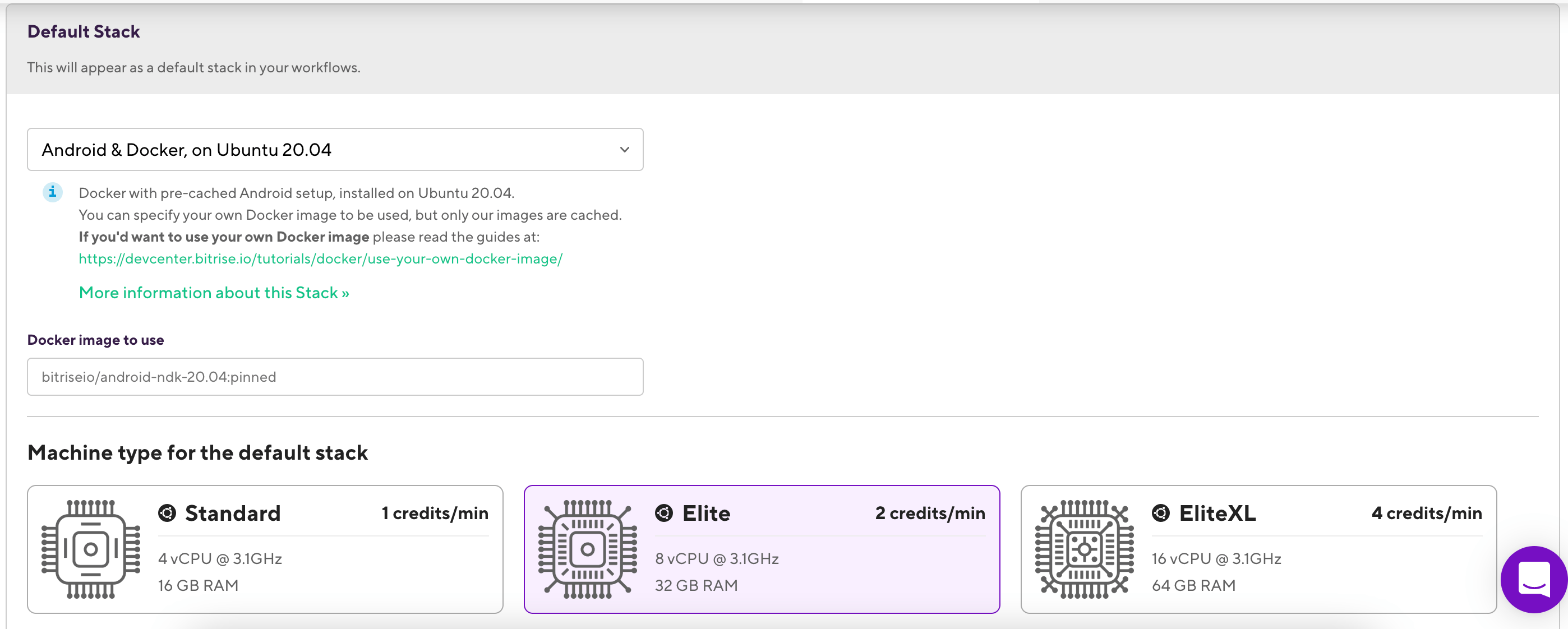
You can define the machine type you want to use for your build in the Workflow Editor. The available machine types depend on the type of stack you use: Table 1, “Bitrise build machine types”.
To set the machine type:
-
Log in to Bitrise and select Bitrise CI on the left, then select your project.
-
Click the button on the main page.
-
On the left, select Stacks & Machines.
-
In the Default Stack section, find the Machine type for the default stack section and choose a machine type.
-
Optionally, choose a Workflow-specific machine type for any Workflow that has a Workflow-specific stack set.