Managing dependencies with SPM
Swift packages are reusable components of Swift, Objective-C, Objective-C++, C, or C++ code that developers can use in their projects. Xcode uses the built-in Swift Package Manager (SPM) to support creating and publishing Swift packages and managing package dependencies.
On Bitrise, every Xcode Step can handle Swift package dependencies without any extra configuration. For example, if you wish to build an iOS app to deploy it to the App Store, the Xcode Archive & Export for iOS Step will handle installing Swift dependencies to your app.
Installing Swift packagesClick to copy link
You can easily install Swift packages for your iOS apps during a Bitrise build:
-
Make sure you have correctly configured your Swift packages in Xcode.
-
Add one of our official Xcode Steps to your Workflow. The available Steps are:
- Xcode Archive & Export for iOS
- Xcode Test for iOS
- Xcode Build for testing for iOS
- Xcode Build for Simulator
Any of these Steps can handle the Swift package dependencies.
Caching Swift packagesClick to copy link
With key-based caching, you only need the Restore SPM cache and the Save SPM cache Steps to cache your Swift packages. These Steps require no configuration as they automatically set up the cache keys needed for your dependencies.
-
Add the Restore SPM cache Step to your Workflow
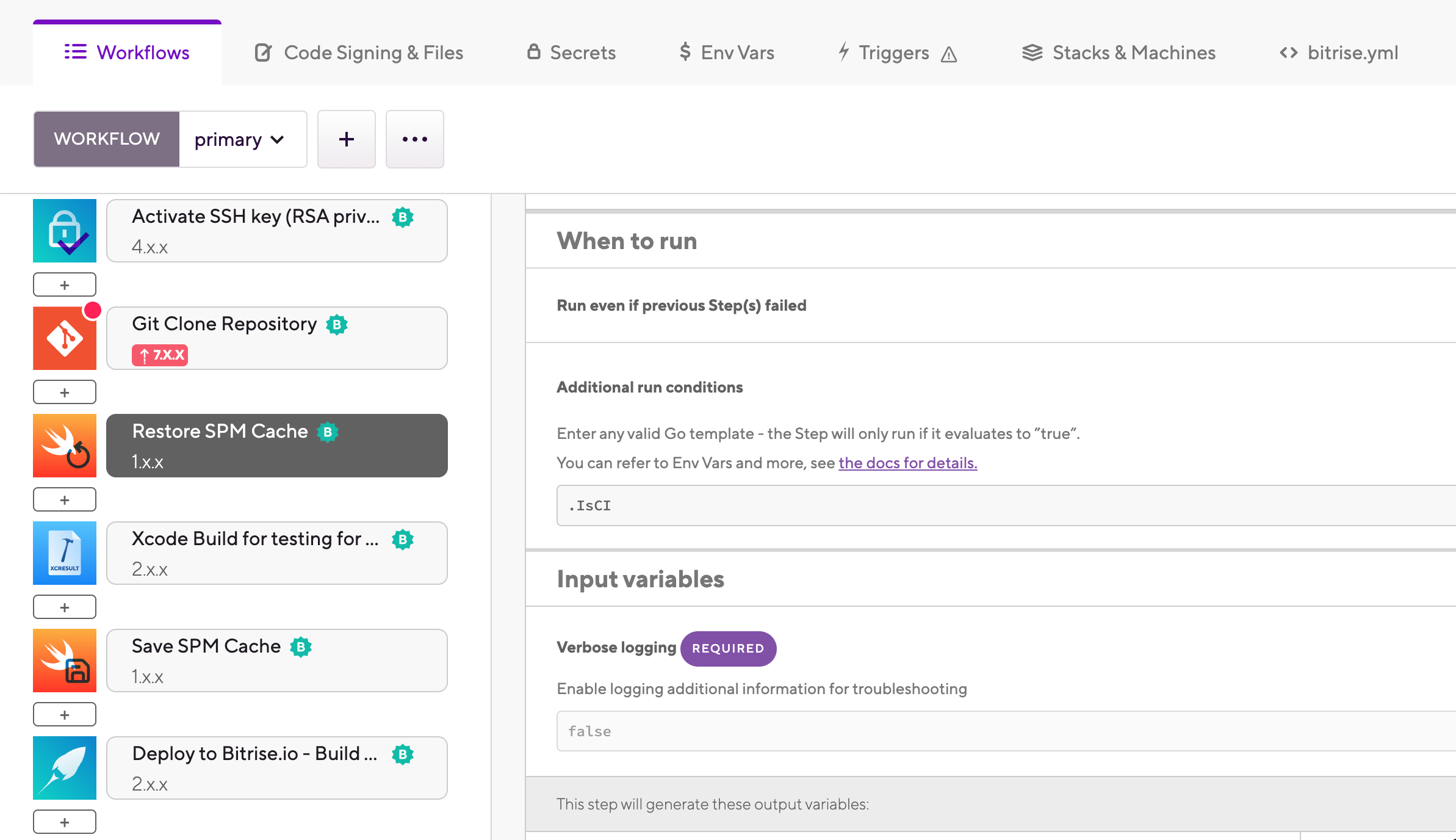
It should come before any Step that handles SPM packages in any way, such as Xcode Archive & Export for iOS.
-
Add the Save SPM cache Step to the end of your Workflow.