Service containers
Service containers are Docker containers that host services you might need to test or operate your apps during a Bitrise Workflow. The services will run in the background and the containers are cleaned up when all Steps are finished.
When defining a service container, you need:
-
The ID of the container.
-
The type of the container:
service. -
The image name and version of the service.
Getting images
You can use any public Docker image from Docker Hub.
You can then refer to the container within a Step or a Step bundle: the container will run during the execution of these Steps or Step bundles.
For detailed configuration options, check out Docker container properties.
Defining a service container
Define a service container for your Bitrise Workflows by using the container property. You can define containers either on the Workflow Editor or directly in your configuration YAML file.
When you have at least one service container defined, you can run background services during Step execution: Running a service container.
Workflow Editor
Configuration YAML
-
Log in to Bitrise and select Bitrise CI on the left, then select your project.
-
Click the button on the main page.
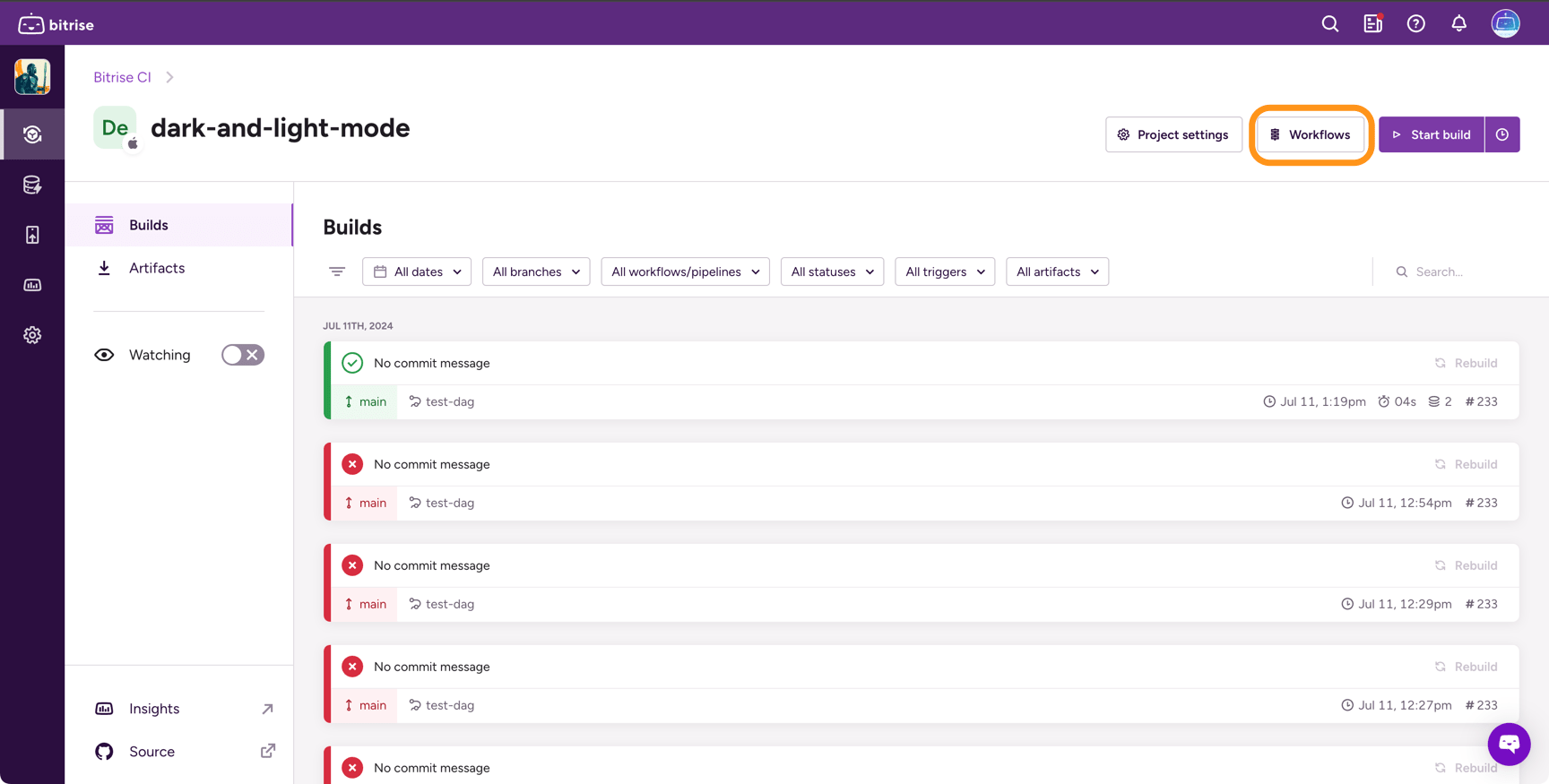
-
On the left, select Containers.
-
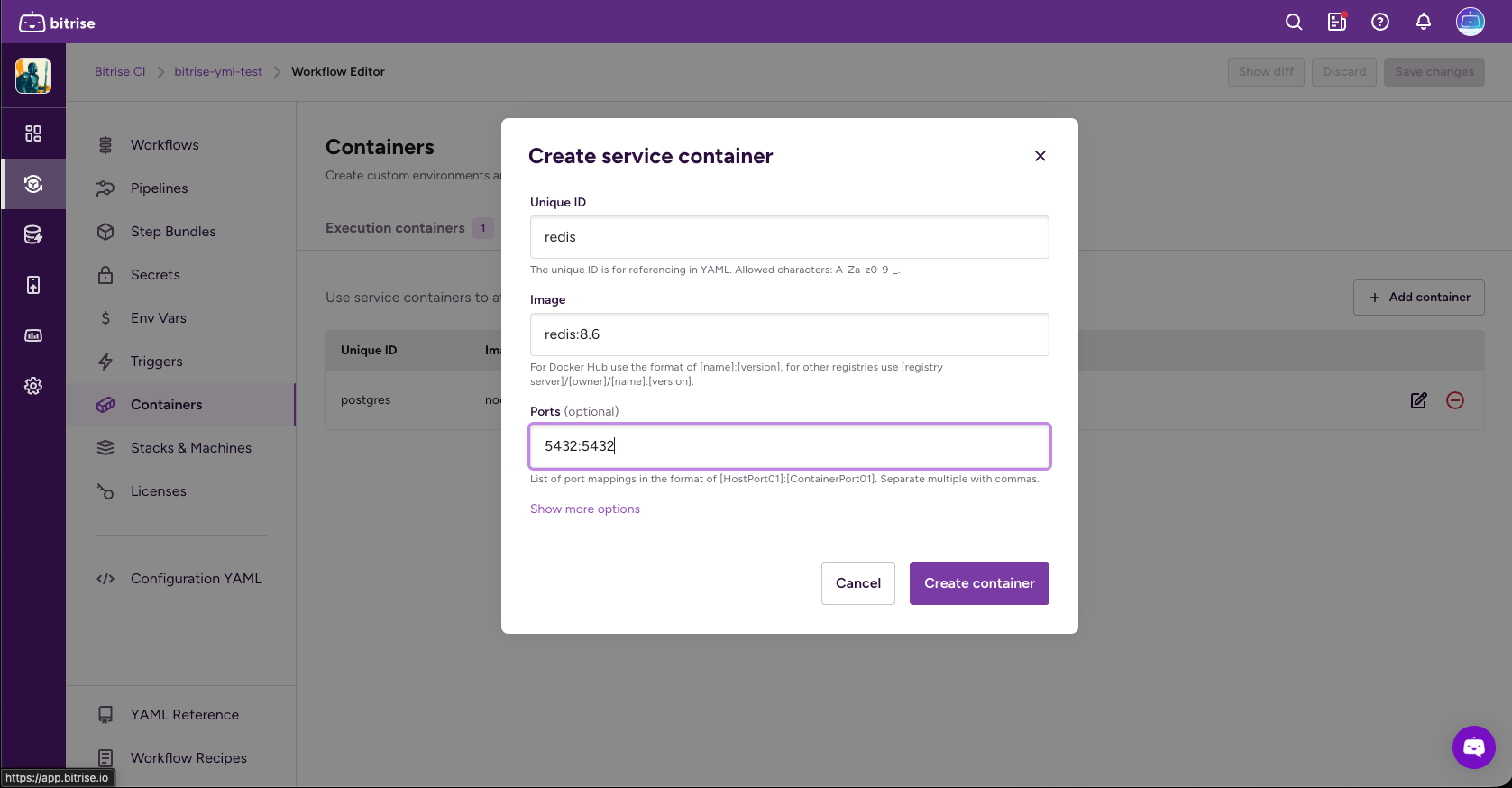
Go to the Service containers tab and then click Add container.
-
Set the required properties for the container. They are:
-
Unique ID: This ID is used to refer to the container in your configuration YAML file.
-
Image: The name and version of the Docker image. You can use any image found on Docker Hub or you can use other registries.
For a Docker Hub image, use the
[name]:[version]format. For other registries, use[registry server]/[owner]/[name]:[version].
-
-
Optionally, add port mappings in the Ports field in the
[HostPort01]:[ContainerPort01]format.Read more about port publishing and port mapping in Docker's official documentation.
-
Click Show more options to access Docker authentication credentials, Environment Variables for your container, and Docker create options.
-
Optionally, set up your Docker credentials.
The credentials are used for the
docker logincommand. You can set up:-
Registry server: It should be a fully qualified registry server URL. This is optional if the server is already part of the image reference.
-
Username.
-
Password.
Tip
You must use secrets to pass your Docker credentials to your configuration.
-
-
Optionally, add options in the Docker create options field.
These are Docker container resource options: parameters that will be passed to the
docker container createcommand.For a list of all available options, see the Docker documentation.
-
When done, click Create container.
-
Add the
containersproperty to the top level of your configuration YAML. -
Set an ID for your container.
It must be unique within the configuration. The ID is used to refer to the container in Steps or Step bundles.
containers:
  postgres:
-
Set the required properties for the container. They are:
-
The name and version of the Docker image, in a
name:versionformat. You can use any image found on Docker Hub. -
The container type:
service.
containers: postgres: type: service image: postgres:16 -
-
Optionally, set up a port mapping in a
[HostPort01]:[ContainerPort01]format.Read more about port publishing and port mapping in Docker's official documentation.
containers: postgres: type: service image: postgres:16 ports: - 5432:5432 -
Optionally, set up your Docker credentials.
The credentials are used for the docker login command. You can set up:
-
A server. This is optional if the server is already part of the image reference.
-
A username.
-
A password.
Tip
We recommend using secrets to pass your Docker credentials to your configuration.
containers: postgres: type: service image: postgres:16 credentials: username: $DOCKER_USERNAME password: $DOCKER_PASSWORD server: us-central1-docker.pkg.dev -
-
Optionally, use the
optionsproperty to configure additional Docker container resource options: parameters that will be passed to thedocker container createcommand.In this example, the service is configured to have healthchecks.
containers:
  postgres
    type: service
    image: postgres:16
    options: >-
      --health-cmd pg_isready
      --health-interval 10s
      --health-timeout 5s
      --health-retries 5
For a list of all available options, see the Docker documentation.
Running a service container
You can run service containers during the execution of a Step or a Step bundle. Refer to the containers in the Step or Step bundle configuration to run the defined services in the background during Step execution.
You can:
-
Refer to the containers in a Step or a Step bundle within a Workflow. When that Workflow runs, the referred container will run background services.
-
Refer to the containers in the Step bundle definition. When that Step bundle is added to the Workflow, it will run those service containers.
Container nesting
You can define containers on different levels: Steps and Step bundles both support their own container configuration. This creates a hierarchy between different levels. For the principles governing the hierarchy, see Container nesting rules.
Workflow Editor
Configuration YAML
-
Open the Workflow Editor.
-
Select a Step or a Step bundle in a Workflow.
Alternatively, you can select Step Bundles on the left navigation menu and set containers in the Step bundle definition. The subsequent Steps are the same.
Bundle definition
By default, the Step bundle will run all service containers defined in the bundle definition. You can add additional service containers to the bundle in any Workflow.
-
Select Containers.
-
Under Service Container, click Add container and select a container from the menu.
You can add multiple containers.
-
If your service container is already running but you want to run the services in a clean instance of the container, check the Recreate container option.
By default, the Step or Step bundle will use an already running container if there is one.
-
Add the
service_containersproperty and the container name to the Step or Step bundle you need. You can add multiple service containers using YAML array syntax.Add service containers to a Step:
workflows:
  ci:
    steps:
    - git-clone: {}
    - script:
        service_containers:
        - postgres
        - redis
Add service containers to a Step bundle:
workflows: ci: steps: - git-clone: {} - script: {} - bundle::test-bundle-id: service_containers: - postgres - redis -
If your service container is already running but you want to run the services in a clean instance of the container, set the
recreateproperty totrue.By default, the Step or Step bundle will use an already running container if there is one. Use the property to change the default behavior.
workflows:
  ci:
    steps:
    - git-clone: {}
    - script:
        service_containers:
        - postgres
    - bundle::test-bundle-id:
        service_containers:
        - postgres
            recreate: true
        - redis
Network access for service containers
Service containers are all joined to the same docker network called bitrise. This ensures that all of them are accessible from any other service container and Step execution container.
Running your own background workers
You can run your own background workers by executing the Docker commands yourself or by using something like docker-compose but make sure you use the same network.
Service containers can be used even when the Step group is not using a Step execution container. The only difference is how to access the services.
Use the <service_id> (name of the service) to access it when you are using Step execution container. For example, http://postgres:5432.
Use localhost to access your service if you are not using a Step execution container. For example, http://localhost:5432.