Disabling third-party Steps in a workspace
You can configure your workspace to only allow official Bitrise Steps in its projects.
By default, you can place any Step in your Workflows, including community Steps and custom Steps. However, you can disable third-party Steps, including:
-
Community Steps
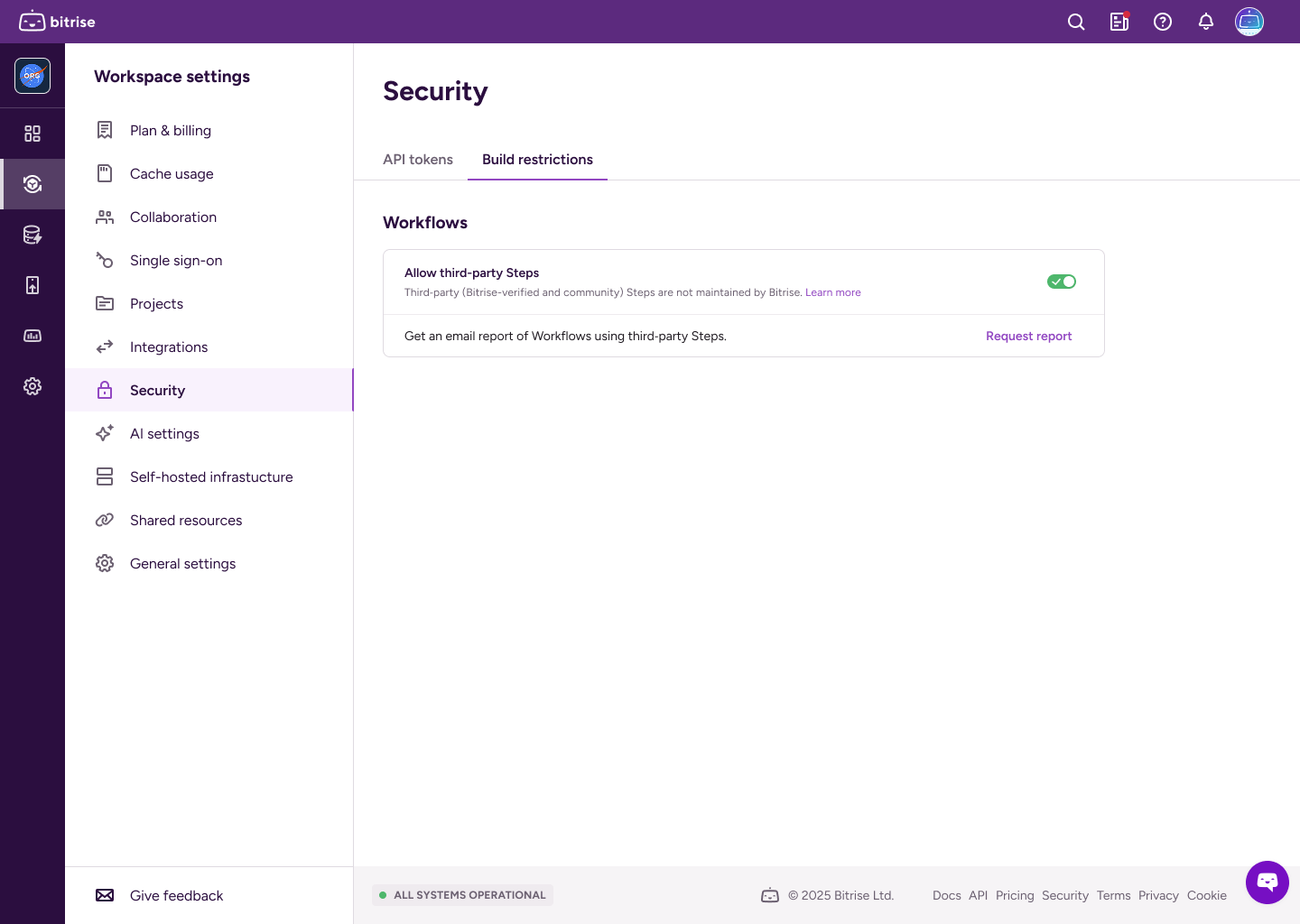
Third-party Step restrictions
If you disable third-party Steps:
-
If your configuration YAML is stored on bitrise.io, builds with third‑party Steps will start, but you can't save Workflow changes until the Steps are removed.
-
If your configuration YAML is stored in the repository, we cannot validate it and builds won’t start.
-
Script Steps are still present and can run arbitrary code, including third-party tooling.
-
When using the Workflow Editor on Bitrise, you won't be able to select third-party Steps, only Steps maintained by Bitrise.
Disabling third-party Steps
To disable third-party Steps:
-
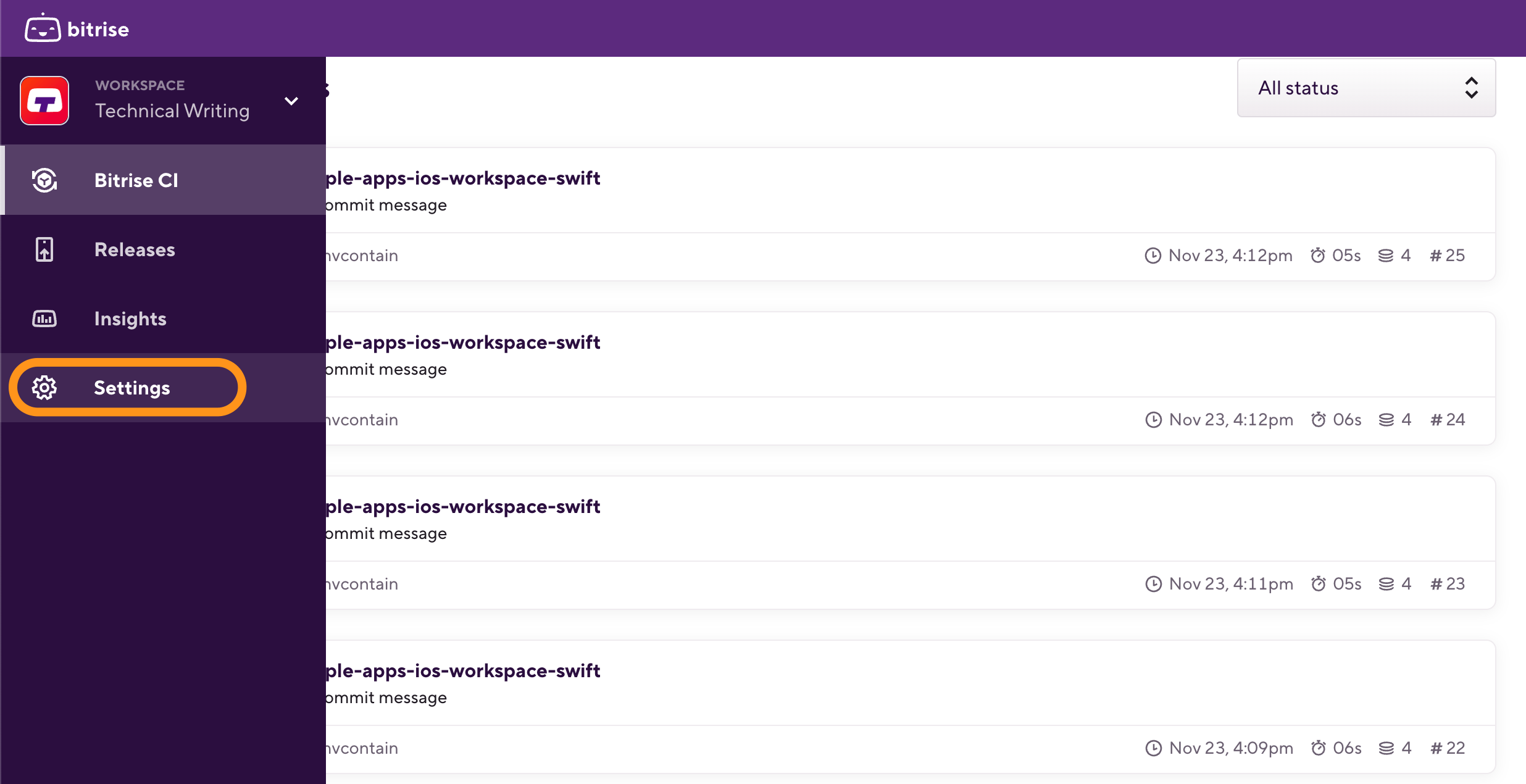
Log in to Bitrise and hover over the left navigation bar.
-
Make sure you have the right workspace selected in the Workspace menu.
-
Select Settings.
-
Select Security.
-
Select the Build restrictions tab.
-
Optionally, request a report of Workflows using third-party Steps by clicking Request report.
-
Toggle Allow third-party Steps to off.
Requesting an email report of third-party Steps
You can request a usage report of third-party Steps: it contains all occurrences of third-party Steps in all Workflows, Step bundles, and Pipelines in a CSV file, sent via email.
To request a usage report:
-
Open the Workspace settings page.
-
Select Security.
-
Select the Build restrictions tab.
-
Request a report of Workflows using third-party Steps by clicking Request report.