Configuring the Build Cache for React Native in the Bitrise CI environment
You can add the activation either through the Workflow Editor or directly in bitrise.yml.
Workflow Editor
Configuration YAML
-
Make sure you have:
-
An active Bitrise Build Cache trial or subscription. You can check your subscription status on the Bitrise Build Cache page.
-
A React Native project that already builds successfully without Build Cache (so you have a clear baseline).
-
For iOS projects: Xcode 26 or later.
-
-
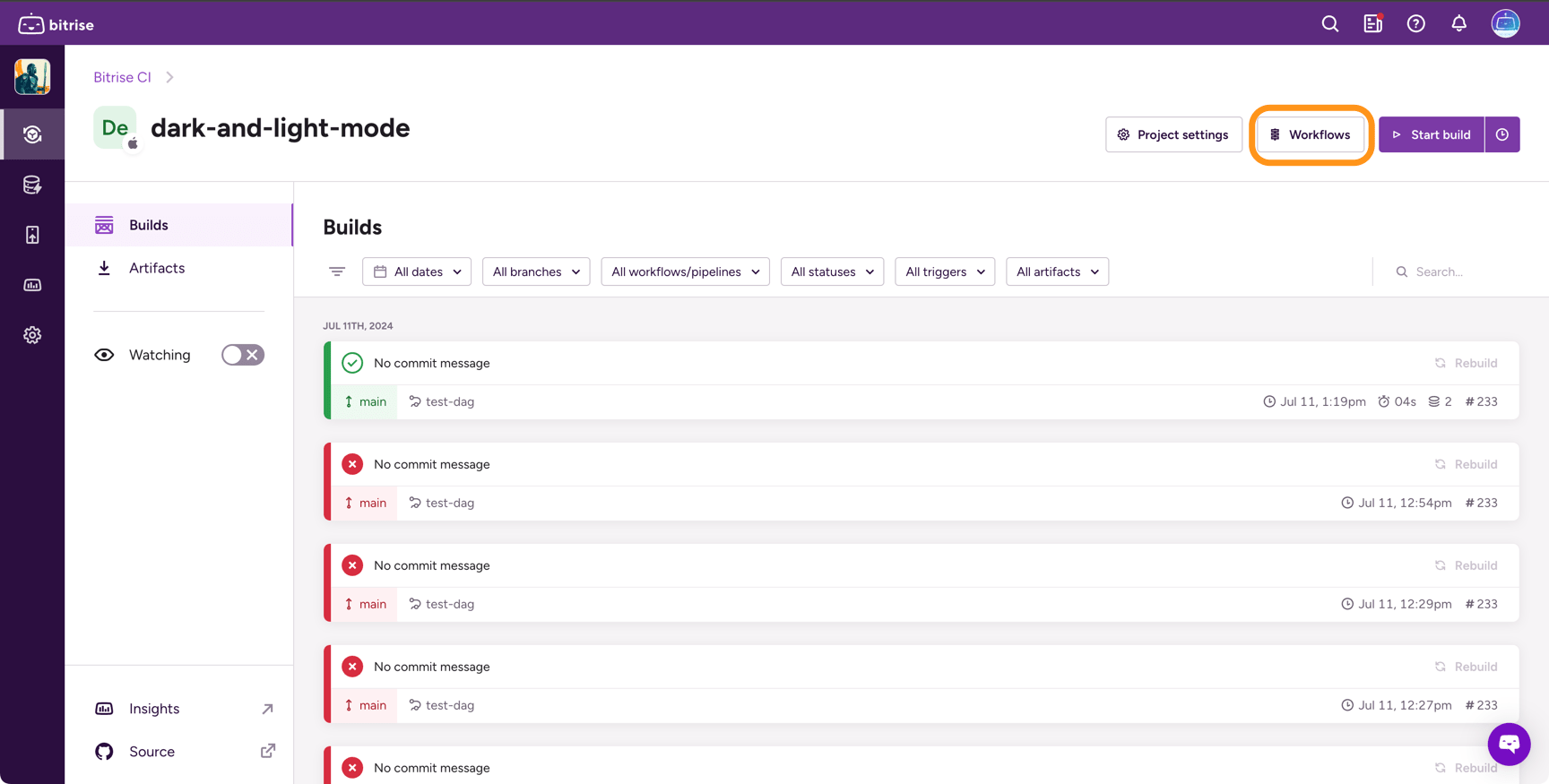
Log in to Bitrise and select Bitrise CI on the left, then select your project.
-
Click the button on the main page.
-
Select the Workflow you need.
-
Add the Build Cache for React Native step before any Step that triggers a native build.
For example, before Script Steps that run
yarn,npm,npx,expo,fastlane, or direct Gradle/Xcode commands. You can place it right aftergit-clone. -
Leave the inputs at their defaults unless you have a specific reason to change them. The step has two main inputs:
-
Enable Xcode cache: Activates Bitrise Build Cache for iOS builds. A background proxy is started automatically.
-
Enable Gradle cache: Activates Bitrise Build Cache for Android builds. C++ native modules are also cached via
ccache, with a background storage helper started automatically.
-
-
In Script Steps that invoke a native build, prefix the command with
bitrise-build-cache react-native run.Note
If you use the official Bitrise Steps Gradle Runner, Android Build, or Xcode Archive to drive your React Native build, make sure you are on the latest version: the wrapping is handled automatically and you do not need to change inputs.
For more information about wrapping, see Wrapping native build commands.
-
Save the Workflow and run a build.
-
Make sure you have:
-
An active Bitrise Build Cache trial or subscription. You can check your subscription status on the Bitrise Build Cache page.
-
A React Native project that already builds successfully without Build Cache (so you have a clear baseline).
-
For iOS projects: Xcode 26 or later.
-
-
Add the
activate-build-cache-for-react-nativeStep before any step that triggers a native build:workflows: build-react-native: steps: - activate-ssh-key@4: {} - git-clone@8: {} - activate-build-cache-for-react-native@0: {} # JS dependencies — no wrapping needed. - script@1: title: Install dependencies inputs: - content: yarn install -
Wrap commands that trigger native builds with the CLI:
Note
If you use the official Bitrise Steps Gradle Runner, Android Build, or Xcode Archive to drive your React Native build, make sure you are on the latest version: the wrapping is handled automatically and you do not need to change inputs.
For more information about wrapping, see Wrapping native build commands.
workflows: build-react-native: steps: - activate-ssh-key@4: {} - git-clone@8: {} - activate-build-cache-for-react-native@0: {} # JS dependencies — no wrapping needed. - script@1: title: Install dependencies inputs: - content: yarn install - script@1: title: Build Android inputs: - content: bitrise-build-cache react-native run npx react-native run-android --mode=release - script@1: title: Build iOS inputs: - content: bitrise-build-cache react-native run npx react-native run-ios --configuration=Release - deploy-to-bitrise-io@2: {}
Validating the setup
-
Run a build with the new configuration. The activation step should complete successfully.
-
Open the Build details page on Bitrise and check the Build Cache tab. You should see the wrapped commands listed with their cache stats.
-
The first build will report 0% cache hit rate: the cache is empty at this point. This is expected.
-
Run 1–3 additional builds to warm the cache. Subsequent builds should report a hit rate above 0%.
-
You can monitor cache performance per build and across builds on the Build Cache list page.