React Native dependencies
You can use both npm and Yarn to install Javascript package dependencies for React Native app on Bitrise. Bitrise also offers dedicated Steps to cache these dependencies.
npm and Yarn are both package managers for Node.js. They can manage the dependencies of a project, or globally installed Javascript tools. For mobile development, they are frequently used as package managers for React Native projects. If you have a React Native app on Bitrise, you can use our dedicated npm or Yarn Steps to install and cache your dependencies.
You can also install native dependencies by using the dedicated Steps: Installing native dependencies for a React Native app.
Installing dependencies with npm and Yarn
npm
Yarn
-
Make sure your project has a package.json file defined in it.
-
Add the Run npm command Step to your Workflow.
-
Set the The npm command with arguments to run to
install.You can add additional options to the install command. For example, if you need to link a library with native dependencies to your React Native project, use the
--saveor--save-devflag. For the available options, see the npm documentation.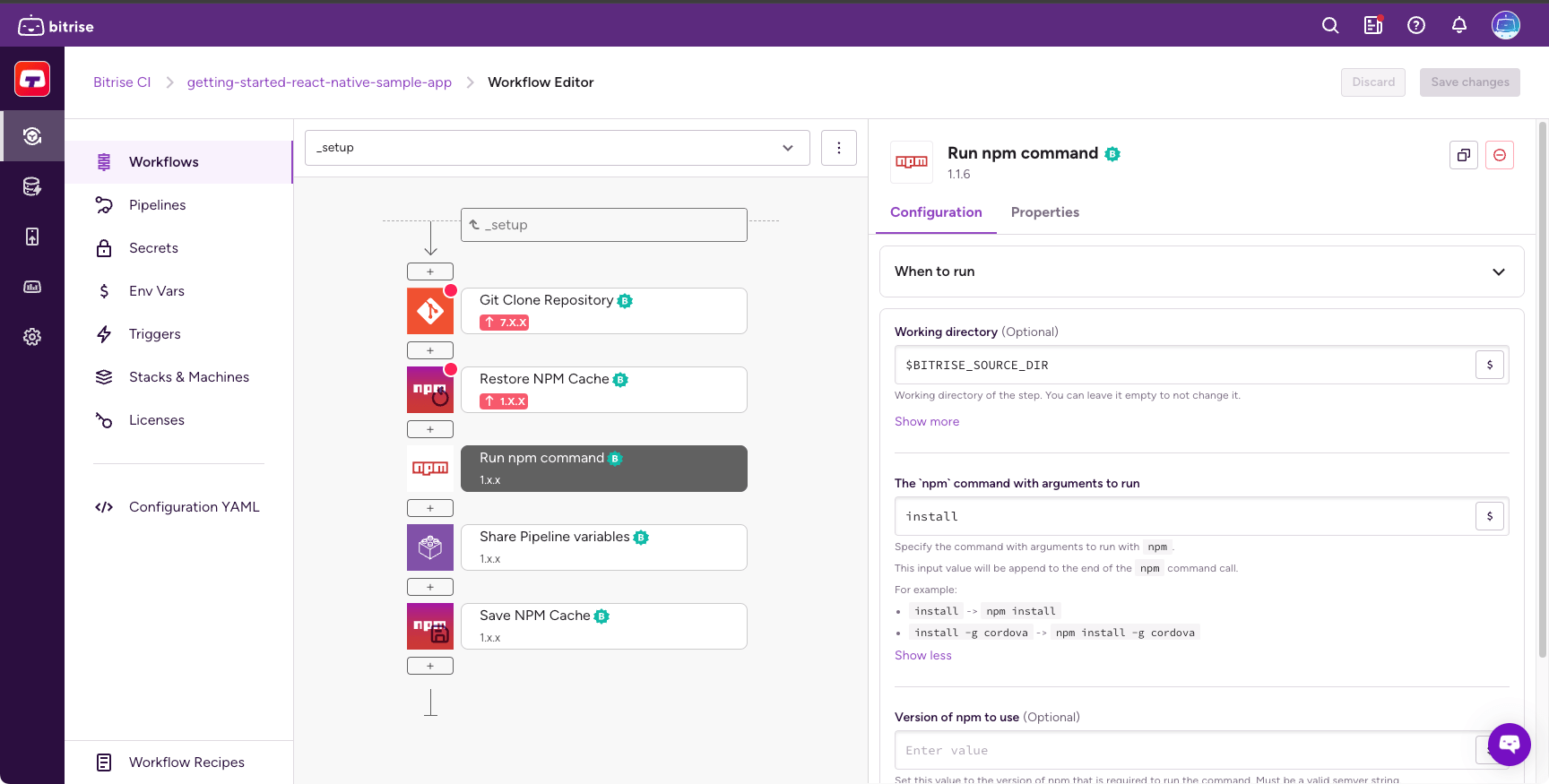
-
Optionally, you can set the npm version that will run the npm install command in the Version of npm to use input.
-
Make sure your project has a package.json file defined in it.
-
Add the Run yarn command Step to your Workflow.
-
Set the Yarn command to run to
install. -
Optionally, add arguments to the yarn command in the Arguments for running yarn commands.
You can specify multiple arguments, separated by a space.
Caching npm and Yarn dependencies
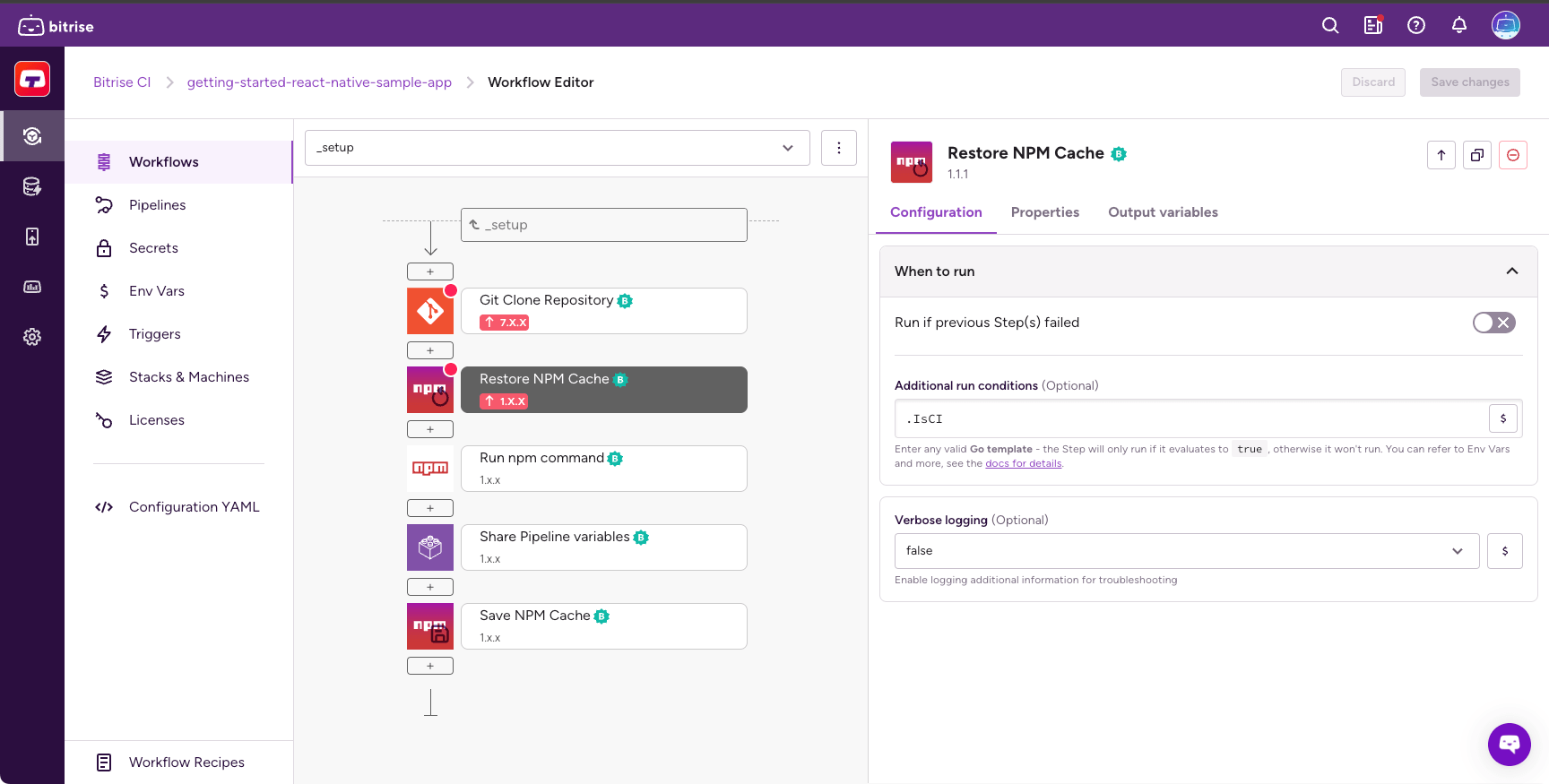
With key-based caching, you only need the Restore NPM cache and the Save NPM cache Steps to cache your node modules. These Steps require no configuration as they automatically set up the cache keys needed for your dependencies.
Setting specific cache paths
You don't have to use the default cache paths that the dedicated key-based caching Steps use. If you need to set a specific cache path, you can do so by configuring the Save Cache and the Restore Cache Steps: Using key-based caching in your builds.
-
Add the Restore NPM cache Step to the start of your Workflow.
-
Add the Save NPM cache Step to the end of your Workflow.
Installing native dependencies for a React Native app
You might need to install native dependencies that are declared in the ios and android folders. For example, CocoaPods dependencies defined in a Podfile. You can do this quite easily on Bitrise, too: once you bundle your React Native
app to be ready to build the Android and iOS binaries, you can simply use the dependency manager Steps for Android and iOS apps.
Demo app
Check out our React Native demo app for a working example. If you add the app to Bitrise, you can see that the deploy-ios-release Workflow, for example, contains both the Run npm command and the Run CocoaPods install Steps, to install both npm packages and pods: React Native demo app.
-
Make sure your Workflow installs your npm packages: Installing dependencies with npm and Yarn.
You can have a separate Workflow that is only responsible for installing npm packages, and it's inserted to run before your main Workflow: Chaining Workflows together. It can be a utility Workflow.
-
Add the React Native Bundle Step to your Workflow.
It must come after the npm packages are installed.
-
Add the required dependency manager Steps or build Steps to the Workflow. The exact Steps you need depend on the project type and the dependency manager you use: